
Back-office domain
By default your workspace lives at yourcompany.teamdock.ai. With a back-office domain you put it on your own subdomain, for example admin.yourbrand.com. Your staff then sign in on your own domain, and login emails and links use your own domain.
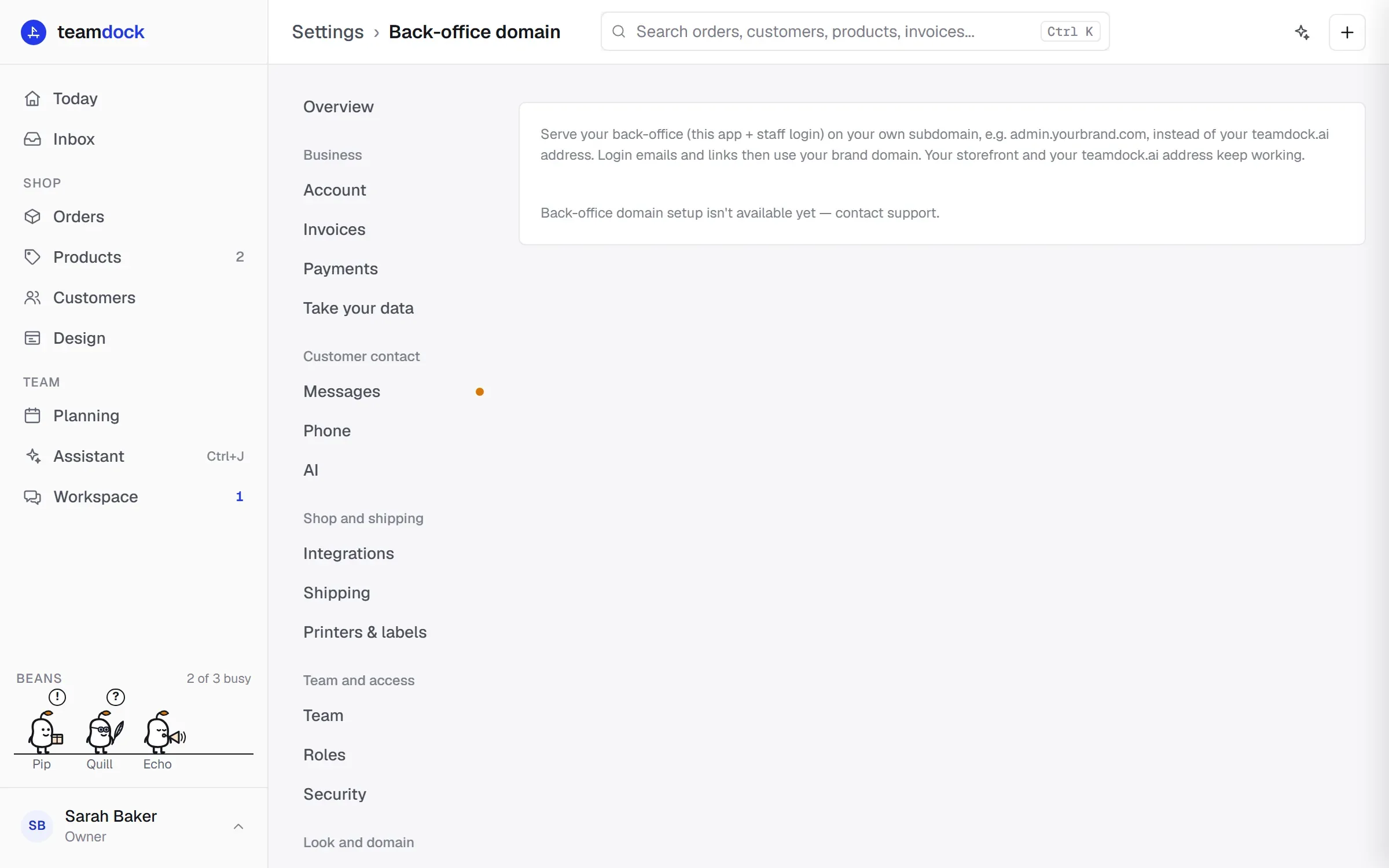
Your shop and your teamdock.ai address keep working. If instead you want your web shop on your own domain, that is a different setting: see Shop domain.
What you need
Section titled “What you need”- A domain you own, and access to its DNS settings at your registrar or DNS provider.
- A subdomain to use for Teamdock, such as
admin.yourbrand.com. The bare domain (yourbrand.com) won’t work, and neither will a teamdock.ai address.
Setting up your back-office domain
Section titled “Setting up your back-office domain”-
Go to Settings → Back-office domain.
-
Enter the subdomain, for example
admin.yourbrand.com, and click Add domain. -
Teamdock shows the DNS record you need to add. Go to your registrar and create this record:
Type Name Value A admin.yourbrand.com(many registrars only wantadmin)91.99.103.153 -
Make sure it is a direct A record (DNS-only). If your registrar has a proxy or CDN toggle, such as Cloudflare’s orange cloud, turn it off for this record.
-
Wait a few minutes for the record to become active, then click Verify & go live in Teamdock.
-
Teamdock checks the record, requests a security certificate and moves your back-office over. The status is then Issuing certificate. This can take a minute; your teamdock.ai address keeps working throughout.
-
When the status is Live, your back-office is on your own domain. Click Open back-office to see it.
What changes
Section titled “What changes”- Your staff sign in on your own domain. On a new address you have to sign in again once.
- Login emails and links in Teamdock use your own domain.
- Your old address
yourcompany.teamdock.aikeeps working as a fallback. - Your web shop does not change.
Statuses
Section titled “Statuses”| Status | Meaning |
|---|---|
| Waiting for DNS | The subdomain does not point (only) to us yet. Check the record and try again shortly. |
| Issuing certificate | The record is right; the certificate is being issued and the back-office moved over. |
| Live | Done. Staff sign in on your own domain. |
| Error — try verifying again | Something went wrong. Read the message, fix it, and click Verify & go live again. |
Moving back
Section titled “Moving back”Click Remove back-office domain and confirm. Your back-office moves back to your teamdock.ai address. You can then remove the DNS record at your registrar.
Troubleshooting
Section titled “Troubleshooting”“Not pointed at us yet”. DNS can take a while. Check that the record is spelled correctly and is an A record, wait a few minutes and try again.
The subdomain points to a different address.
Your record still points to another IP address, or your DNS provider’s proxy is on. Set the record to 91.99.103.153 and turn the proxy off.
“Back-office domain setup isn’t available yet”. Contact Teamdock support.