
Tracking page and customer e-mails
Your customer follows the shipment on a tracking page with your name, logo and colour, never Teamdock’s. They don’t need to log in: the link is the key. You can put the page on your own domain, such as track.yourshop.com, and e-mail your customer automatically when the shipment moves. The tracking page and the customer e-mails are part of every plan.
What your customer sees
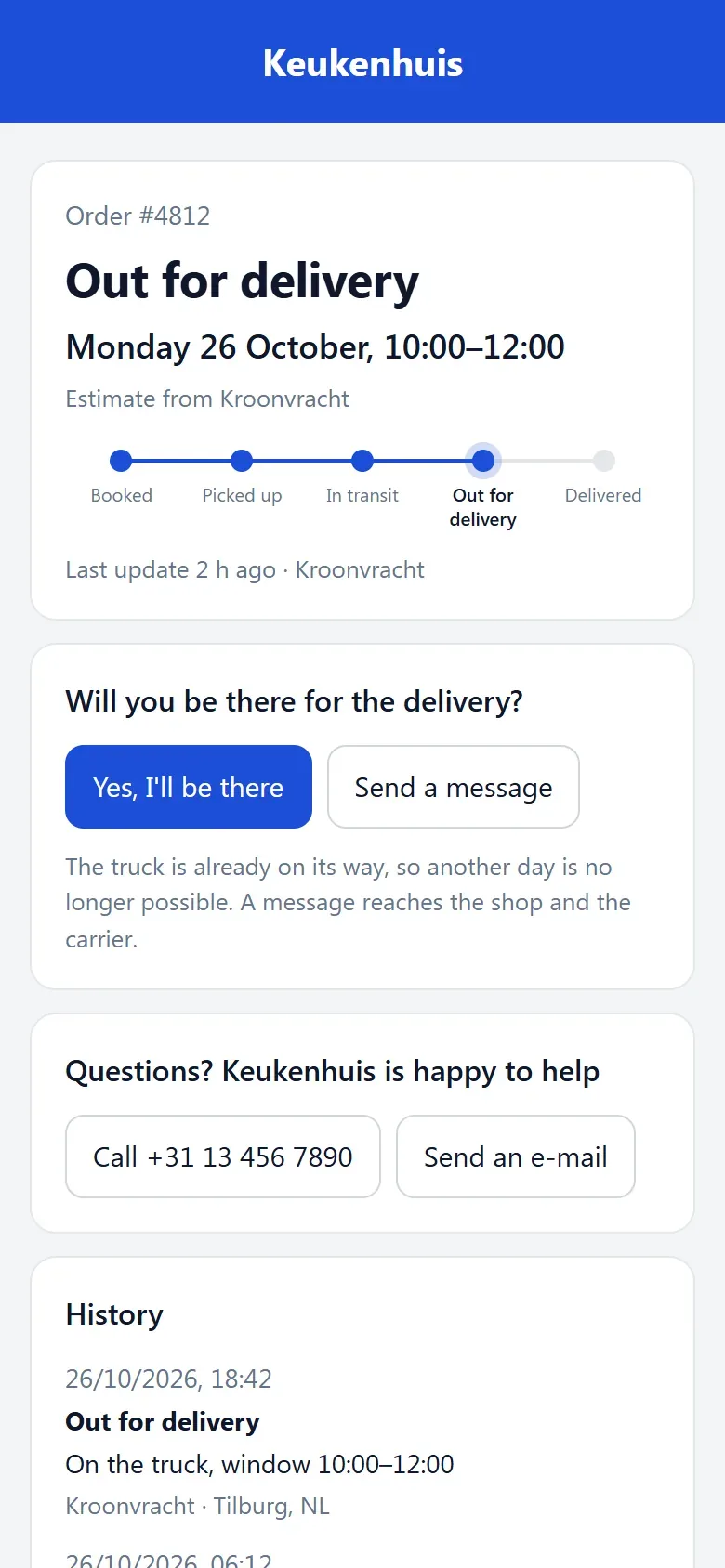
Section titled “What your customer sees”- Order #… with the carrier and the current status.
- When delivery is expected: a day, or a time window when the carrier has given one, with whose estimate it is. If the carrier has not given a day yet, the page says so plainly.
- The Progress in steps and the History: every update, with how long ago and from whom (the carrier, the driver or the customer themselves).
- No news: when the carrier has reported nothing for a while, the page says so, with the advice to contact you.
- After delivery the Proof of delivery: who received it, with a photo or signature when the driver took one. If there is no proof, the page says that too.
- A contact block with your phone number and e-mail address, if you have filled them in (see below).
The page never shows the delivery address or a GPS position.
For a Picqer shipment your customer sees that the order has been handed to the carrier, with a button to follow it further at that carrier.
Your customer can respond
Section titled “Your customer can respond”As long as the shipment has not been delivered, your customer can answer on the page:
- Yes, I’ll be there
- Another day: they pick a day that suits them. If the truck is already on its way, that is no longer possible and they can only send a message.
- Send a message: for example “unload at the back, after 2 pm”.
The answer appears in the shipment’s history (from the receiver). If a Pier carrier has an integration, Teamdock also passes the answer on to them.
Making a tracking link
Section titled “Making a tracking link”Your customer gets the link automatically in the customer e-mails. To send it yourself:
- Expand the shipment on the Shipping page or under Shipments on the order.
- Click Tracking link for customer.
- On a phone you pick an app to share it right away; on a computer the link is copied.
A tracking link works for 60 days. Each click makes a new link; older links keep working until they expire. If your customer gets This link does not work (any more), send them a new one.
Customer e-mails
Section titled “Customer e-mails”Teamdock can e-mail your customer when the shipment moves: picked up, arriving today, not home, delay and delivered, each once, with a tracking link in your own branding. With a Pier carrier your customer also gets an e-mail as soon as the shipment is booked, so they can confirm the day. It works for every carrier, DACHSER included.
- Go to Settings → Shipping → Other carriers.
- At the bottom, tick E-mail the customer when the shipment moves.
The setting applies to your whole workspace and is off by default.
Contact on the tracking page
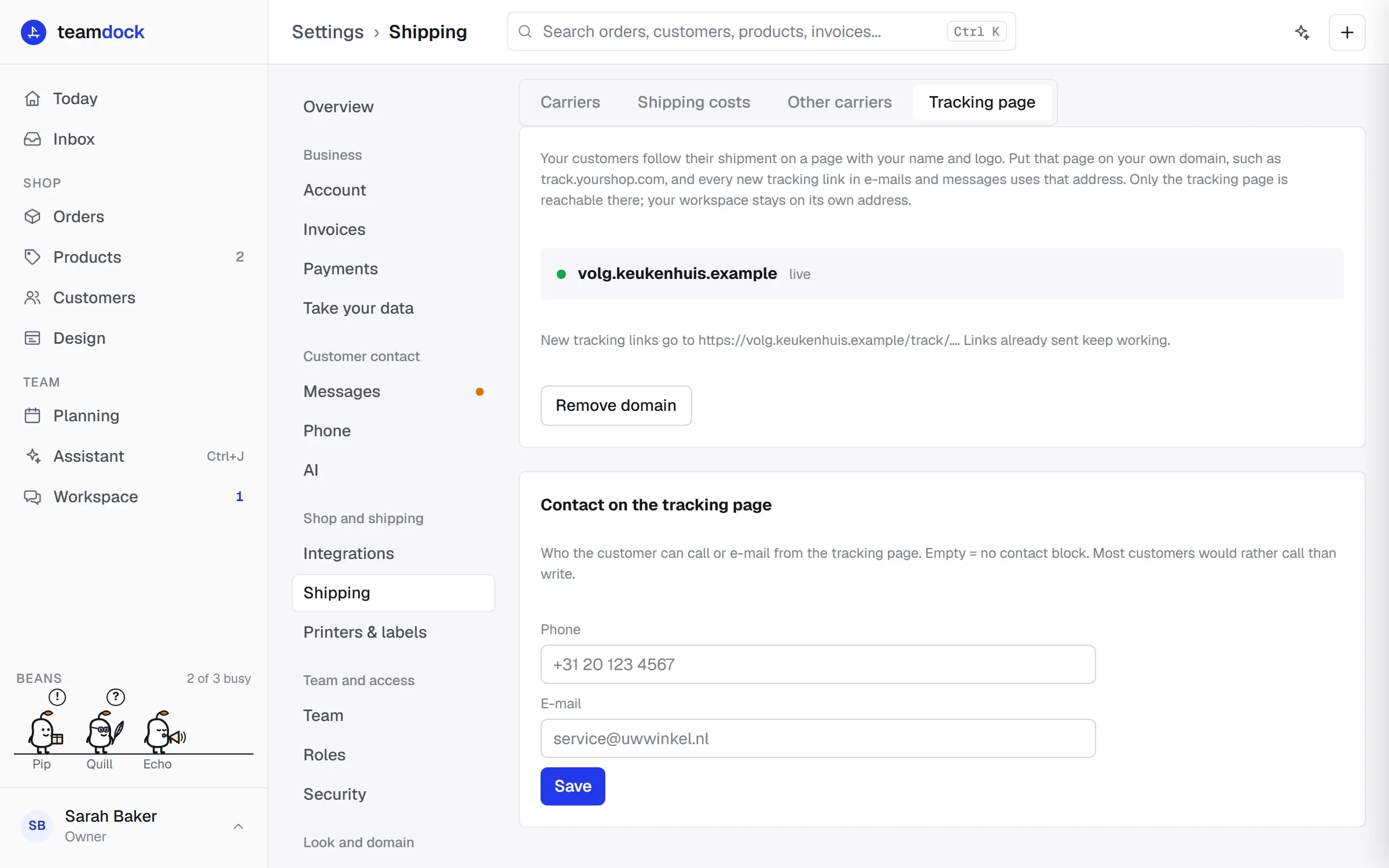
Section titled “Contact on the tracking page”- Go to Settings → Shipping → Tracking page.
- Under Contact on the tracking page, fill in a Phone and/or E-mail.
- Click Save.
If you leave both empty, there is no contact block on the page. Most customers would rather call than write.
The tracking page on your own domain
Section titled “The tracking page on your own domain”You can put the tracking page on a subdomain of your own domain, such as track.yourshop.com. Every new tracking link in e-mails and messages then uses that address. Only the tracking page is reachable there; your workspace stays on its own address and your shop stays where it is.
- Go to Settings → Shipping → Tracking page.
- Enter your subdomain, for example
track.yourshop.com, and click Add domain. - With your domain provider, create the DNS record Teamdock shows: an A record for your subdomain pointing to
91.99.103.153. - Click Verify and go live.
- Teamdock requests a certificate (usually within a minute). The domain then shows live.
Links already sent keep working. With Remove domain, new tracking links use your workspace address again, and links on your own domain stop working.
If you see An own domain for the tracking page is not available for this workspace, please contact support.