
The assistant
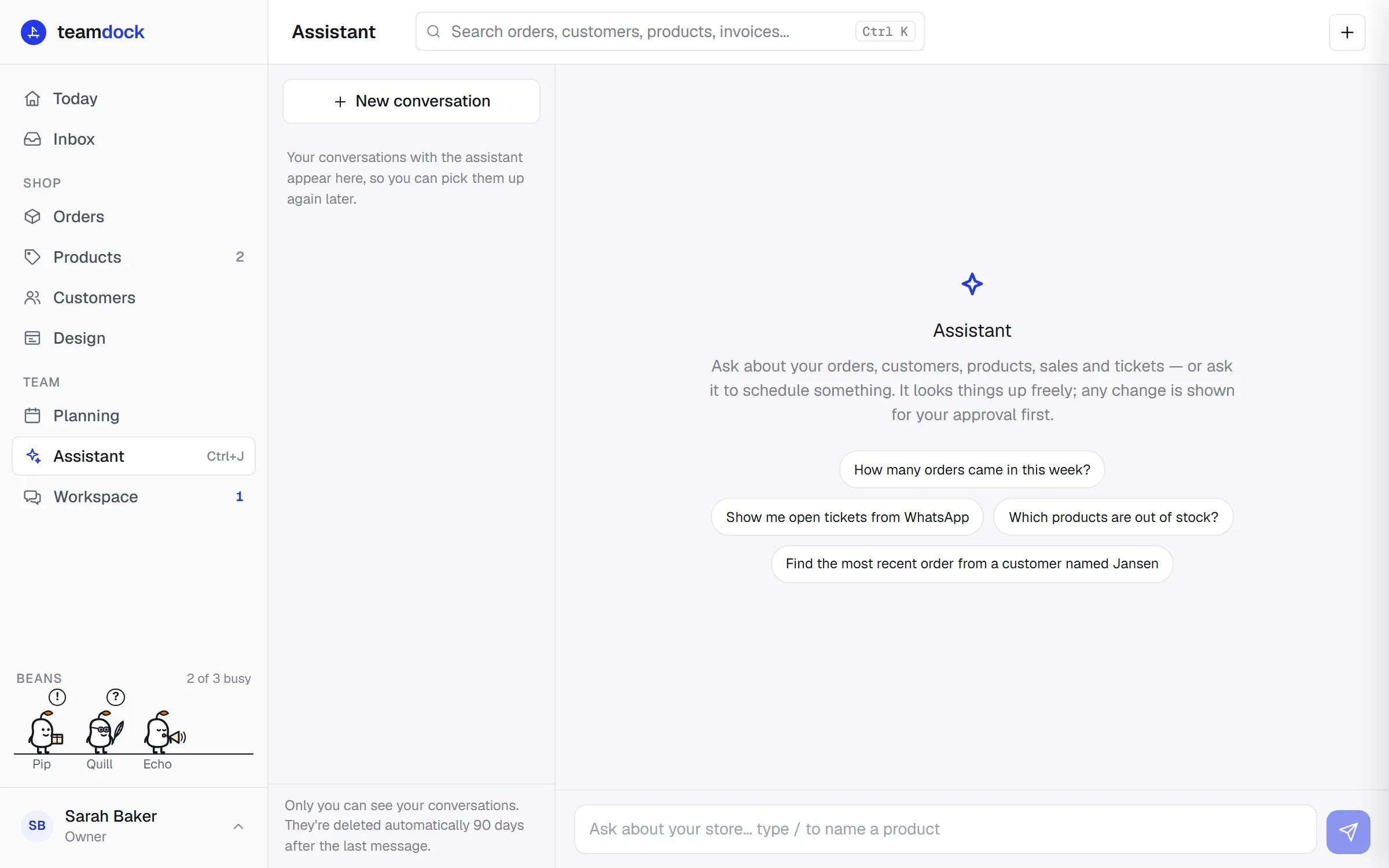
The assistant answers questions about your orders, customers, products, sales and tickets, and can arrange things for you, such as scheduling an appointment. It looks things up freely. Every change it shows you first, and it only happens when you click Approve.
Opening the assistant
Section titled “Opening the assistant”There are three ways:
- Click Assistant in the sidebar. The assistant then opens as a full page.
- Click the sparkle at the top right. The assistant then opens next to the page you are on, so you can keep looking at an order or a ticket. Open as a page turns it into a full page.
- Press Ctrl+J (on a Mac ⌘J).
Asking a question
Section titled “Asking a question”- Type your question in the text box, for example “How many orders came in this week?”.
- Want to name a specific product? Type
/and choose product, then type part of the name or the SKU and pick the product from the list. - Click Send or press Enter.
The assistant shows how many steps it took to find the answer. If it takes too long, click Stop. If an answer fails, you can Try again.
Examples
Section titled “Examples”- “Which products are out of stock?”
- “Show me open tickets from WhatsApp.”
- “Find the most recent order from a customer named Jansen.”
- “Who are our best customers this month?”
- “Put an appointment with the supplier in the agenda tomorrow at 10:00.”
What the assistant can do
Section titled “What the assistant can do”Look things up (no approval needed): search orders and customers, products and product data, tickets, sales figures and top customers, coupons, website visits, the status of an invoice, the agenda, your team and your mailboxes.
Do something (always with your approval), for example:
- create, move or delete an agenda item, and email an invite if you want;
- create a task;
- change an order’s status, duplicate an order, change an order’s items or shipping, or refund an order;
- send an invoice;
- change a ticket’s status or reply to a ticket.
The assistant can only reach what your role allows. If you may not use Invoices, for example, the assistant cannot do that for you either.
Approving or rejecting
Section titled “Approving or rejecting”When the assistant wants to change something, it shows a card with Approval needed and exactly what it is going to do.
- Click Approve to carry it out. You then see Done., or a message if it did not work.
- Click Reject if you don’t want it. Nothing is changed.
An approval is only valid for a short time. If you wait too long you see Expired. Ask again if you still want it.
Earlier conversations
Section titled “Earlier conversations”Your conversations with the assistant are kept under Conversations, grouped by today, yesterday, the previous 7 days and older.
- Click a conversation to continue it.
- Click New conversation to start over.
- Delete conversation removes a conversation. This can’t be undone.
Only you can see your conversations. They’re deleted automatically 90 days after the last message.
From a discussion
Section titled “From a discussion”In a discussion in the workspace you can give an agreed action to the assistant with Let the assistant do it. The assistant opens with the request in it, asks for your approval first, and posts the result back in the discussion. Back to the discussion takes you back. See Team chat and workspace.
AI credits
Section titled “AI credits”The assistant uses AI credits. When your workspace’s credits are used up, the assistant can’t answer until they are topped up. An administrator tops up under Settings → Payments → Subscription. See Subscription and billing.
Troubleshooting
Section titled “Troubleshooting”The assistant says it is not available. Read the message. If a limit was reached or the AI service did not respond in time, try again in a moment. If it keeps happening, contact Teamdock support.
I don’t see the assistant. Your role has no access to Assistant. Ask someone who manages roles.