
Worker beans
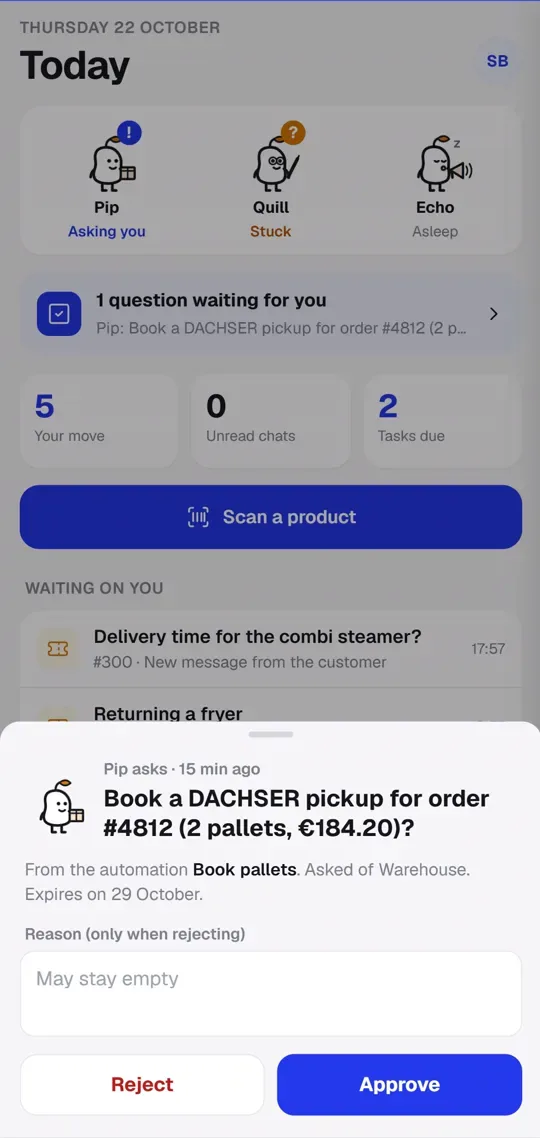
A worker bean is a worker with a name and one job, such as Logistics, Copywriting or Social media. A bean has its own automations, and you see at a glance whether it is working, stuck or waiting for an answer.
How many beans you can have
Section titled “How many beans you can have”How many beans you can make depends on your plan:
| Plan | Worker beans |
|---|---|
| Essentials | none |
| Pro | 1 |
| Max | 3, which can hand work to each other |
If you move to a smaller plan, your existing beans stay, but you cannot make new ones.
Making a bean
Section titled “Making a bean”Only someone with the level Full on Automation can make and remove beans.
- Go to Planning → Automation.
- At the top, click Add a worker bean.
- Give the bean a Name, for example Pip.
- Under Job, choose what it does: Logistics, Copywriting or Social media.
- Click Make bean.
Giving automations to a bean
Section titled “Giving automations to a bean”Open an automation and choose under Bean which bean runs it. At the top of Automation you choose per bean which automations you see, or All.
Each kind of bean has its own blocks in the editor, for example:
- Logistics: send the pick list to a chat channel, or get the freight price for an order.
- Copy: rewrite a draft’s texts in your shop’s style.
- Social: write a post about a product.
- Crew: hand work to another bean. That bean then starts with the trigger “when … hands work to this bean”.
Work instructions
Section titled “Work instructions”You can write Work instructions for a bean. They go along with that bean’s AI blocks, such as writing a post or rewriting draft texts. For example: “Write ‘used’, never ‘second-hand’.”
What a bean is doing
Section titled “What a bean is doing”Each bean shows its state:
- Working: one of its automations is running right now.
- Waiting for an answer: it asked someone for approval.
- Stuck: the last run of one of its automations failed. Click Show where to open that automation.
- Ready for work or Asleep: nothing is running.
Answering a bean’s question
Section titled “Answering a bean’s question”When a bean is waiting for an answer, you see the question at the top of Automation under Waiting for an answer, on Today and in the Teamdock app. Click Approve or Reject. When rejecting you can say why. If the question was asked of another department, you cannot answer it.
The beans in the sidebar
Section titled “The beans in the sidebar”Your beans are also shown at the bottom of the sidebar, with their state. Don’t want to see them? Click your name at the bottom left and set Bean to Off. That only changes what you see on this device.
Removing a bean
Section titled “Removing a bean”Open the bean at the top of Automation and click Remove. Its automations stay.