
Customers
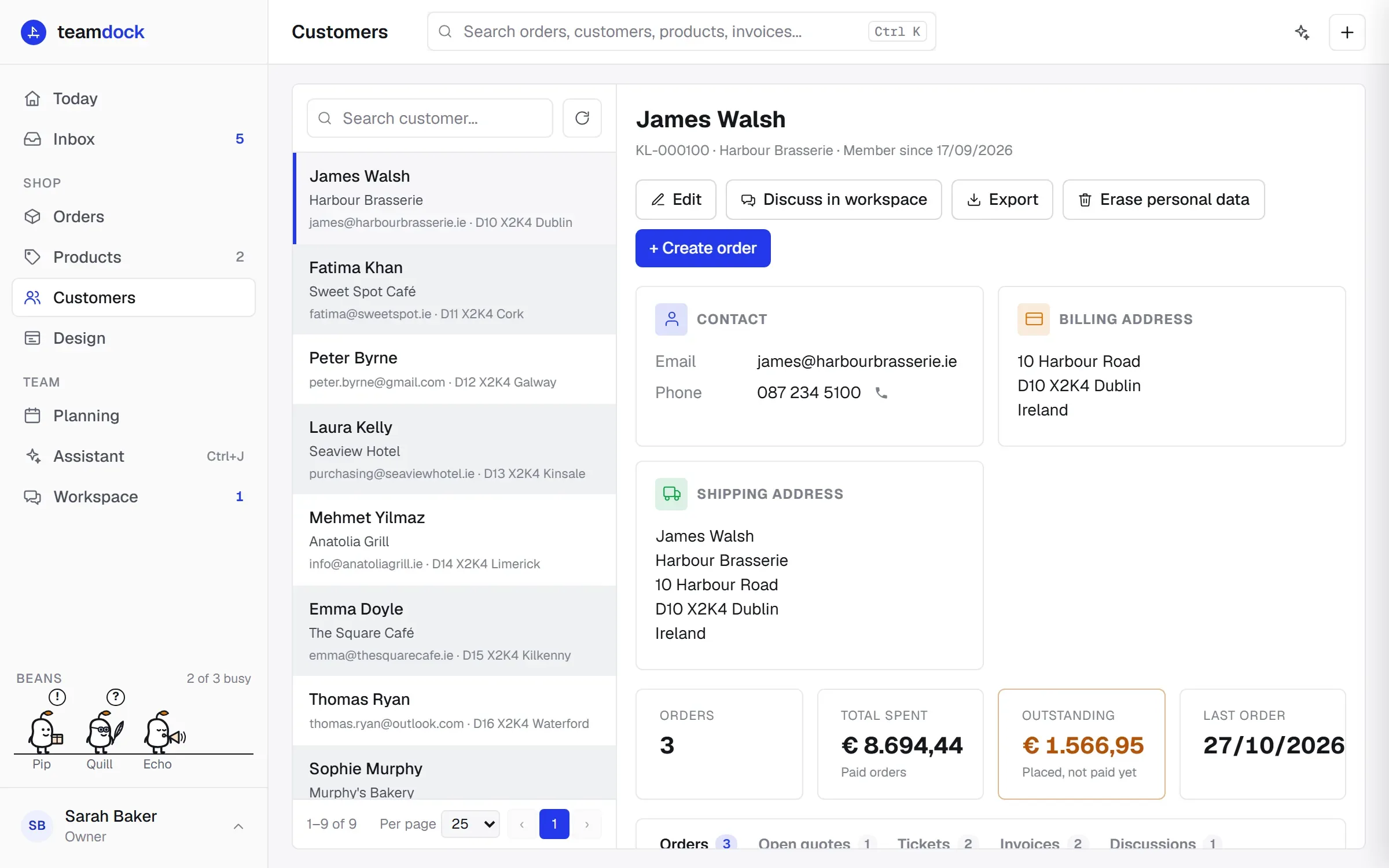
Customers lists every customer with an account in your shop. For each customer you see in one overview what is going on: orders, open quotes, tickets, invoices and discussions. What you change here is saved in your shop.
Finding a customer
Section titled “Finding a customer”Type a name, email address, company name, address or VAT number in the search field. Right after opening, Teamdock is still loading the full customer list; if you see limited search, it searches names and email only for a moment. The button next to the search field refreshes the list.
Below the customers is Guests (from orders, no account): people who ordered without an account. New order next to a guest starts an order with their details already filled in.
Viewing a customer
Section titled “Viewing a customer”Click a customer. You see:
- Contact: email, phone, VAT number and the payment terms.
- Billing address and Shipping address.
- Orders: the number of orders.
- Total spent: the total of paid orders. With many orders Teamdock only counts the latest ones; it then says so.
- Outstanding: placed, but not paid yet.
- Last order: the date.
Underneath are tabs. Orders is always there. Open quotes, Tickets, Invoices and Discussions appear when the customer has something in them. Click a line to open that order, ticket or discussion. For invoices you see the status: Draft, Sent, Partly paid, Paid or Failed.
Create order starts a new order for this customer. See Creating an order or quote.
Changing details
Section titled “Changing details”- Open the customer and click Edit.
- Change the name, company, email, phone, addresses or VAT number. If the shipping address is the same, tick Same as billing address.
- Click Save.
You can only edit when your role is allowed to change customers.
Checking a VAT number
Section titled “Checking a VAT number”Click Check next to the VAT number. Teamdock looks the number up in VIES, the European system for VAT numbers:
- Valid in VIES: the number is correct. Use name and address fills in the company name and address as VIES knows them.
- Not found in VIES: the number is wrong or not active. Orders with reverse-charged VAT (0%) are then not possible.
- VIES is unreachable right now: try again later.
Payment terms
Section titled “Payment terms”For business customers who buy on account, set Payment terms: None (due on receipt), 7, 14, 30 or 60 days. Invoices for this customer then get a due date. When an invoice is late, you see it on the Invoices page and on the dashboard.
Privacy requests (GDPR)
Section titled “Privacy requests (GDPR)”Does a customer ask what data you keep about them, or want to be forgotten? You handle that from the customer.
Exporting data
Section titled “Exporting data”Click Export. Teamdock downloads a file with the data this workspace keeps about the customer. Use it to answer a request for access or for data portability.
Erasing personal data
Section titled “Erasing personal data”You only see this button as an administrator.
- Export the data first if the customer asked for a copy. Erasing cannot be undone.
- Click Erase personal data.
- Read in the window what is erased and what is kept.
- Type the customer’s email address to confirm and click Erase for good.
Erased are, among other things, the customer’s tickets and messages (the ticket numbers stay, marked as erased), discussions about the customer, and the text of tasks and agenda items about the customer.
Kept:
- Invoices and shipments keep their number, amounts and status. The name, email address and shipping label are removed.
- The customer and their orders in WooCommerce. Those are your shop’s own records. Remove the customer separately in WooCommerce if needed.