
Studio: from photo to product
The Studio turns photos into product drafts in your shop. You photograph a product with your phone (or import existing photos), fill in a few details, and Teamdock puts a complete draft in WooCommerce: photos with tidy file names, title, specifications, category and, if you want, a text written by AI. Only when you or a colleague approves the draft does it go live.
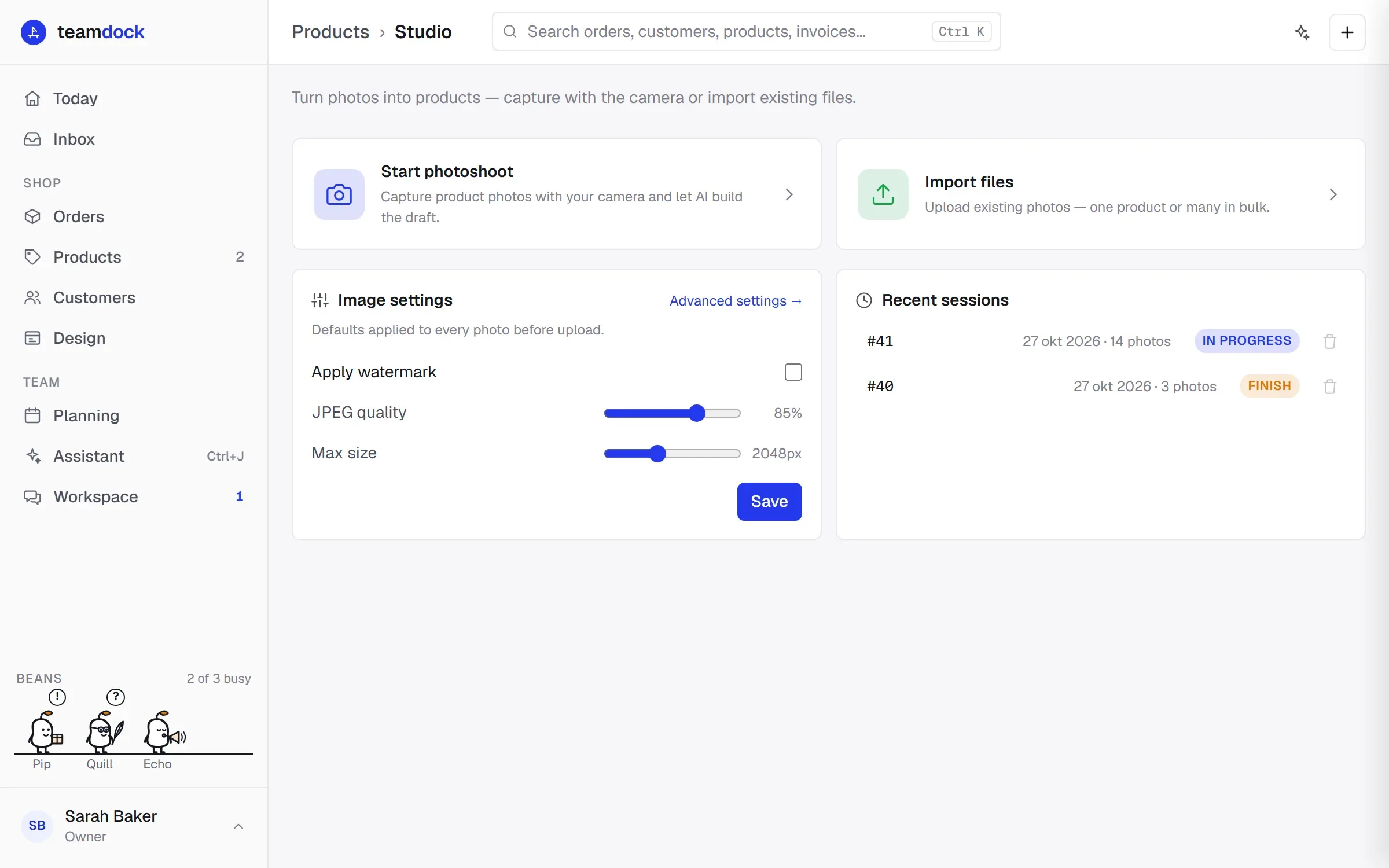
You open the Studio through Products → Studio.
How it works, in four steps
Section titled “How it works, in four steps”- Capture. Start a photoshoot and use your phone as the camera, or import files you already have.
- Fill in. For each product you fill in the details on a card: SKU, title, category, dimensions, attributes, condition, price, notes. With a brand and model you can look up specifications.
- Create drafts. Teamdock makes a WooCommerce product with the status Draft for each product. This runs on the server: you can close the window.
- Review and publish. Under Products → Drafts you approve or reject the drafts and publish them. See Review and publish drafts.
What the AI does, and does not do
Section titled “What the AI does, and does not do”In a photoshoot and an import, Generate with AI is on by default. You can switch it off each time.
What Teamdock builds itself from your fields (without AI): the title (in the order you set), the specification list, dimensions, condition and warranty, the article number and the alt texts of the photos. Because attributes and description come from the same fields, they don’t drift apart.
What the AI writes: only the parts that need language: a heading, a short introduction, extra specifications from your notes, the slug and the SEO title and description.
What the AI does not do:
- It does not look at the photos. It works only with the fields you fill in.
- It does not invent specifications you did not fill in, not even if one of your own writing instructions asks for it.
- It does not create new categories in your shop. If you chose no category and Teamdock finds no suitable one, the summary shows No category · suggestion: …. That category does not exist yet; pick one on the product yourself.
- It does not publish anything.
Without AI (or if AI is not available in your workspace), Teamdock makes the draft with the same template, and your notes become the introduction word for word. A product you only know by its SKU always gets the template without AI too.
How the AI writes (tone, length, form of address, your own instructions) is set in Studio settings.
The Studio page
Section titled “The Studio page”On the Studio page you find:
- Start photoshoot: take photos with your phone as the camera. See Photoshoot.
- Import files: upload existing photos, for one product or many at once. See Import files.
- Camera for a photoshoot: only on a phone or tablet. Makes this device the camera of a photoshoot that is already running, without a QR code.
- Image settings (administrators only, not in the app on a phone): Apply watermark, JPEG quality and Max size. These are applied to every photo before it is uploaded. Click Save to keep them. All other settings are under Advanced settings.
- Recent sessions: your latest photoshoots.
Recent sessions
Section titled “Recent sessions”Each session shows its first SKU or number, the date, the number of photos and a status:
- In progress: the session is still running. Click it to carry on.
- Finish: the phone link has expired, but the photos are still there. Click it to finish the products and create the drafts.
- Completed: the drafts have been made. Click it to go to Drafts.
Show all sessions also shows older sessions. The bin icon (Full access) deletes a session. The photos already in WordPress are kept; only the session is removed.
Number of drafts per month
Section titled “Number of drafts per month”On the Essentials plan you can make 25 drafts per calendar month with the Studio. Pro and Max have no limit. At the top of the Studio you see how many you have used this month and when the count starts again.
- Every draft from a photoshoot or import counts, with or without AI, and also if you reject it later.
- Not counted: having the text of an existing draft rewritten (Retry AI), and products you make by hand through + New product.
When this month’s drafts are used up, you can make new drafts from the date shown, or move to another plan through Change plan. See Subscription.
After creating: Dropbox and Airtable
Section titled “After creating: Dropbox and Airtable”Want the photos of every new draft kept in your own Dropbox automatically, or a row added in Airtable for every new product? You do that with an automation using the trigger When a studio draft is created. There is a ready-made one: Draft created — back up photos to Dropbox. See Automations.