
The Shipping page
Through Shipping in the menu you see every shipment of your workspace in one place: from DACHSER, from your Pier carriers and from Picqer, plus the paid orders that have not shipped yet. That way you hear here that a shipment went quiet before your customer calls.
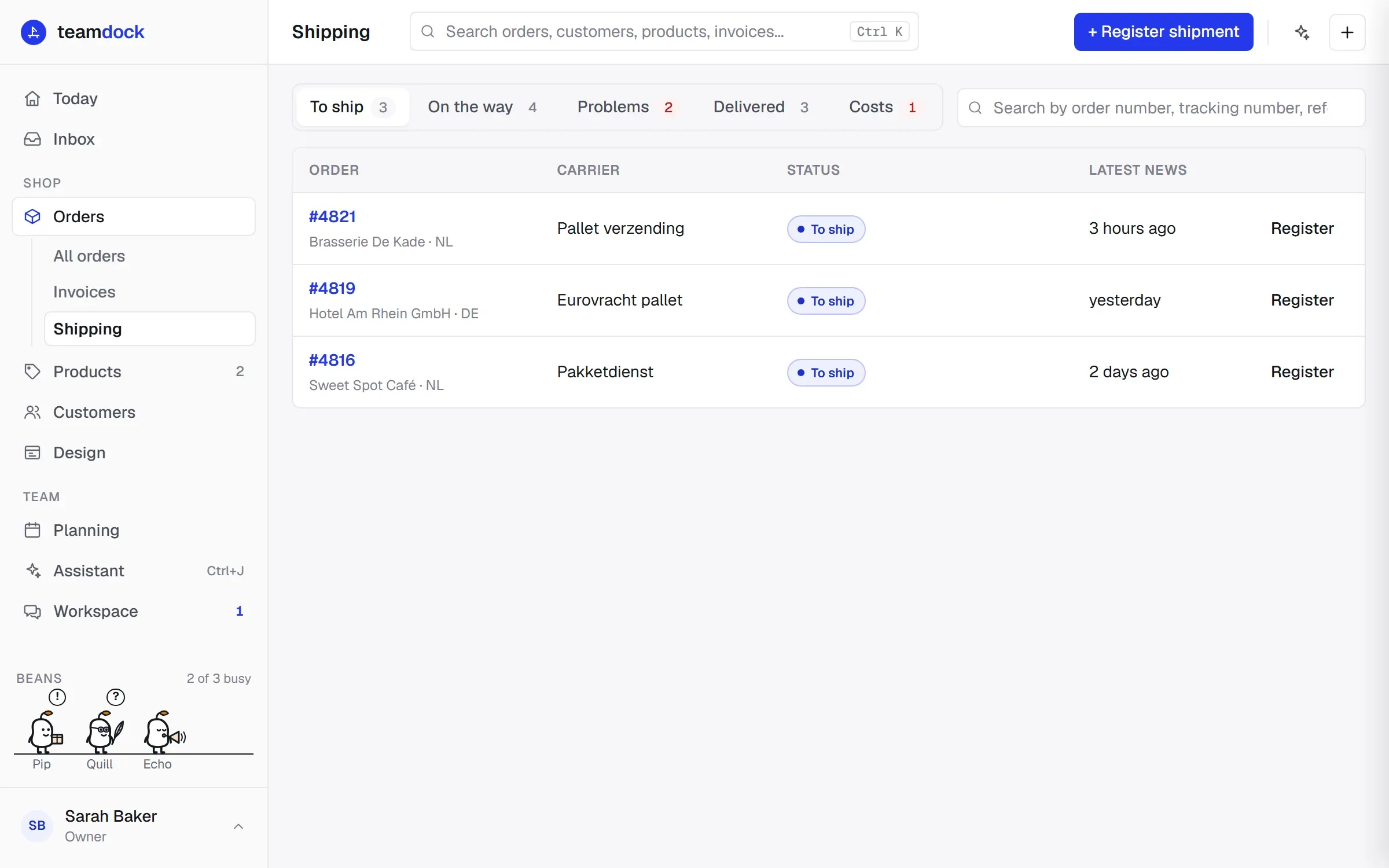
The lists
Section titled “The lists”At the top are tabs, each with its count:
| Tab | What it contains |
|---|---|
| To ship | Paid orders (status Processing) that have no shipment yet. Orders for collection are left out. The oldest is at the top. |
| On the way | Shipments that are booked, picked up, in transit or out for delivery, and Picqer shipments on Shipped. |
| Problems | Shipments with Problem, Delivery attempt failed or Returned, and shipments that have gone five days without news. |
| Delivered | Shipments delivered in the last 30 days. |
| Costs | Shipments the carrier has invoiced, with the difference from what was agreed (Pro and Max). See Costs and disputes. |
Each line shows the Order (with customer and country), the Carrier with tracking number, the Status and the Latest news: how long ago the last update was, and the expected delivery when the carrier has given one. Click the order number to open the order.
The search bar searches by order number, tracking number, reference or customer, across all tabs.
Warnings on a shipment
Section titled “Warnings on a shipment”- No news for … days (for example “No news for 6 days”): a shipment that is booked, picked up, in transit or out for delivery and has had no update for more than five days. It then moves to Problems. Picqer shipments never get this warning, because Picqer reports no delivery.
- No proof of delivery: a shipment from a Pier carrier that is delivered, but without a photo, signature or other proof.
- Return: a return shipment.
The history of a shipment
Section titled “The history of a shipment”Click a line to expand its history. You see:
- the Teamdock reference (click to copy) and, for a Pier carrier, the Carrier reference;
- the quoted price and the invoiced price, if there are any;
- whether the booking reached the carrier;
- the proof of delivery: photos and signatures, with who received it;
- every update, with time, place and where it came from: reported by the carrier, fetched from the carrier, reported by the driver, from the receiver, via Picqer or in Teamdock.
If you see code … is not translated yet, a Pier carrier sent its own code that you still need to translate under Settings → Shipping → Other carriers.
Below the history are the buttons for that shipment, such as Tracking link for customer, Driver link and Register return. What each button does is explained on Pier.
Registering a shipment
Section titled “Registering a shipment”Once you have connected a Pier carrier, you see Register shipment at the top right and a Register button next to each order under To ship. See Pier. Without a Pier carrier, On the way shows a tip to connect one.
Notices at the top
Section titled “Notices at the top”- … messages from carriers match no known shipment. Review: a Pier carrier sent messages with a reference Teamdock does not know. Click to look at them in the log. Register the shipment with that reference and the messages are linked automatically. Teamdock keeps them for 30 days.
- The open orders could not be read from the shop.: the shop did not answer. Shipments already on the way are still listed.
On the order
Section titled “On the order”Every order has the Shipping card. At the top you see how the order ships (method and address). Below it is Shipments: every shipment of this order, with status, tracking number and the same history as on the Shipping page. Cancelled shipments are hidden; click Show … cancelled shipment to see them.
Below the shipments are the actions of your shipping setup: the Picqer part and the Carrier part for DACHSER.
What happens automatically on a status change
Section titled “What happens automatically on a status change”Whatever changes a status (a message from the carrier, DACHSER tracking or a driver’s tap), Teamdock always does the same:
- On Delivered, Returned, a Problem or a Delivery attempt failed, a note is added to the order.
- Automations that react to a changed shipment status run (Pro and Max). See Automation.
- If you have switched on customer e-mails, your customer gets an e-mail.
Who can do what
Section titled “Who can do what”You see the page if your role has the View permission on Shipping. To register and make links you need Edit, to withdraw a registration Full.