
Working with orders
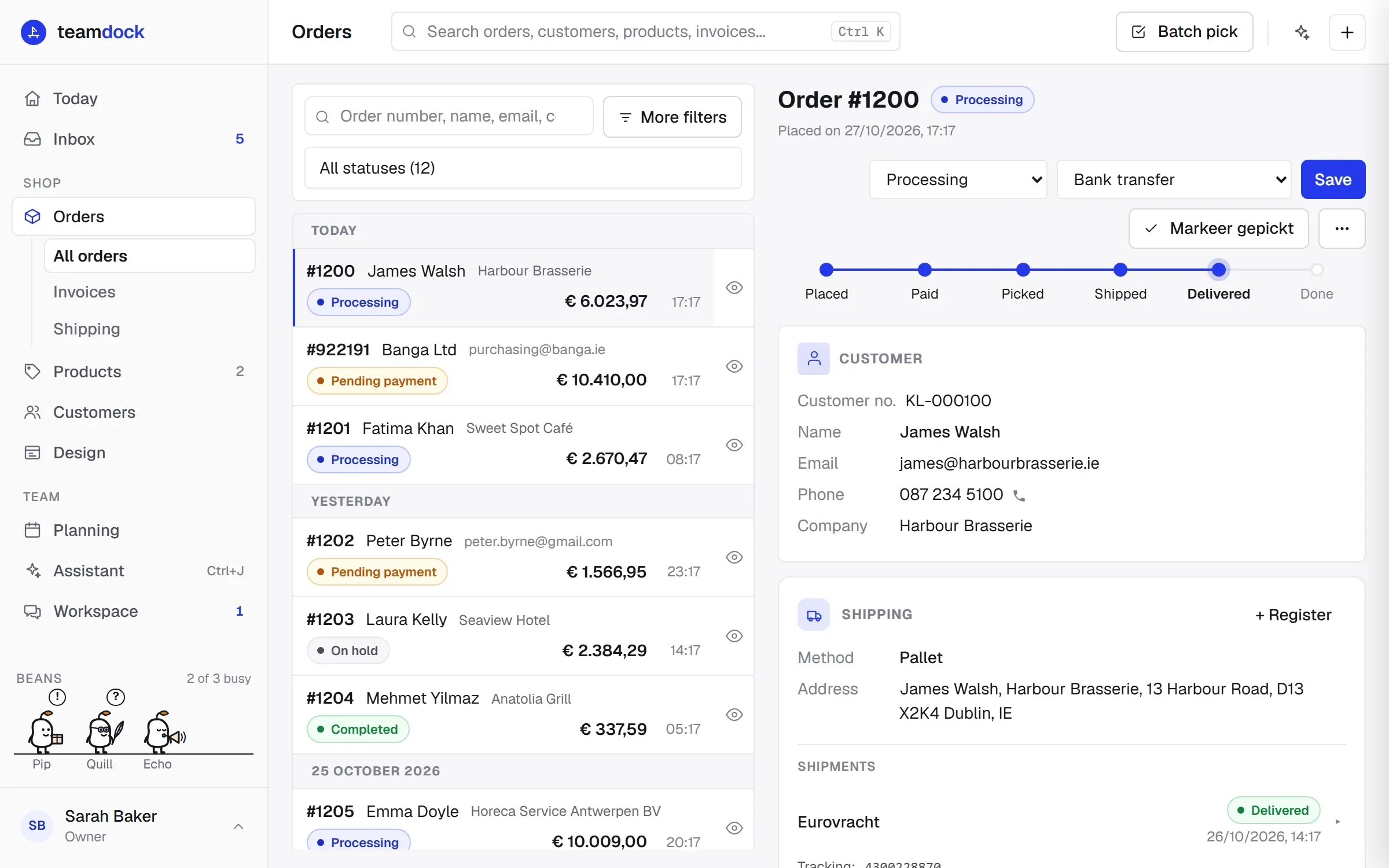
Orders → All orders lists every order from your shop, newest first and grouped by day (Today, Yesterday, then the date). On a wide screen the list sits on the left and the open order on the right, so you can move quickly from one to the next.
Searching and filtering orders
Section titled “Searching and filtering orders”- Search: type an order number, name, email address, company name or VAT number in the search field.
- Status: pick a status in the list next to the search field, for example Pending payment or Processing. Each status shows how many orders have it. All statuses turns the filter off.
- More filters: opens extra fields for a period (Date from and Date to), an amount (Min. total and Max. total) and a product (SKU or product name). The number on the button shows how many of these filters are on. Clear filters resets them all.
At the bottom you choose how many orders to show per page (Per page) and page through the results.
For each order the list shows the number, the customer, the status, the total and the time. A quote has the label Quote, an order for shipping only has the label Shipping costs.
Quick look
Section titled “Quick look”Each order in the list has an eye icon: Quick look. It shows the products, address, payment and total in a window without opening the order. Open order takes you to the full order after all.
Opening an order
Section titled “Opening an order”Click an order. You see:
- At the top the order number, the status, the date (Placed on) and the progress bar.
- Note from the customer: what the customer wrote at checkout, such as delivery instructions.
- Customer: customer number, name, email, phone, company and VAT number. Click the customer number to go to the customer.
- Shipping: the shipping method, the delivery address and the shipments. How to ship and make labels is explained in Shipping desk.
- Payment: the payment method, whether and when it was paid, and the billing address.
- Notes: the order’s history.
- Peppol-factuur (Peppol invoice): this order’s invoice, if invoicing is connected. See Invoices.
- At the bottom the products with quantities, discount, shipping costs, VAT and the total.
Back to orders returns you to the list.
Changing the status and payment method
Section titled “Changing the status and payment method”- Open the order.
- Pick the new status in the first list at the top.
- If needed, pick a different payment method in the second list (Choose payment method).
- Click Save.
The statuses are WooCommerce’s own: Pending payment, Processing, On hold, Completed, Cancelled, Refunded and Failed.
Cancelling, or setting an order to Refunded, needs full access to Orders.
Emailing the customer a payment link
Section titled “Emailing the customer a payment link”When an order is Pending payment or Failed and has an email address, you see the button Email payment request. Teamdock then has your shop send the customer its standard order email with the payment link, in your shop’s own design. The customer pays through your shop’s payment methods.
You can send the payment request again, for example after correcting a customer’s wrong email address. This needs full access to Orders.
Adding notes
Section titled “Adding notes”Under Notes, type a note and click Add. By default a note is Internal: only your team sees it. Tick Customer to send the note to the customer as well; WooCommerce then emails it.
Teamdock writes notes too, for example who created the order, or that a form was printed.
Picking
Section titled “Picking”When an order has been paid (Processing or Completed), there is a button Markeer gepickt (mark picked), or Markeer opgehaald (mark collected) for a pickup. Batch pick above the list lets you pick several orders in a row. How picking and shipping fit together is explained in Shipping desk.
The More actions menu
Section titled “The More actions menu”Behind the button with three dots (More actions) at the top of an order are the actions that start something new from this order. Which ones you see depends on the order and your role.
| Action | What it does |
|---|---|
| Duplicate order | A new order with the same customer and items. For an order that has not been paid yet you choose between Duplicate only and Cancel & duplicate. |
| Discuss in workspace | Starts a discussion with colleagues about this order. |
| Refund | Money back, or part of it. Only on a paid order. See Refunds and exchanges. |
| Bill shipping costs | A separate order with shipping costs only for this customer, linked to this order. Handy when the customer forgot to choose a shipping method. |
| Delivery form | A printable sheet for your own deliveries: items, delivery address, what is still to be paid and room for the receiver’s signature. |
| VAT form (collection at 0%) | A transport declaration for a business customer from another EU country who collects the goods and pays 0% VAT. |
| Repair | A repair form that travels with the item to the workshop. |
| Exchange item | A new order with credit for what the customer returns. See Refunds and exchanges. |
The last four only appear on an order with products. For each printed form Teamdock adds an internal note to the order.
Linked orders
Section titled “Linked orders”Orders that belong together refer to each other. At the top you see, for example, Shipping costs for order #1234, Shipping costs billed in #1240 or Exchange for order #1201. Click the number to open that order.