
Connect WhatsApp
With the WhatsApp connection, every WhatsApp message from a customer arrives as a ticket in your Inbox, next to your email. You reply from the ticket and the customer simply gets the reply in WhatsApp.
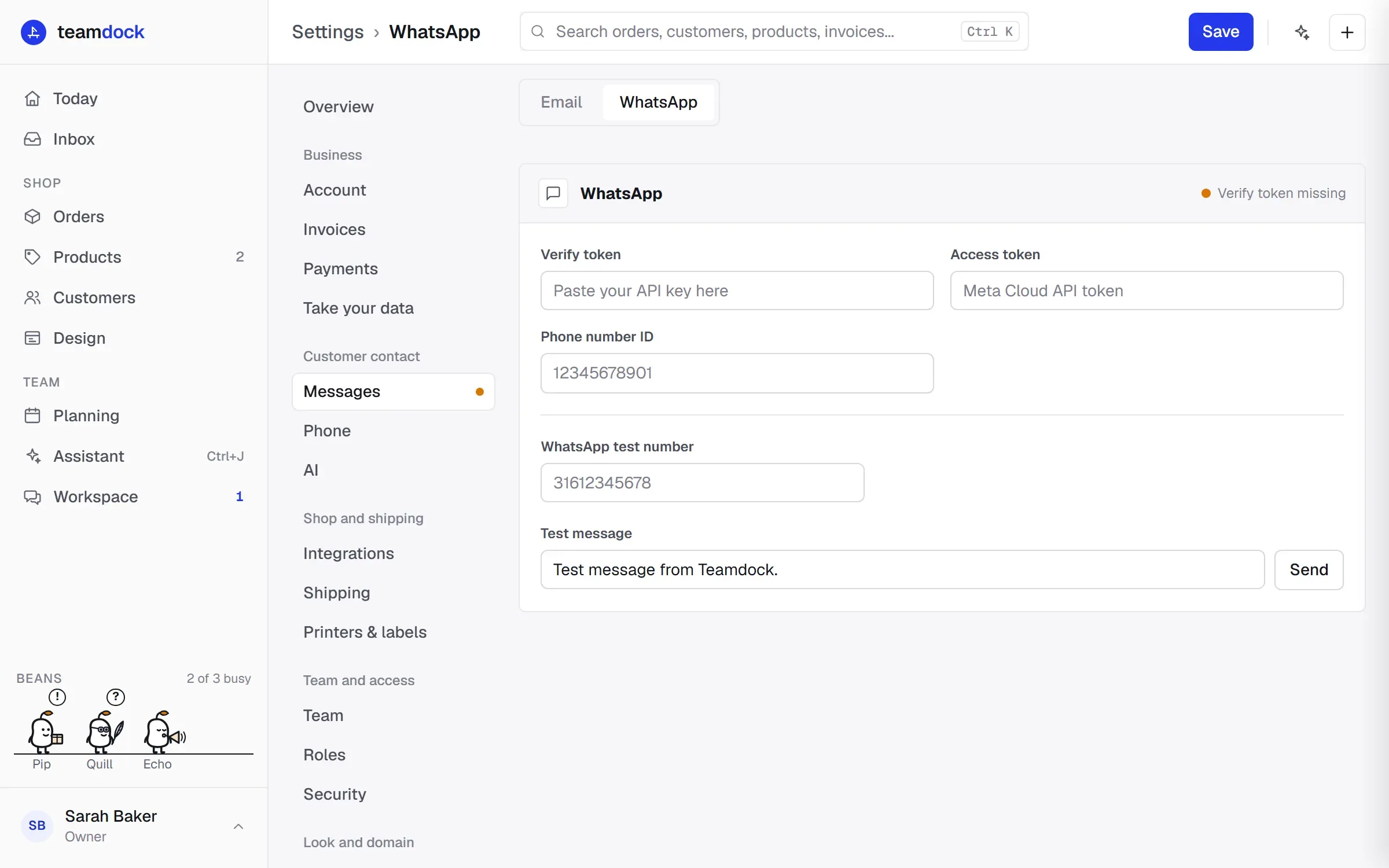
Teamdock works with Meta’s WhatsApp Business Cloud API. For that you need a Meta developer account with a WhatsApp Business app and a phone number linked to that app.
What you need from Meta
Section titled “What you need from Meta”| Field in Teamdock | Where to find it |
|---|---|
| Verify token | A secret text you choose yourself. You enter the same text at Meta when you set up the webhook. |
| Access token | The token of your WhatsApp Business app in Meta (preferably a permanent system-user token). Needed to reply. |
| Phone number ID | The ID of your WhatsApp phone number in your Meta app’s WhatsApp settings. This is not the phone number itself. |
Setting it up
Section titled “Setting it up”- Go to Settings → Messages → WhatsApp.
- Fill in the Verify token, the Access token and the Phone number ID.
- Click Save at the top.
- In your Meta app, set up the webhook for WhatsApp. Use
https://<yourname>.teamdock.ai/api/tickets/webhooks/whatsappas the callback URL (with your own workspace name) and the same text as in step 2 as the verify token. Subscribe the webhook to messages. - Contact Teamdock support to finish the connection. Teamdock checks that every incoming message really comes from Meta, and for that the App secret of your Meta app has to be set on our side.
The status at the top of the page shows:
- Verify token missing: nothing has been set up yet.
- Receive ready: Teamdock can receive messages, but there is no access token to reply yet.
- Receive and send: everything is ready.
Testing
Section titled “Testing”Under WhatsApp test number, enter a number with country code and without a plus or leading zeros (e.g. 31612345678), adjust the Test message if you like and click Send. If the message arrives, sending works.
Working with WhatsApp tickets
Section titled “Working with WhatsApp tickets”WhatsApp tickets are in the same Inbox as email. Choose WhatsApp under Channel to see only those. The sender shows the customer’s phone number. Replying works the same as for email; see Working with tickets.
Troubleshooting
Section titled “Troubleshooting”- Meta can’t verify the webhook. Check that the verify token in Meta is exactly the same as in Teamdock, and that you clicked Save first.
- Messages don’t come in. Check that the webhook in Meta is subscribed to messages, and that support has finished the connection (step 5).
- Replies don’t arrive. Check the Access token and the Phone number ID, and whether the customer’s last message is less than 24 hours old.