
Inviting your team
In Teamdock everyone has their own login. That login is a WordPress account on your shop with a staff role. So you add a colleague in WordPress; Teamdock then sees the new colleague by itself.
Which role do you give a colleague?
Section titled “Which role do you give a colleague?”Only these WordPress roles can log in to Teamdock:
| WordPress role | In Teamdock |
|---|---|
| Administrator | Can log in. Shown in Teamdock as Owner and has access to everything, including the settings. |
| Shop Manager | Can log in. The usual role for staff. |
| Editor | Can log in. |
| Customer, Subscriber, Author | Cannot log in. |
What a colleague then sees inside Teamdock is set with roles in Teamdock itself. See Team members and roles.
Adding a colleague
Section titled “Adding a colleague”- Log in to your shop’s WordPress admin. If you have WordPress hosting with Teamdock, that is
yourcompany.teamdock.ai/wp/wp-admin. - Go to Users and add a new user, with your colleague’s email address.
- Choose the role Shop Manager (or Administrator or Editor) and save. WordPress emails your colleague to choose a password.
- Your colleague logs in to WordPress and creates their own Application Password via Users → Profile → Application Passwords.
- Your colleague goes to
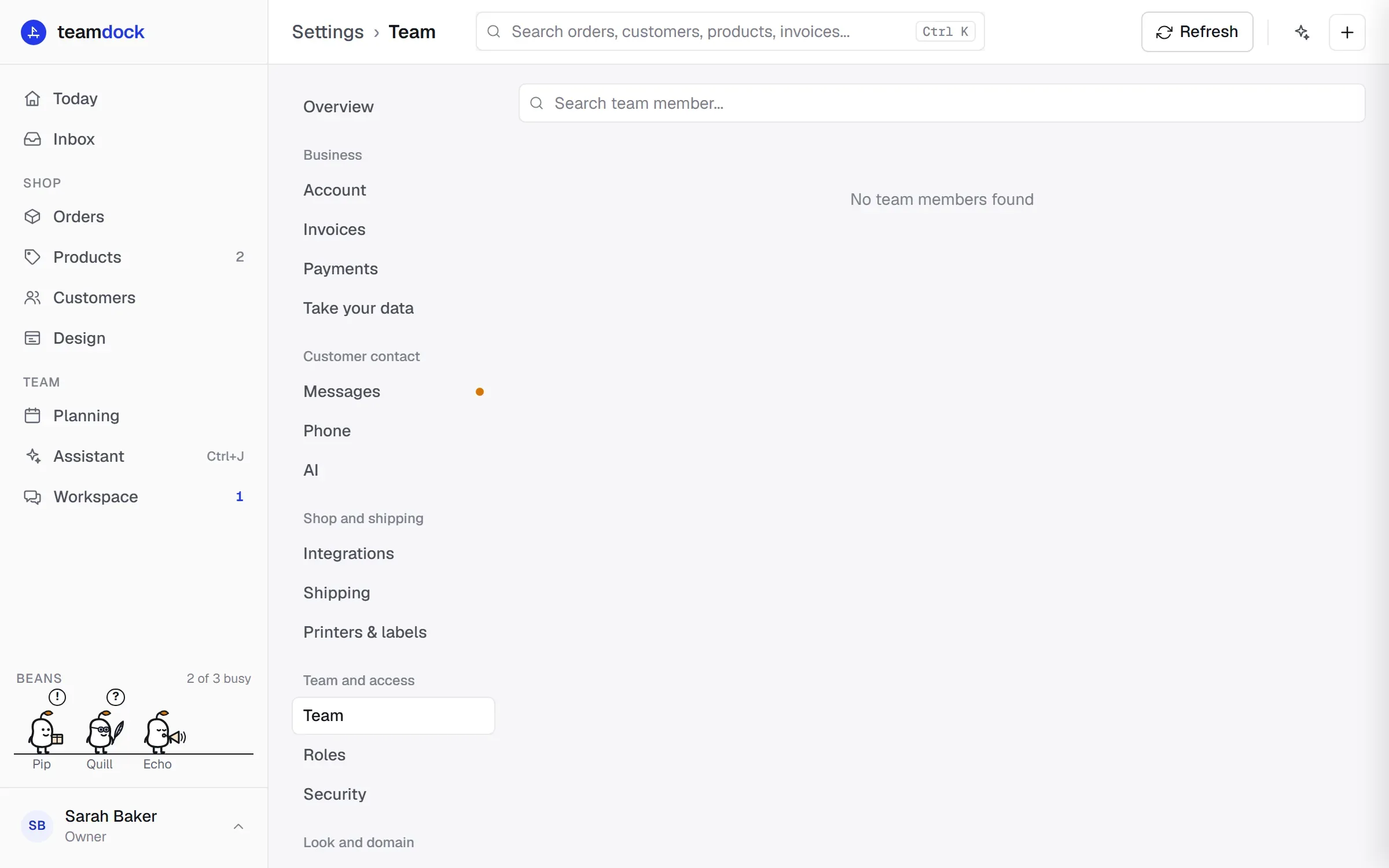
yourcompany.teamdock.ai/loginand logs in with the WordPress username and the Application Password. See Logging in for the first time. - In Teamdock, check under Settings → Team that your colleague is in the list. Click Refresh if the list was already open.
On the phone
Section titled “On the phone”Colleagues can also use the Teamdock app. The easiest way to log in there is with a QR code from their computer. See The Teamdock app.
Taking access away
Section titled “Taking access away”A colleague who has left, or an account that should no longer log in? Do one of these in the WordPress admin:
- Revoke that user’s Application Password (Users → Profile → Application Passwords).
- Give the user a role without access, such as Subscriber.
- Delete the user.
Every few minutes Teamdock checks with WordPress whether someone still has access. Within a few minutes that colleague is then signed out on all devices.
Problems
Section titled “Problems”Your colleague gets “This account is not permitted to access the workspace. …” The account has no staff role. Give it the Shop Manager, Editor or Administrator role.
Your colleague is not in the list under Settings → Team. Click Refresh. The list shows your shop’s WordPress users. If the colleague is still not there, check the role in WordPress.
Your colleague does not see certain parts in the menu. That is because of the role in Teamdock. See Team members and roles.