
A tour of the workspace
After logging in you arrive on Today. On the left is the menu with all parts; at the top you search and create a new order. This page shows what is where and where to read more.
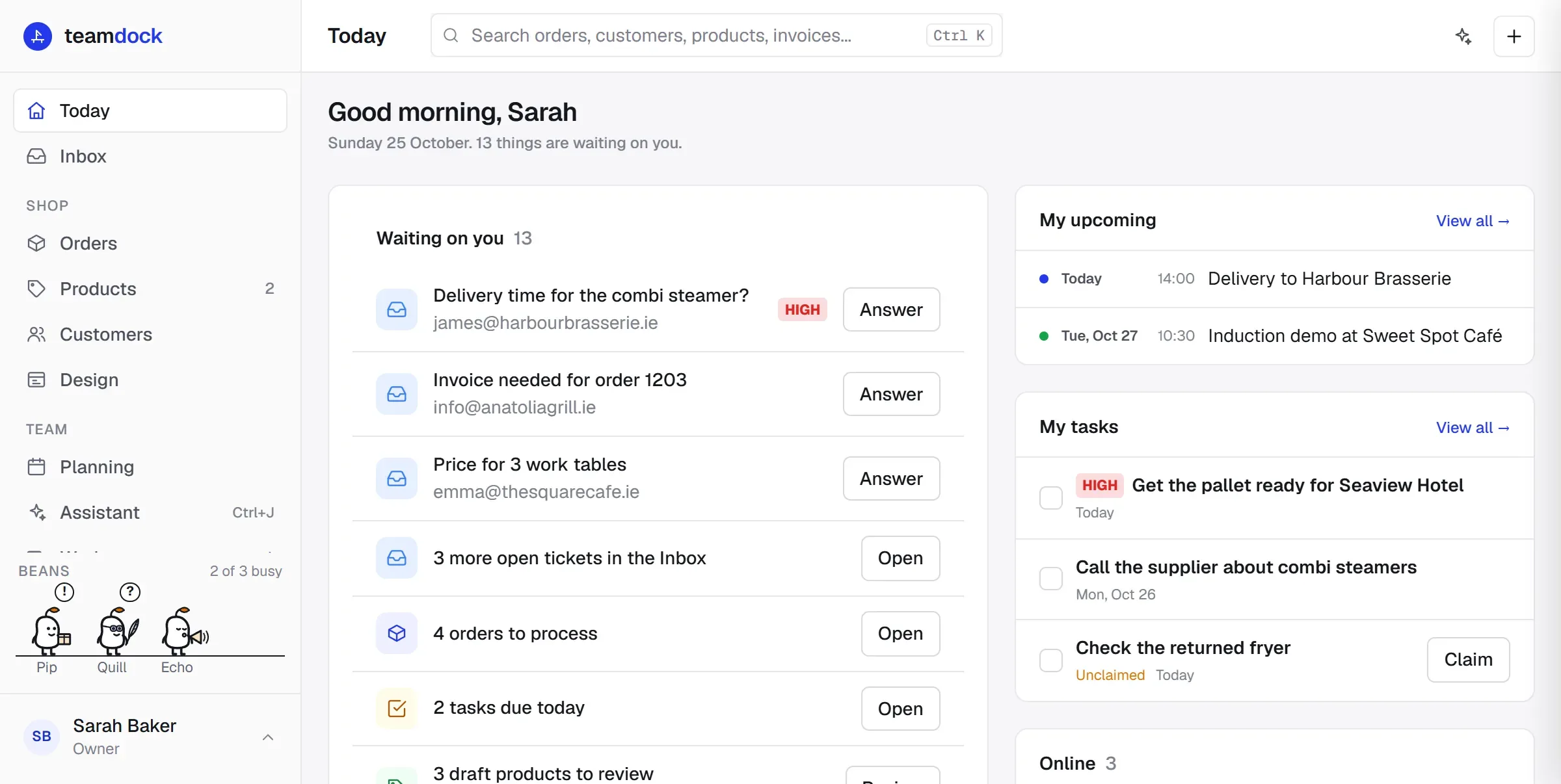
At the top: search and new order
Section titled “At the top: search and new order”On a computer the top bar holds the search bar, a button for the Assistant and the New order button (the plus). On a phone in the browser you find them at the top of the menu, which you open with the menu button.
The menu
Section titled “The menu”Your start page. Under Waiting on you is what is expected of you now, most urgent first: open tickets, orders to process, tasks due today, draft products to review, unread chat messages, quotes without follow-up, invoices past their due date, Peppol invoices that were not delivered, and connections or automations that are not working. Next to it you see your Revenue, the visitors to your Website (when those statistics are connected), My upcoming and My tasks.
All customer questions in one place, as tickets. The number next to Inbox is the number of unread tickets. See Customer contact and Tickets.
- Orders, with All orders, Invoices and Shipping below it once you are in this part. See Orders, Invoices and Shipping.
- Products, your WooCommerce catalogue. The number is the number of draft products. See Products and The studio.
- Customers, your customer base. See Customers.
- Design, the look of your shop. Administrators only. See Shop.
- Planning, with Agenda, Tasks and Automation below it. See Team and Automation.
- Assistant, the AI assistant that helps you with questions and work in your workspace. You can also open it with Ctrl+J (on a Mac ⌘J). See The assistant.
- Workspace, where you work out together with colleagues what you cannot solve alone. You bring a ticket, order, product or customer here with Discuss in workspace. The number shows discussions with something unread. See Team.
- My email only appears here if you do not see the Inbox. Otherwise you find your own mail in the left column of the Inbox.
Bottom left: your name
Section titled “Bottom left: your name”Click your name at the bottom left. The menu folds open with:
- Team chat, the chat with your colleagues. It opens as a panel over the page.
- Settings (shortcut Ctrl+, or ⌘,). See below.
- Keyboard shortcuts (shortcut ?), an overview of all shortcuts.
- Theme: Light, Dark or Like the device.
- Bean: turn the mascot bean on or off.
- Language: switch the language of the workspace.
- Log out.
Your role is also shown under your name, for example Owner.
Settings
Section titled “Settings”Settings opens with an overview of all settings in groups: Business, Customer contact, Shop and shipping, Team and access, Assistant and AI and Look and domain. At the top you see how far your workspace has been set up. See Checklist: finish your workspace and Account and subscription.
On your phone
Section titled “On your phone”In the browser on your phone you open the menu with the menu button at the top left. In the Teamdock app you have a tab bar at the bottom instead. See The Teamdock app.