
Working with tickets
Every customer question that comes in by email or WhatsApp becomes a ticket in the Inbox. The Inbox is built around one question: whose move is it? If the customer wrote last, it’s your move. If you replied, the ticket waits on the customer.
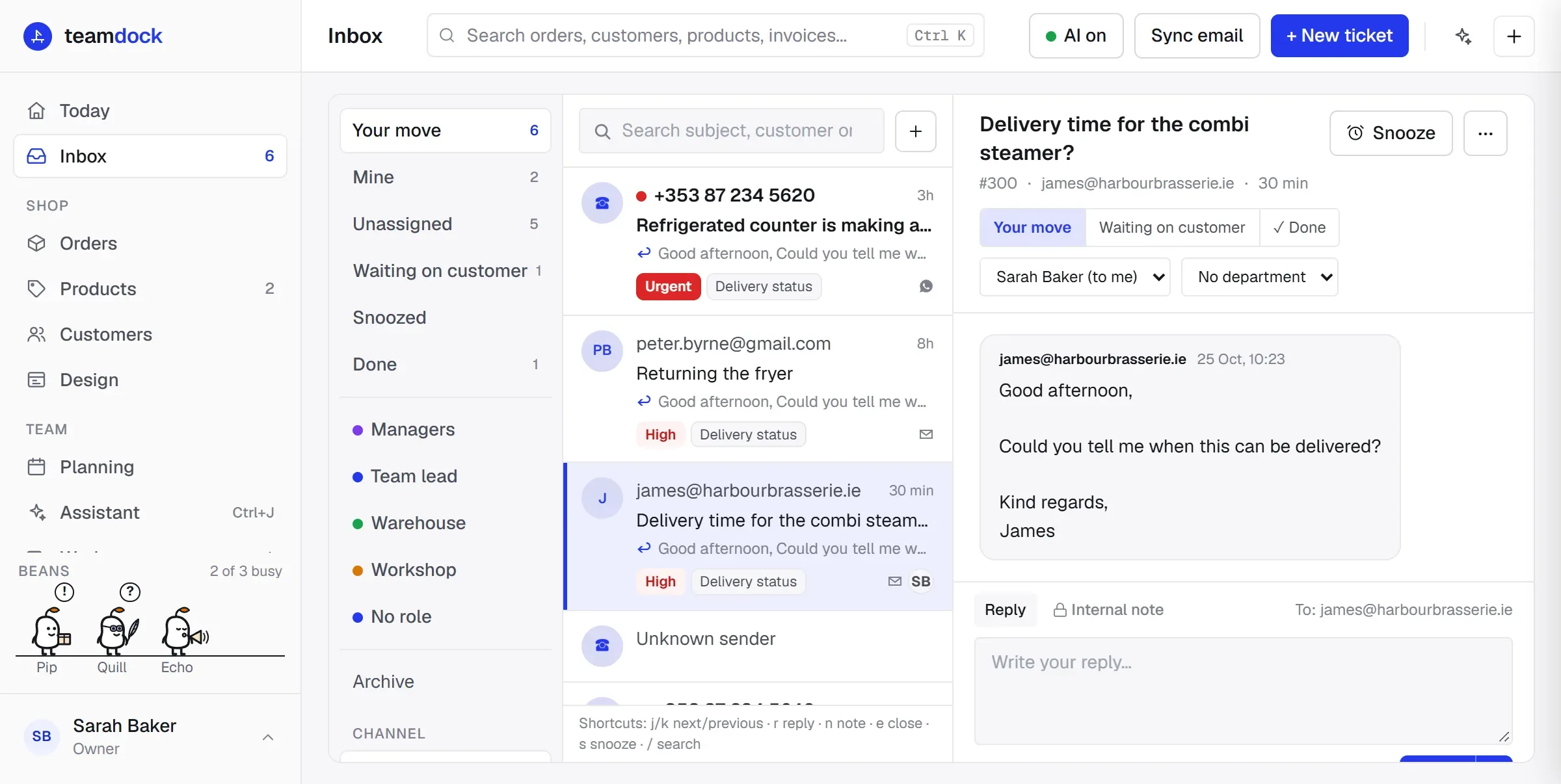
The Inbox at a glance
Section titled “The Inbox at a glance”Open Inbox in the main menu. The screen has three parts:
- On the left the views, the Channel filter and shortcuts to My email and FAQ.
- In the middle the list of tickets and a search box (Search subject, customer or #number).
- On the right the open ticket: the conversation, the reply box and a side panel with the customer, orders and tasks.
The views
Section titled “The views”| View | What you see |
|---|---|
| Your move | Tickets where the customer is waiting on you. The number next to it is your workload. |
| Mine | Tickets assigned to you that aren’t done yet. |
| Unassigned | Tickets in Your move that nobody has taken yet. |
| Waiting on customer | You replied, the customer’s move. |
| Snoozed | Tickets you’ve put away until later. |
| Done | Closed tickets. They move to the archive on their own after a few days. |
| Departments | One view per department (if you have departments), with that department’s open tickets. |
| Archive | All archived tickets, searchable. |
In Your move the customer who has waited longest is at the top. Tickets with priority Urgent or High come first.
What the list shows
Section titled “What the list shows”For each ticket you see the sender, the subject, a snippet of the last message and how long ago it was. A dot means there is something new. An arrow shows who wrote last (Customer wrote last or We replied last). Labels show the priority and the number of open tasks on the ticket.
When you open a ticket the dot disappears and a new ticket moves to ‘in progress’.
Replying to a customer
Section titled “Replying to a customer”- Open the ticket in the list.
- At the bottom, choose the Reply tab. To shows who the reply goes to. Click it to change the recipient or the Subject.
- Is there already text with AI draft? Read it and adjust where needed. If it says AI draft, and the AI isn’t sure, check it extra carefully. Clear starts over, Insert AI draft puts the draft back.
- Click Send (or press Ctrl+Enter). The ticket then waits on the customer.
The arrow next to Send gives you a different outcome:
- Send and close: the ticket goes straight to Done.
- Send, keep it with us: the reply goes out, but the ticket stays in Your move, for example when you still need to look something up.
An email reply goes out from the mailbox the customer wrote to, with your email signature underneath. A WhatsApp ticket is answered through WhatsApp. After sending you move on to the next ticket in the list automatically.
Internal notes
Section titled “Internal notes”Choose the Internal note tab to write something for your team. A note is visible only to your team and is never sent to the customer or to an AI. Click Save note (or Ctrl+Enter). Notes appear in the conversation between the messages, in a different colour. Delete a note with the cross next to it.
Status, assigning and department
Section titled “Status, assigning and department”At the top of the open ticket you find the controls to manage it:
- Your move / Waiting on customer / Done: put the ticket in another status by hand. Clicking Done closes the ticket. You get a message with Undo.
- Assign: choose a colleague, To me or Nobody.
- Department: attach the ticket to a department. It then appears in that department’s view. You set up departments under Settings → Roles (see Team members and roles).
If a colleague is looking at or replying to the same ticket, you see it at the top: “Jan is looking at this ticket” or “Jan is replying…”. That way two people don’t answer at once.
If the customer writes back on a ticket that is waiting or already done, it comes back to Your move on its own. The same goes for a snoozed ticket.
Snoozing
Section titled “Snoozing”If you can’t do anything yet, snooze the ticket. It disappears from Your move and comes back by itself at the moment you chose.
- At the top of the ticket, click Snooze.
- Choose Tomorrow morning (08:00), Next week (Monday 08:00), or enter a date and time under Pick a moment and click Snooze until then.
Want it back sooner? Open it from Snoozed, click the button that shows the snooze time, and choose Bring back now.
More options (the ⋯ menu)
Section titled “More options (the ⋯ menu)”Under the ⋯ button at the top of a ticket you find:
- Priority: Low, Normal, High or Urgent.
- Turn AI off for this ticket / Turn AI on for this ticket: for a sensitive ticket, nothing is then sent to the AI.
- Analyse again: let the AI read the ticket again, for example after a new message.
- Create task: create a task for a colleague or department (see below).
- Discuss in workspace: work it out together with colleagues in the workspace.
- Archive: take the ticket out of the lists right away.
The side panel
Section titled “The side panel”To the right of the conversation is the context for the ticket:
- Actions: for an order or a quote request, Prepare order appears. Teamdock then opens a new order, already filled in with the customer, the addresses and the products from the message. Check everything before you save the order. More in Orders.
- Linked order: if the ticket mentions an order number, you see that order here. You can change its status, email a payment request or make a refund without leaving the ticket.
- Tasks: the tasks on this ticket. Add task creates a new one.
- AI: a summary, a suggested action, a checklist and which FAQ matches the question. If it says Review needed, the AI wasn’t sure.
- Customer: for email, Teamdock looks the customer up in your shop and shows their Recent orders. Click an order number to open that order right here.
- Earlier tickets: other tickets from the same sender.
Creating a task from a ticket
Section titled “Creating a task from a ticket”- Choose Create task in the ⋯ menu, or click Add task in the side panel.
- Fill in What needs to happen? and, if useful, Details.
- Choose a Department or a Person, and optionally a Due date.
- Click Create task.
The ticket then shows in the list how many open tasks it has. A department’s tasks show as Not picked up yet until someone takes them.
Creating a ticket yourself
Section titled “Creating a ticket yourself”Did a customer call, or did a question come in through a channel that isn’t connected? Click + New ticket. Fill in the source (Bron), priority (Prioriteit), subject (Onderwerp), sender (Afzender) and the customer message (Context / klantbericht). AI voorstel lets the AI prepare a summary and action first. You can also fill in who to assign it to (Toewijzen aan), an action (Actie) and a deadline (Deadline). Click Ticket aanmaken to create it.
Several tickets at once
Section titled “Several tickets at once”Tick tickets in the list (or Select all at the top). A bar appears with which you can Close them in one go, assign them To me, assign them to a colleague, or Archive them. In the archive you can Restore from archive the same way.
Archive
Section titled “Archive”A closed ticket moves to the Archive by itself after 7 days. In the archive you search all old tickets. Click Load more at the bottom for older results. Restore from archive puts a ticket back.
AI on or off for the whole Inbox
Section titled “AI on or off for the whole Inbox”The AI on / AI off button in the Inbox turns AI suggestions on or off for all tickets. When it is off, no data goes to an AI provider and you get no drafts or summaries.
Fetching email
Section titled “Fetching email”Teamdock fetches new mail about every minute from the mailboxes that sync into tickets. Don’t want to wait? Click Sync email.
Keyboard shortcuts
Section titled “Keyboard shortcuts”| Key | What it does |
|---|---|
j / k (or arrow keys) |
Next / previous ticket |
r |
Go to the reply box |
n |
Go to an internal note |
e |
Close the ticket |
s |
Snooze |
/ |
Search |
Esc |
Clear the selection or go back to the list |
Ctrl+Enter |
Send the reply or save the note |
In the app
Section titled “In the app”In the Teamdock app the Inbox works with swipes. Swipe a ticket in the list to the left to close it, or to the right to snooze it until tomorrow morning (Later). In an open ticket, swipe sideways to the next or previous ticket. Create a new ticket with the pencil at the top left. Sync email, the AI button and FAQ are under ⋯ at the top right.
Troubleshooting
Section titled “Troubleshooting”- No emails are coming in. Check that the mailbox has Sync this inbox into tickets on and that Test IMAP succeeds. Also look under Skipped e-mails in the ticket filter: the mail may have been seen as a newsletter or an automatic message. See Connect email.
- Sending fails. There is no verified sending domain yet and no mailbox with its own mail server (SMTP). Set one up under Settings → Messages → Email.
- The New ticket button is missing. Your role may only view tickets.