
Pier (other carriers)
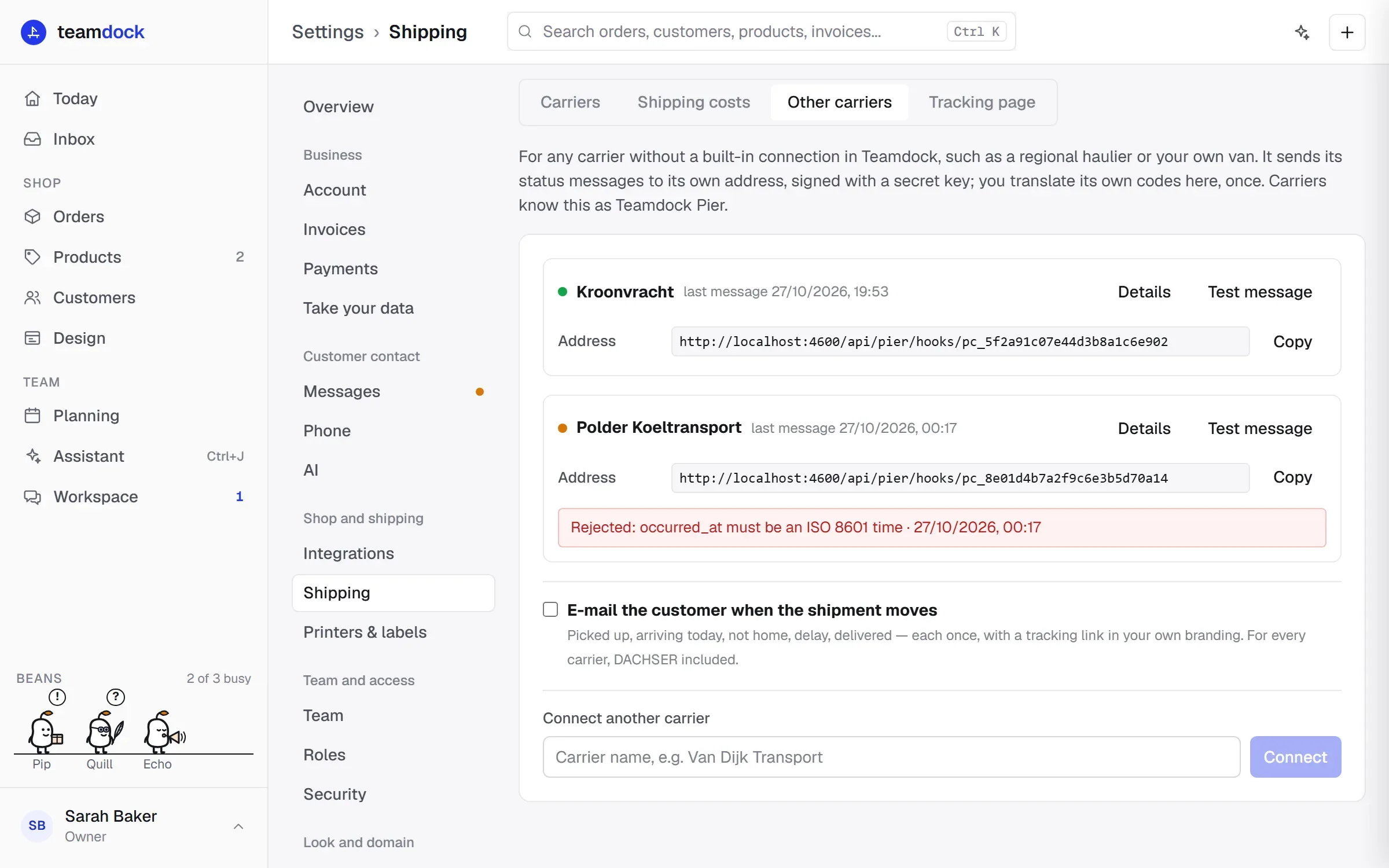
With Other carriers you connect any carrier Teamdock has no built-in connection with: a regional pallet haulier, a courier, or your own van. Carriers know this as Teamdock Pier. You then follow their shipments the same way as those of DACHSER or Picqer: on the order, on the Shipping page and on your customer’s tracking page.
Three ways for the carrier
Section titled “Three ways for the carrier”Your carrier chooses how to take part. You can also combine them.
| Way | What the carrier needs | How it works |
|---|---|---|
| Without IT | A phone with internet in the cab. No app, no account. | You send the driver a driver link per shipment. They tap picked up, on my way, not home or delivered, with a name and a photo or signature. |
| By e-mail | An e-mail address that their planning reads. | Every booking arrives as a normal transport order in their mailbox. |
| With an integration | A transport system or developer that can send and receive a webhook. | Signed messages in both directions: bookings to them, status messages with their own codes to Teamdock. |
Pier is free for the carrier. Your agreement and the invoice stay between you and the carrier. A carrier who wants to know more can look at teamdock.ai/pier.
Connecting a carrier
Section titled “Connecting a carrier”- Go to Settings → Shipping → Other carriers.
- Under Connect your first carrier, enter the carrier’s name, for example “Van Dijk Transport”.
- Click Connect.
- You now see this carrier’s Address and Key. You only see the key now: copy it and keep it safe.
- Click I have saved it.
Give the address and the key to the carrier. Under Details → For the carrier there is a ready-made text with the address, how they sign their messages and a sample message. Click Copy text and send it, with the key separately.
If the carrier only works with the driver link or by e-mail, they don’t need the address and the key.
Settings per carrier
Section titled “Settings per carrier”Click Details on a carrier to see everything.
Bookings to the carrier
Section titled “Bookings to the carrier”Here you set where Teamdock sends a transport order:
- Endpoint (https): the address of the carrier’s system. The booking goes there signed, with the same key as their messages.
- Or by e-mail: without an endpoint, the booking goes to this e-mail address as a transport order.
- Send the receiver’s phone number along (to call ahead): tick this if the carrier needs to call ahead.
Click Save. Only the receiver’s name, company and address go along, plus the packages, what the delivery needs and the note. The receiver’s e-mail address is never sent. Without a booking address you can still register shipments, but not book them.
Rates (Pro and Max)
Section titled “Rates (Pro and Max)”Under Rates you record the price agreement with this carrier. Every shipment gets a quoted price from it, and the carrier’s invoice is compared with it (see Costs and disputes).
- Per Zone: Countries, optionally Postcodes (prefix), and a price per Euro pallet, Half pallet, Block pallet, Odd-size pallet and Parcel. The first zone that fits counts.
- Surcharges per shipment for Tail lift, Call ahead and Fixed delivery day.
- Fuel surcharge as a percentage, on the freight price.
Amounts are excluding VAT. Click Add zone for more zones and Save rates when you are done.
Carrier codes
Section titled “Carrier codes”A carrier with an integration sends its own status codes. As soon as they arrive, they appear under Carrier codes, with an example and how often the code was seen. For each code, choose what it Means, for example In transit or Delivered. You do this once; messages that had already arrived then get the right status too. Codes not translated yet are shown as a warning.
Log and test message
Section titled “Log and test message”The Log shows everything that arrived, with the order it belongs to, or no shipment when Teamdock does not know the reference yet. Test message sends a trial message; it appears in the log. Useful for checking together with the carrier that their messages arrive.
Key, name and disconnecting
Section titled “Key, name and disconnecting”- New key: makes a new key. The old one keeps working for 24 hours so the carrier can switch.
- Rename: changes the name.
- Disconnect: the carrier’s address stops at once. Registered shipments and their history are kept.
Registering a shipment
Section titled “Registering a shipment”You register a shipment with the carrier so their messages land on the right order.
- On the Shipping page, click Register shipment, or Register next to an order under To ship. On the order itself you use Register in the Shipping card.
- Fill in the Order number if it isn’t filled in yet, and choose the Carrier.
- Fill in the Carrier reference if the carrier already has one. You may leave it empty: then give the carrier the Teamdock reference you get next.
- Optionally fill in Tracking number and Tracking link.
- Tick what the delivery needs: Tail lift, Call ahead or a Fixed delivery day.
- If the carrier has a booking address, tick Send the booking to … now.
- Click Register shipment or Register and book.
You get a Teamdock reference (starting with tds_). Give it to the carrier: every message they send with it lands on this order. If you have set up rates, you see the price by the agreement straight away. If the carrier already sent messages with this reference before you registered, they are linked at once. Teamdock keeps messages without a known shipment for 30 days; the Shipping page then shows a notice.
What you can do next
Section titled “What you can do next”Expand a shipment on the Shipping page or on the order. Below the history are the buttons:
| Button | What it does |
|---|---|
| Driver link | Makes a driver link for this shipment (Pro and Max). |
| Tracking link for customer | Makes a link to the tracking page to send to your customer. |
| Send booking / Send booking again | Sends the booking (again) to the carrier, as long as the shipment is Booked. |
| Register return | Registers a return, after delivery, a failed delivery attempt or a problem (Pro and Max). |
| Dispute pack | Opens the dispute pack when there is a quoted or invoiced price (Pro and Max). |
| Withdraw registration | Withdraws the registration. Messages already received are kept. Needs the Full permission. |
If a booking did not arrive, the shipment shows Booking did not arrive with the reason, and you can send it again.
Returns
Section titled “Returns”You register a return like a normal shipment, with a Reason, for example “wrong size”. The pickup and delivery addresses are swapped: the carrier collects from your customer and delivers to you. A return gets its own Teamdock reference and is listed with the Return label.
Proof of delivery
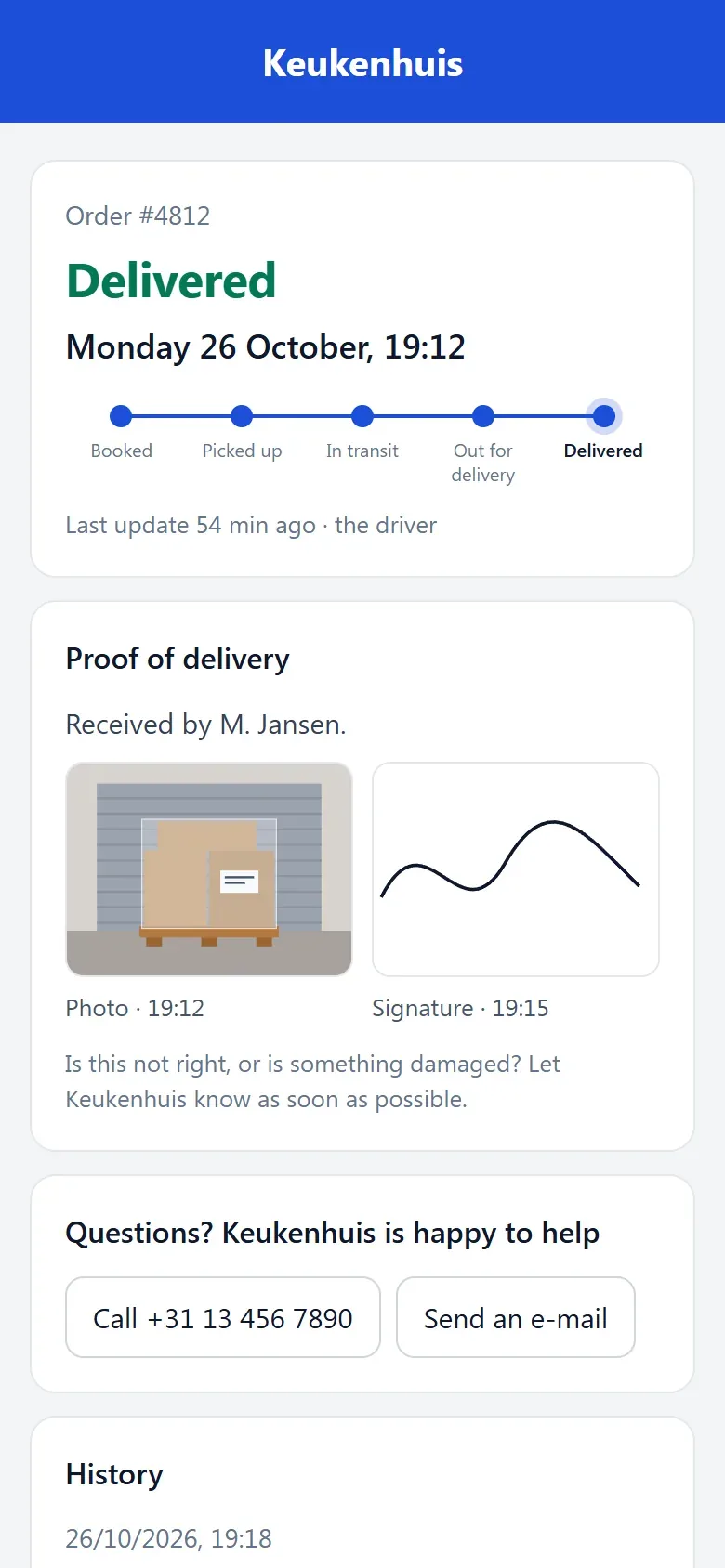
Section titled “Proof of delivery”A proof of delivery comes from the driver (name plus photo or signature, through the driver link) or from the carrier itself, as an attachment to its message. You see it in the shipment’s history. If a shipment is delivered without proof, you see No proof of delivery.
What Pier never does
Section titled “What Pier never does”Messages from a carrier cannot create orders or shipments, change addresses or read anything. Names, streets, phone numbers and e-mail addresses from messages are not stored. A key only writes into your workspace.