
Shipping in Teamdock
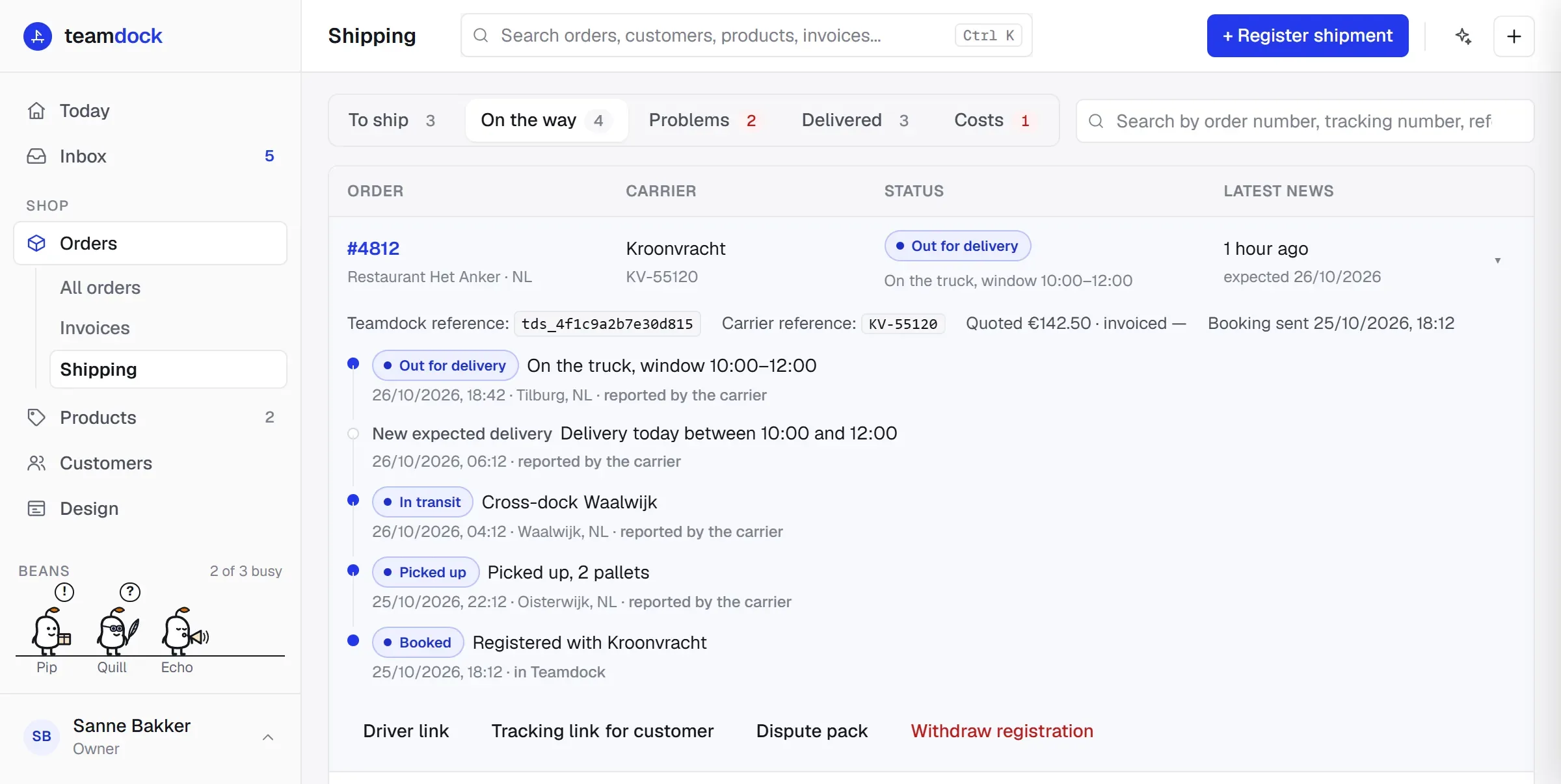
With Teamdock you handle the shipping of your orders from your workspace. You connect the carriers you already have a contract with, you see on one page what still has to ship and what is on its way, and your customer follows the shipment on a page with your name and logo.
How it fits together
Section titled “How it fits together”1. One shipping setup. Under Settings → Shipping → Carriers you choose how you ship. Exactly one is always active:
| Setup | What it does |
|---|---|
| None | No carrier connection. Orders are picked in Teamdock; labels are made elsewhere. |
| Own carriers | Direct connections on your own contract. With DACHSER you request freight prices, book, print labels and track the shipment. PostNL, DPD and GLS can only be connected and tested for now. |
| Sendcloud | When you mark an order picked, Teamdock creates a Sendcloud label and prints it. |
| Picqer | Picqer runs your warehouse. Teamdock shows the Picqer status on every order and prints its labels and packing slips. |
If you work with Picqer, Sendcloud or no connection, you can connect DACHSER alongside as an extra carrier for exceptions. See Connecting carriers.
2. Other carriers through Pier. A carrier without a built-in connection, such as a regional haulier, is connected under Settings → Shipping → Other carriers. It sends its status messages to Teamdock, receives bookings through its own endpoint or by e-mail, or works with a driver link. Carriers know this as Teamdock Pier. See Pier.
3. The Shipping page. Through Shipping in the menu you see every paid order that still has to ship and every shipment that is on its way, delivered or has a problem. See The Shipping page.
4. On the order. Every order has the Shipping card with Shipments inside it: each shipment with its status, tracking number and history. That is also where you book with your carrier or make the Picqer label.
5. Your customer. Your customer follows the shipment on a tracking page in your branding, optionally on your own domain. If you switch it on, they also get an e-mail when the shipment moves. See Tracking page and customer e-mails.
What is in which plan
Section titled “What is in which plan”| Essentials | Pro | Max | |
|---|---|---|---|
| Shipping page, tracking page, customer e-mails | Yes | Yes | Yes |
| Sendcloud or Picqer | Yes | Yes | Yes |
| Own carriers (DACHSER or a Pier carrier) | 1 | up to 5 | unlimited |
| Driver links, returns, rates per carrier, cost check and dispute pack | No | Yes | Yes |
An “own carrier” is DACHSER or a carrier connected under Other carriers. Sendcloud and Picqer do not count. If you move to a smaller plan, everything already running keeps working; you just cannot add another carrier above your limit.
Who can do what
Section titled “Who can do what”- The shipping settings (Settings → Shipping and Settings → Printers & labels) are for people who may manage settings.
- The Shipping page and the shipments on an order follow the Shipping permission in the roles: View to see them, Edit to register a shipment, make a link or reprint a label, and Full to book with a carrier, send to the carrier or cancel. See Members and roles.