
Shipping costs
Under Settings → Shipping → Shipping costs you set what each shipping class costs per zone, as WooCommerce charges it at checkout with the Flat rate method. You don’t need to open wp-admin for it. What you save goes straight to your shop: the shop stays the source.
The table
Section titled “The table”Each column is a WooCommerce shipping zone with a flat rate. If a zone has more than one, or one is switched off, you see the method’s name with it. The rows are:
| Row | What it is |
|---|---|
| Base cost (every order) | The amount every order in that zone pays. |
| A row per shipping class | The extra cost for products in that class. The number next to the name is how many products are in the class. |
| No class | The extra cost for products without a shipping class. |
| Calculation | All added up: the costs of all classes in the cart are added up. Priciest class: only the most expensive class counts. |
An empty box means: no extra cost for that class. You can enter an amount or a WooCommerce formula, such as 10 + 2 * [qty].
Changing shipping costs
Section titled “Changing shipping costs”- Go to Settings → Shipping → Shipping costs.
- Change the amounts in a zone’s column.
- Click Save at the bottom of that column. Each column is saved separately.
Only administrators and shop managers can change shipping costs. Other colleagues see the table without being able to edit it.
Adding a shipping class
Section titled “Adding a shipping class”- Under Add shipping class, enter a name, for example “Ovens”.
- Click Add shipping class. The class is created in your shop and appears as a new row.
- Fill in the costs per zone and save each column.
You choose a product’s class on the product. There you also see straight away what that class costs; if nothing is set, it shows no shipping cost set — set it. See Products.
Together with the pallet calculator
Section titled “Together with the pallet calculator”If you use pallet shipping, orders the pallet calculator can price get its price. These shipping costs are never added on top. They only apply when the pallet calculator cannot price an order.
Delivery cost on the product page
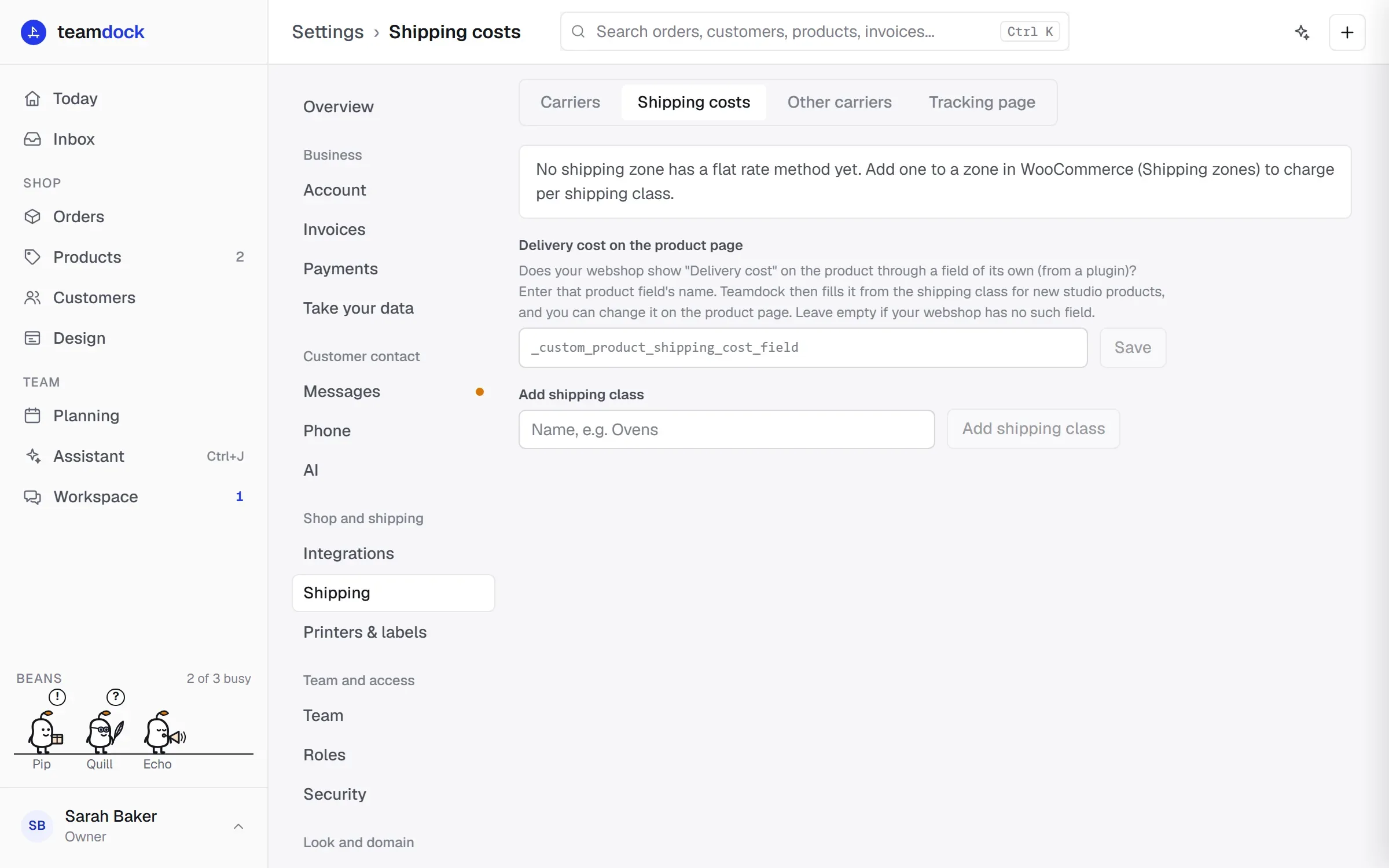
Section titled “Delivery cost on the product page”Does your shop show “Delivery cost” on the product through a field of its own from a plugin? Then enter that product field’s name under Delivery cost on the product page and click Save. Teamdock then fills the field from the shipping class for new studio products, and you can change it on the product page. Leave it empty if your shop has no such field.
Troubleshooting
Section titled “Troubleshooting”- “No shipping zone has a flat rate method yet.” In WooCommerce, add the Flat rate method to a zone under Shipping zones. That zone then appears here.
- “Could not load the shipping costs from the shop.” Teamdock could not reach your shop. Try again later.
- Setting up new zones or methods is done in WooCommerce itself; here you only change the amounts of existing flat rates.