
My email
Besides the shared Inbox, every employee has their own mailbox in Teamdock: My email. Here you read and answer your own work email without switching to another program. Your messages stay private: they are never shared with the team and never turned into tickets.
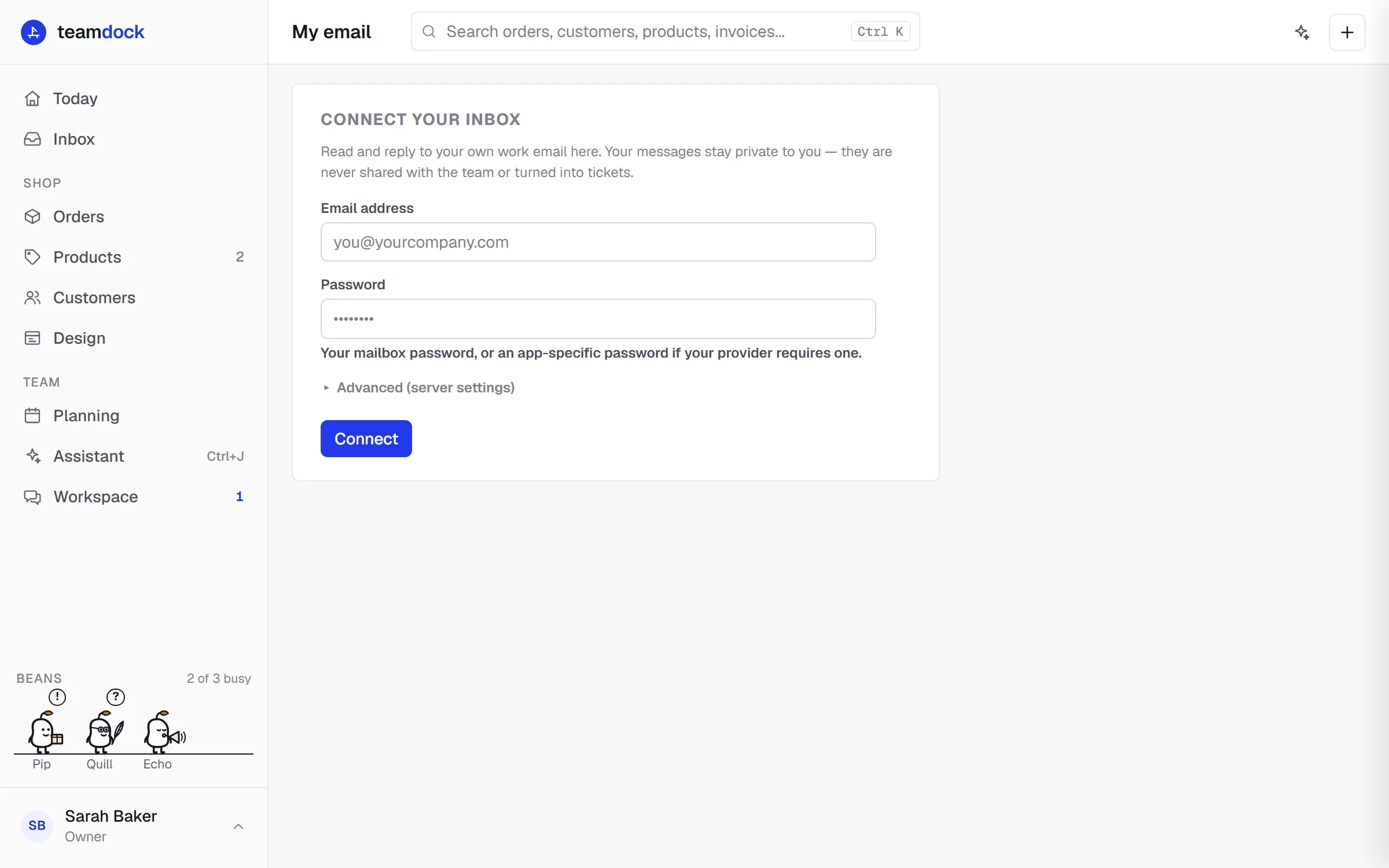
You find My email in the Inbox, in the left column under Only me. If you don’t have access to the Inbox, My email is in the main menu.
Connecting your mailbox
Section titled “Connecting your mailbox”- Open My email.
- Under Connect your inbox, enter your Email address and Password. If your mail provider asks for an app password (such as Gmail or Microsoft 365 with two-step verification), use that.
- Does your login name differ from your email address, or is your mailbox on a different server from the rest of the company? Open Advanced (server settings) and fill in Login name, IMAP host and Port. Leave the host blank to use your company’s mail server.
- Click Connect.
Once connected you see your inbox: the list of messages on the left, the message you open on the right. Unread messages are in bold.
Reading, replying and sending
Section titled “Reading, replying and sending”- Click a message to read it. Attachments are shown at the top of the message.
- Click Reply to answer. To and subject are already filled in.
- Click New email to write a new message. Fill in To, Subject and Message and click Send.
- Click Refresh to fetch new mail. Teamdock fetches your mail live when you open the page; nothing runs in the background.
Your From name and signature
Section titled “Your From name and signature”- Click Profile at the top.
- Under From name, enter the name recipients see. Leave it blank to use your account name.
- Write your Signature. It goes under the emails you send from My email.
- Click Save.
Disconnecting
Section titled “Disconnecting”Click Disconnect this mailbox at the bottom. Your stored credentials are then removed. Your mail itself stays with your mail provider.
My email or a shared mailbox?
Section titled “My email or a shared mailbox?”| My email | Shared mailbox (e.g. support@) | |
|---|---|---|
| Who sees the mail? | Only you | Your whole team, as tickets |
| Does it become a ticket? | Never | Yes, when Sync this inbox into tickets is on |
| Where do you set it up? | My email | Settings → Messages → Email |
Troubleshooting
Section titled “Troubleshooting”- Could not connect. Check your password. With Gmail or Microsoft 365 you often need an app password and IMAP must be on. If your mailbox is on another server, fill in the IMAP host under Advanced (server settings).
- I don’t see My email. Your role then has no access to this part. Ask an administrator.