
The Teamdock app
The Teamdock app puts your workspace on your phone: your Inbox, orders, products with a scanner, the chat with your colleagues, and approvals. It is the same workspace as on your computer, with a layout for your phone. The app is included in every plan.
Installing the app
Section titled “Installing the app”Open teamdock.ai/app on your phone. As soon as the app is in the App Store or Google Play, that link sends your phone straight to the right store.
Is the app not in your store yet? Then use Teamdock in your phone’s browser. See Without the app.
Signing in with a QR code
Section titled “Signing in with a QR code”The easiest way: you make a QR code on your computer and scan it with the app. You then do not have to type a password on your phone.
- Log in to your workspace on your computer and go to Settings → Security.
- Find the block Sign in to the Teamdock app and click Show QR code.
- Teamdock asks for proof that it is you. Enter your WordPress application password. If you have two-factor verification on, enter a code from your authenticator app instead. Click Show QR code again.
- The QR code appears. It works once, for two minutes; the time left is shown below it.
- Open the Teamdock app on your phone and tap Sign in with QR code. Point the camera at the code.
- The app asks Sign in to your workspace as your name. Tap Sign in.
- On your computer you see that it worked, with the device and the time. For another phone, click Another phone.
Problems with the QR code
- “This code no longer works”: the code has expired or was already used. Make a new one on your computer.
- “Two-factor authentication was switched on just now. You can make a code in 15 minutes.”: wait a quarter of an hour after turning on two-factor verification.
- “That password is not right.”: use your WordPress Application Password, not your normal WordPress password.
You can also simply log in to the app with your username and Application Password, as on your computer. Keep me signed in on this device is on by default in the app, so you do not have to log in again and again. See Logging in for the first time.
Finding your way in the app
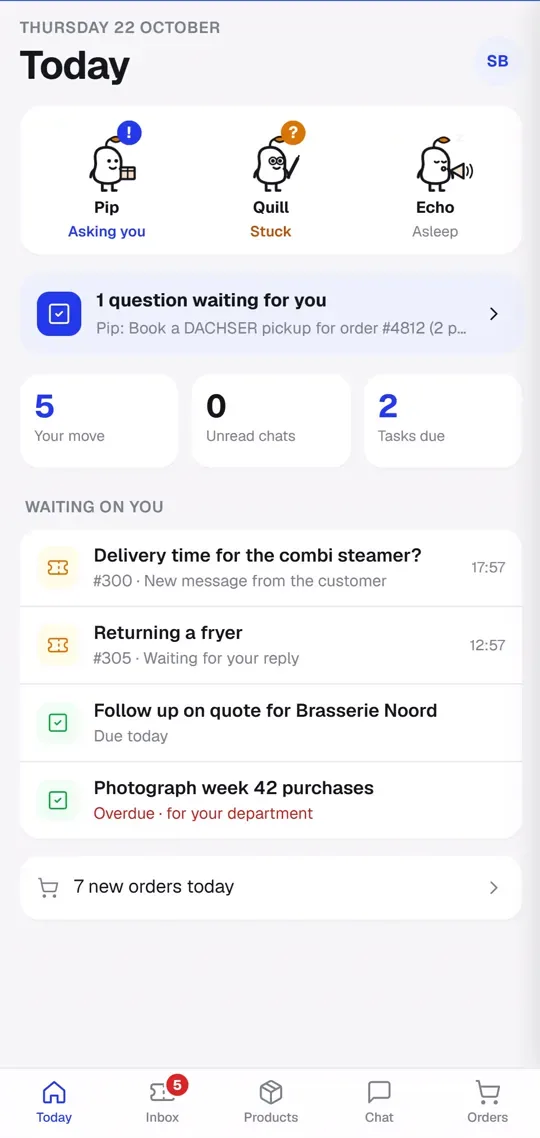
Section titled “Finding your way in the app”At the bottom is a tab bar with five tabs:
- Today: what is waiting on you, such as your tickets, unread messages and tasks due today.
- Inbox: your tickets.
- Products: your catalogue, with a button to scan a product by barcode or QR code.
- Chat: the chat with your colleagues.
- Orders.
At the top right is your profile button. It opens your Profile with the other parts (such as Tasks, Workspace, Customers, Agenda, Assistant, Invoices and Settings) and the buttons Switch workspace and Log out.
Which tabs and parts you see depends on your role. In Settings, what you can do on your phone comes first (On this phone); long forms and keys are filled in on a computer (On a computer).
Turning on notifications
Section titled “Turning on notifications”- Open the Today tab. The first time, the app asks Turn on notifications?. Tap Turn on and allow notifications if your phone asks.
- You can also turn them on later: go to Settings → Notifications and tap Turn on notifications.
- Under What about, choose what you want to be notified about, for example Direct messages, Tasks, My tickets, New tickets and New orders. This choice applies to all your devices.
- Tap Send a test to check that it works.
A notification never names a customer or what they wrote, only what happened. You see the rest once you open the app. You are never notified about your own actions.
If you get no notifications, they are probably off in your phone’s settings. Turn them on via Settings → Notifications → Teamdock on your phone and come back to the app.
Locking the app
Section titled “Locking the app”- Tap your profile button at the top right.
- Turn on Lock with Face ID or fingerprint and confirm with your face, fingerprint or passcode.
The app then locks after it has been in the background for 5 minutes. You unlock with Face ID, your fingerprint or your phone’s passcode. This is a lock on the screen: you stay signed in. The setting applies to that phone only.
Switching workspace or logging out
Section titled “Switching workspace or logging out”If you work for more than one workspace, tap Switch workspace in your profile. This phone then stops getting notifications from the workspace you leave. Log out signs you out; notifications for that phone also stop then.
Without the app
Section titled “Without the app”You can also use Teamdock in your phone’s browser at yourcompany.teamdock.ai.
You turn on browser notifications under Settings → Notifications. On an iPhone or iPad this only works when Teamdock is on your home screen (iOS 16.4 or later):
- Open your workspace in Safari and tap the Share button (the square with the arrow pointing up).
- Choose Add to Home Screen.
- Open Teamdock from your home screen, log in and turn notifications on under Settings → Notifications.