
Members and roles
Everyone in your team signs in with their own WordPress account. What someone may do in Teamdock is decided by roles. A role gives each area a level (none, view, edit or full) and can grant a few management rights. A role is also a department: you can give tasks and chat channels to the members of a role.
Viewing your team
Section titled “Viewing your team”Go to Settings → Team. You see every colleague who can sign in, with their name, username, email address, WordPress role (Administrator or Shop Manager) and the date they became a member. Use the search field to search by name, username, email or role.
Just added someone in WordPress and they are not listed yet? Click Refresh.
Adding a colleague
Section titled “Adding a colleague”Team members are WordPress users of your shop, so you add them in the WordPress admin:
- In WordPress, under Users, create a new user with your colleague’s email address.
- Give that user the role Shop Manager. An Administrator becomes an owner in Teamdock and may do everything.
- Your colleague creates their own Application Password in WordPress and uses it to sign in to Teamdock. See First login.
- Put your colleague in a role in Teamdock (see below).
How roles work
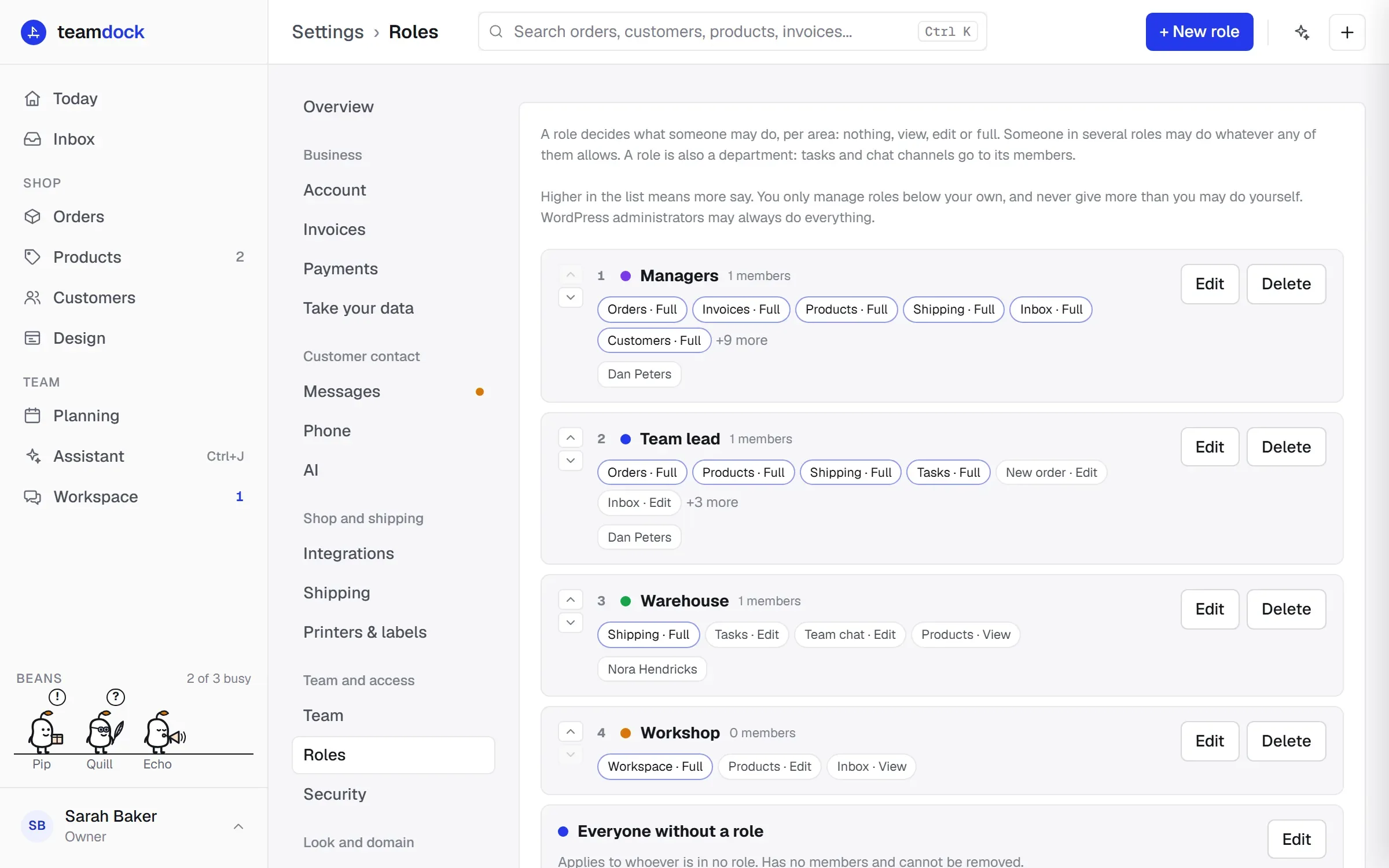
Section titled “How roles work”Open Settings → Roles. You see the roles from high to low, each with its colour, number of members, the areas it can reach and the names of its members.
- Levels per area. For each area (such as Orders, Invoices, Products, Inbox, Tasks or Automation) you choose None, View, Edit or Full.
- View: open and read.
- Edit: change and create.
- Full: also delete, cancel, refund and send something to a customer (invoice, payment request, reply).
- A few areas go less high: Team up to View, and New order, Assistant, Messages and Team chat up to Edit.
- None also means: the area is not in the sidebar and cannot be opened from a link.
- Several roles. Someone in more than one role may do whatever any of those roles allows.
- Running the workspace. Under this heading you give a role extra rights:
- Manage roles, chat channels and shared logins
- Settings: shop, e-mail, shipping, printers
- Connect and disconnect integrations
- Subscription, payments and taking your data
Two built-in roles
Section titled “Two built-in roles”- Everyone without a role is always at the bottom. It applies to every colleague who is in no other role. It has no members and cannot be removed, but you can change what it allows.
- Your shop managers are put into a role called Beheerders automatically the first time. You change that role like any other.
WordPress administrators (owners) are above all roles and may always do everything.
Creating or changing a role
Section titled “Creating or changing a role”- Go to Settings → Roles and click + New role. For an existing role, click Edit.
- Enter a Name, for example Warehouse, and choose a Colour.
- Under members, tick the colleagues who belong in this role.
- Under What this role may do, choose the level for each area.
- Under Running the workspace, tick what else this role may do.
- Click Save. The change applies at once.
To remove a role, click Delete on the role’s card.
Ranking
Section titled “Ranking”Higher in the list means more say. Use the Move up and Move down arrows to change the order.
- You only manage roles below your own. Roles above you are locked, marked Not below your own role.
- You never give more than you may do yourself. A level or right you don’t have is greyed out (More than you may do yourself).
- Without the right to manage roles you can see the roles, but not change them.
Shared logins
Section titled “Shared logins”Do several people work on one WordPress account, such as a phone in the warehouse? Then you can attach their names to that account. A phone on that account asks “Who are you?” once, and the chat and the pick note show who it was.
- Go to Settings → Roles and scroll to Shared logins.
- Pick the account under Choose an account… and click + Make shared.
- Type a colleague’s name and click Add. Repeat this for everyone who uses the account.
To remove a name, click the cross after it.
Chat channels
Section titled “Chat channels”On the same page you create chat channels between departments, such as Sales / Warehouse. How that works is in Team chat and workspace.
Troubleshooting
Section titled “Troubleshooting”A colleague does not see an area in the sidebar. None of their roles gives access to it, or they are in no role and Everyone without a role is set to None there. Change the role.
I cannot edit a role. The role is above or level with your own highest role. Ask an owner or someone with a higher role.
I don’t see Settings → Roles. You don’t have the right Manage roles, chat channels and shared logins.