
Teamdock WordPress plugins
Teamdock has a few small WordPress plugins that make your shop and your workspace work better together. They are for a shop on its own hosting. A shop hosted by Teamdock has them installed already: you don’t need to do anything.
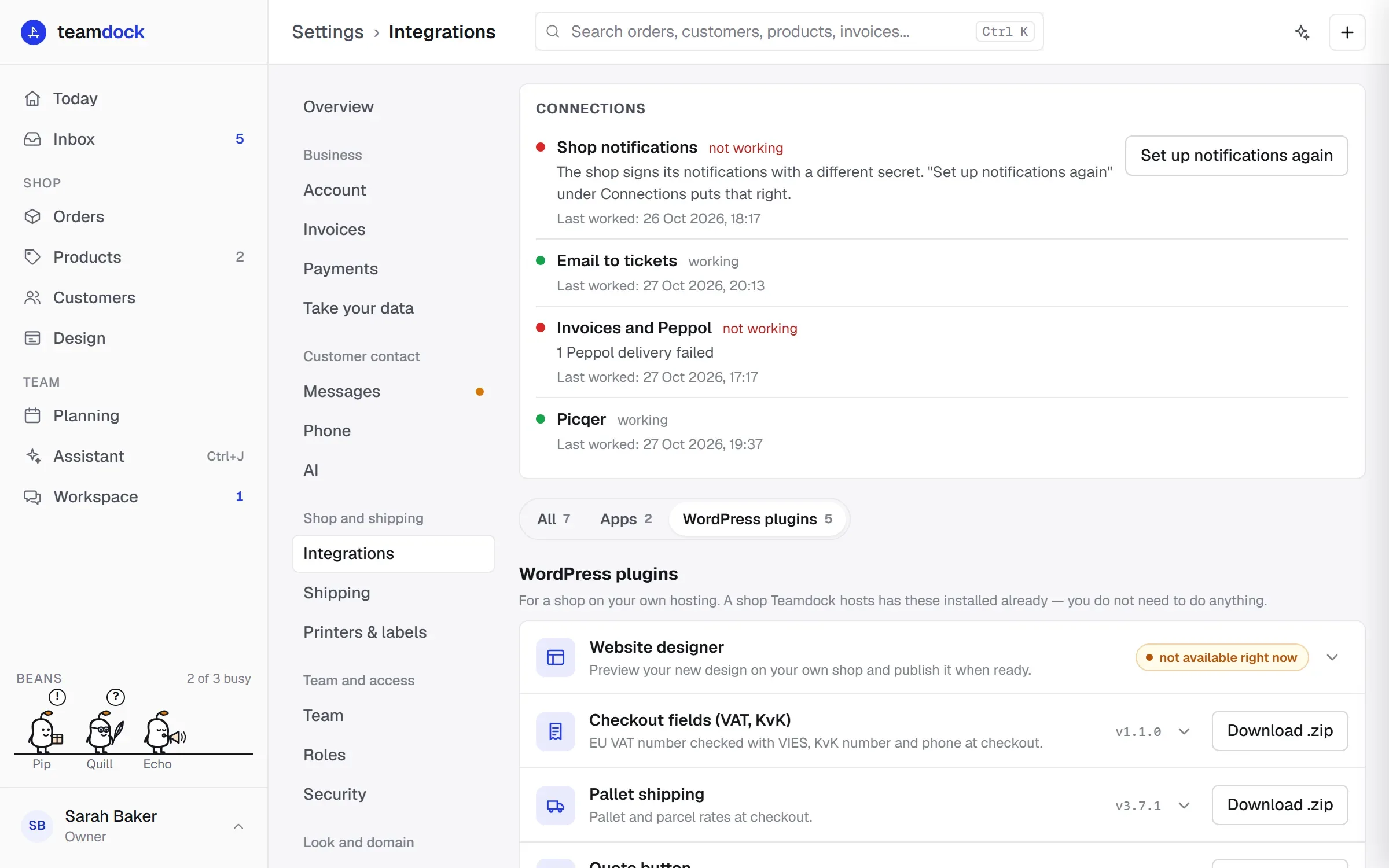
The plugins can only be downloaded from your workspace, under Settings → Integrations, in the WordPress plugins group.
The plugins
Section titled “The plugins”| Plugin | What it does | Read more |
|---|---|---|
| Website designer | Lets Design show your new design on your own shop before you publish it, and publishes it when you are ready. | Website design |
| Checkout fields (VAT, KvK) | VAT number checked with VIES, KvK number and phone at checkout. | Checkout fields plugin |
| Pallet shipping | Pallet and parcel rates at checkout. | Shipping |
| Quote button | A “Request quote” button on the checkout. The request arrives in Teamdock as a ticket. | Tickets |
| Product data | Tells Google whether a product is new, used or refurbished, from the condition you set in Teamdock. | Products |
Installing a plugin
Section titled “Installing a plugin”-
Go to Settings → Integrations. Choose WordPress plugins at the top to see only the plugins.
-
Expand the plugin. You see what it does, how to install it and which version it is.
-
Click Download .zip.
-
In WordPress, go to Plugins → Add New → Upload Plugin, choose the .zip file, install and activate the plugin.
-
Follow the extra step listed with the plugin, if there is one:
- Website designer: open Design in the menu on the left. Your shop connects by itself the first time you update the preview.
- Checkout fields and Product data: nothing to set up.
- Pallet shipping: paste your API key under WooCommerce → Settings → Shipping → Pallet shipping (Teamdock), set your pallet types and add the method to your shipping zones. No API key yet? Contact support.
- Quote button: paste the Teamdock address and the secret shown with the plugin under WooCommerce → Teamdock quote and click Test connection there. Only an administrator sees the secret.
If a plugin says not available right now, it cannot be downloaded at that moment. Contact support and we will send it to you.
Updating
Section titled “Updating”A plugin does not update by itself. When the version under Settings → Integrations is newer than the one in your shop, download it again and upload it in WordPress the same way. WordPress replaces the old version. The file name contains the version number, so you can tell which one you installed.
Who can do this?
Section titled “Who can do this?”Settings → Integrations is available to administrators and to roles that may manage integrations. See Members and roles.