
Products
Under Products you manage your WooCommerce shop’s catalogue from Teamdock. Everything you see and change here comes straight from your shop and goes straight back to it: there is no separate copy that can drift out of step.
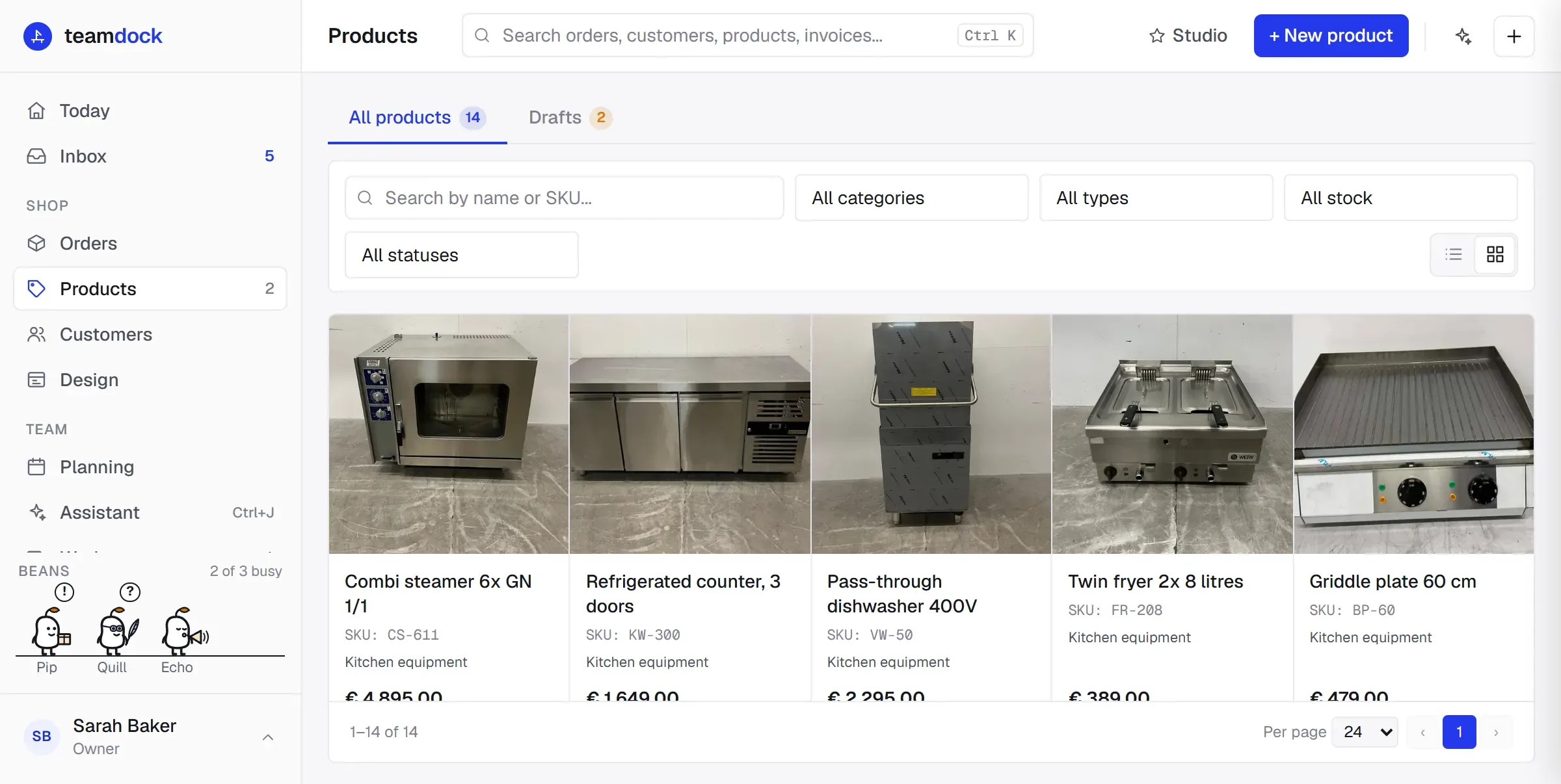
You find Products in the menu on the left. The number next to it is how many drafts are waiting to be published.
What is on the page
Section titled “What is on the page”At the top are two tabs:
- All products: the whole catalogue, with search and filters.
- Drafts: products that are not live yet, for example from the Studio. This is where you approve or reject them. See Review and publish drafts.
At the top right are two buttons:
- Studio: turn photos into products, with your phone’s camera or by importing files. See Studio.
- + New product: fill in a product by hand. See Create and edit products.
Search and filter products
Section titled “Search and filter products”- Open Products and stay on the All products tab.
- Type part of the name or article number in the search field (Search by name or SKU…).
- Narrow it down with the drop-downs:
- All categories: one category from your shop.
- All types: Simple, Variable, Grouped or External.
- All stock: In stock, Out of stock or On backorder.
- All statuses: Published, Draft, Private or Pending.
- Clear filters resets everything.
Searching and filtering happen in your shop itself, so even a catalogue of thousands of products loads quickly. At the bottom of the list you choose how many products to show per page and move to the next page.
Each row or card shows the main photo, name, SKU, category, price, product type and stock status. A product that is not published gets a label with its status over the photo. Click a product to open it.
Print labels for several products
Section titled “Print labels for several products”If a label printer is set up, you can print labels for a selection in one go:
- Tick the products you want a label for in the list. You can do this across several pages.
- A bar appears at the bottom with the number of selected products.
- Click Print labels (count) and choose the template and number of copies in the window.
Clear selection starts over. If no printer is set up yet, Teamdock says so and points you to Settings → Printers & labels.
Who can do what
Section titled “Who can do what”What you can do on this page depends on your access to Products (see Members and roles):
| Access | What you can do |
|---|---|
| View | Search and open products, and print labels. |
| Edit | Also create and change products, use the Studio and publish drafts. |
| Full | Also delete products, reject drafts and delete photoshoot sessions. |
In the Teamdock app on your phone
Section titled “In the Teamdock app on your phone”In the Teamdock app on a phone, Products is a simple list for looking things up. With Scan a product you point the camera at a barcode or QR code and Teamdock opens the product with that SKU or EAN. If it finds nothing, you can search by name instead. Editing is done on a computer or tablet. More about the app: Mobile app.