
Review and publish drafts
A draft is a product that is in your shop but not yet visible to customers. Everything the Studio makes starts as a draft. Under Products → Drafts you check them and put them live. There are three ways: one by one in the list, a selection in one go, or by swiping.
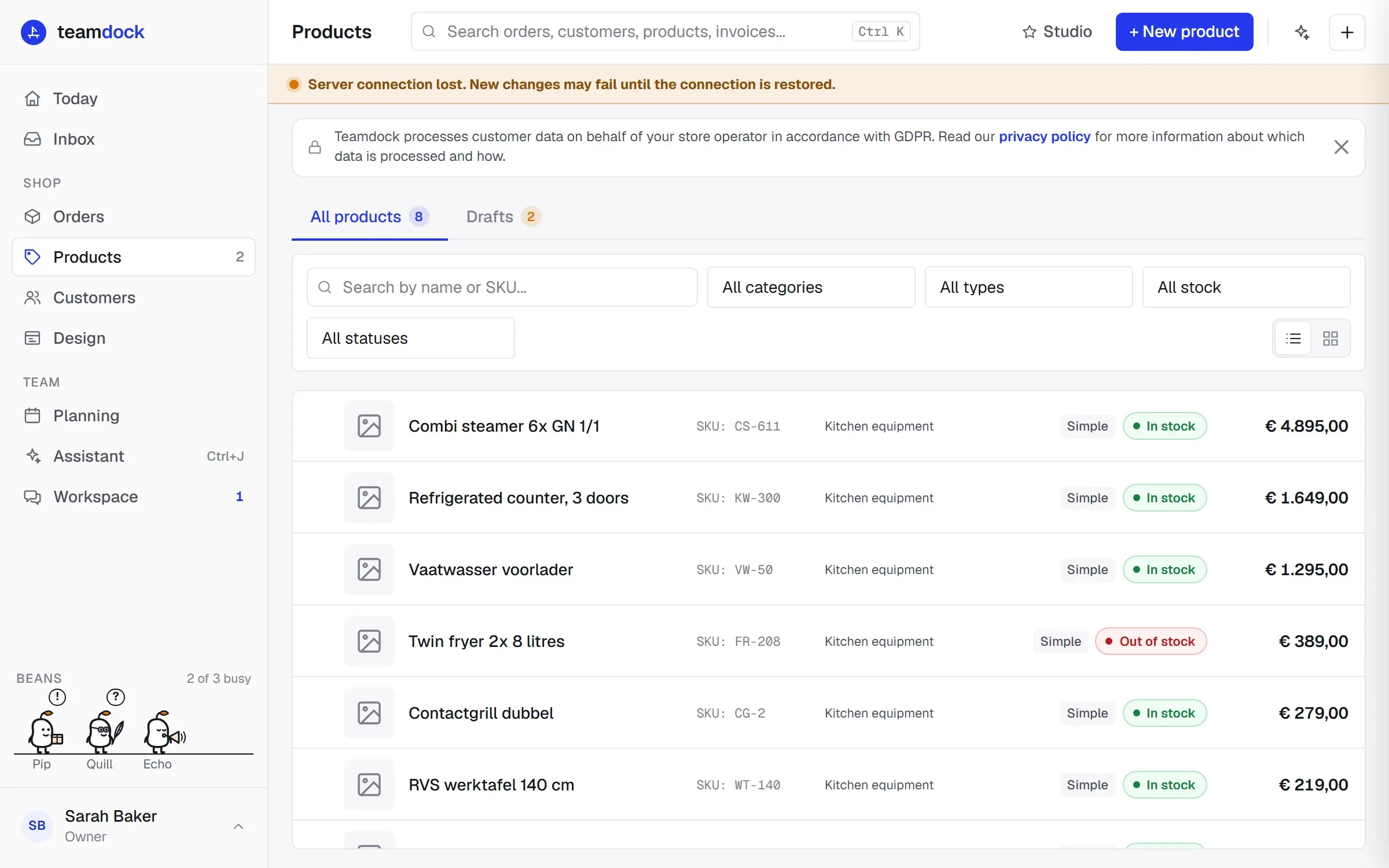
The number of drafts is shown on the Drafts tab and next to Products in the menu.
The list of drafts
Section titled “The list of drafts”Each row shows the photo (with the number of extra photos), name, SKU, type, category and the short description. If something important is missing, you see a label: No price, No image or No category. Search with the search field or filter by category.
Each draft has these buttons:
- Publish: puts the product live in your shop straight away.
- Reject (Full access): see below.
- Edit: opens the full product, see Create and edit products.
- Retry AI: only if the AI text failed when the draft was made. Has the description written again.
Reject a draft
Section titled “Reject a draft”- Click Reject on the draft.
- Optionally fill in a Reason (optional), for example “photo quality insufficient”.
- Click Reject.
The draft goes to your shop’s bin. The person who made the draft gets a task with your reason in their own task list, so they know what needs to be better. If the maker is unknown (for example with an old draft), the draft is still rejected, but without a task.
Publish several drafts at once
Section titled “Publish several drafts at once”- Tick the drafts, or use Select this page. For everything that matches your search, click Select all … matching drafts.
- Click Publish … in the bar at the bottom.
- Teamdock first checks whether every draft has a price, image and category. If some are incomplete, choose Skip these, publish … (they stay drafts) or Publish all ….
- Confirm. Publishing runs in small groups so your website stays fast. Keep the window open until it is done. Stop stops after the current group.
If a product fails, it stays a draft. Open it to see what is wrong, or try again with Retry failed.
From the same bar you can also Print labels for the selected drafts.
Swiping: review one at a time
Section titled “Swiping: review one at a time”With Swipe you review drafts as cards, one at a time. This is handy for big piles, and works with mouse, keyboard and touchscreen.
- Open Products → Drafts. Optionally filter by a search term or category first: only those drafts go into the deck.
- Click Swipe.
- Decide on each card:
- Right, or Approve (→ key): the draft may go live.
- Left, or Reject (← key): pick or type a reason. There are quick choices such as Photos not good enough, Duplicate product, Price is wrong and Title or description needs work.
- Up, or Later (↑ key): skip it for now.
- To change something, click Edit (E key). You get every field and photo tool of the product. Changes are saved into the draft as soon as you decide or go back. Variations are edited through Full editor.
- Click Review & publish (P key) when you are done, or when the deck is empty.
Other keys: Z is Undo, S shuffles the deck (or puts it back to newest first), and comma and full stop step through a card’s photos.
The final screen: review and publish
Section titled “The final screen: review and publish”On Review and publish you see what you approved, rejected and have not decided on yet. Nothing has changed in the shop at this point.
- Click a tile to look at a draft again, or take a decision back.
- Click Publish … · reject ….
- Teamdock shows what will happen: how many drafts go live, how many go to the bin (the maker gets a task with the reason) and how many stay drafts. If decisions by colleagues are included, it says so.
- If approved drafts have no price or photo yet, choose Skip the incomplete ones or Publish everything anyway.
- Click Carry out.
Just before carrying out, Teamdock checks every draft again. A draft that was changed after your decision is skipped and comes back on top of the deck to look at again. Drafts that have meanwhile been published or deleted are skipped too. Each product succeeds or fails on its own; what went live correctly stays live.
What is learned when you publish
Section titled “What is learned when you publish”Teamdock keeps the text as the AI wrote it and compares it with what you publish. If you keep making the same change, an administrator can have a writing rule made from it. A rule is only used once someone approves it. See Studio settings.