
FAQ knowledge base
In the FAQ knowledge base you record how your shop answers common questions: delivery times, returns, warranty, payment. The AI uses these answers when it reads a ticket and writes a draft reply. In a ticket’s side panel, Matches FAQ shows which questions apply.
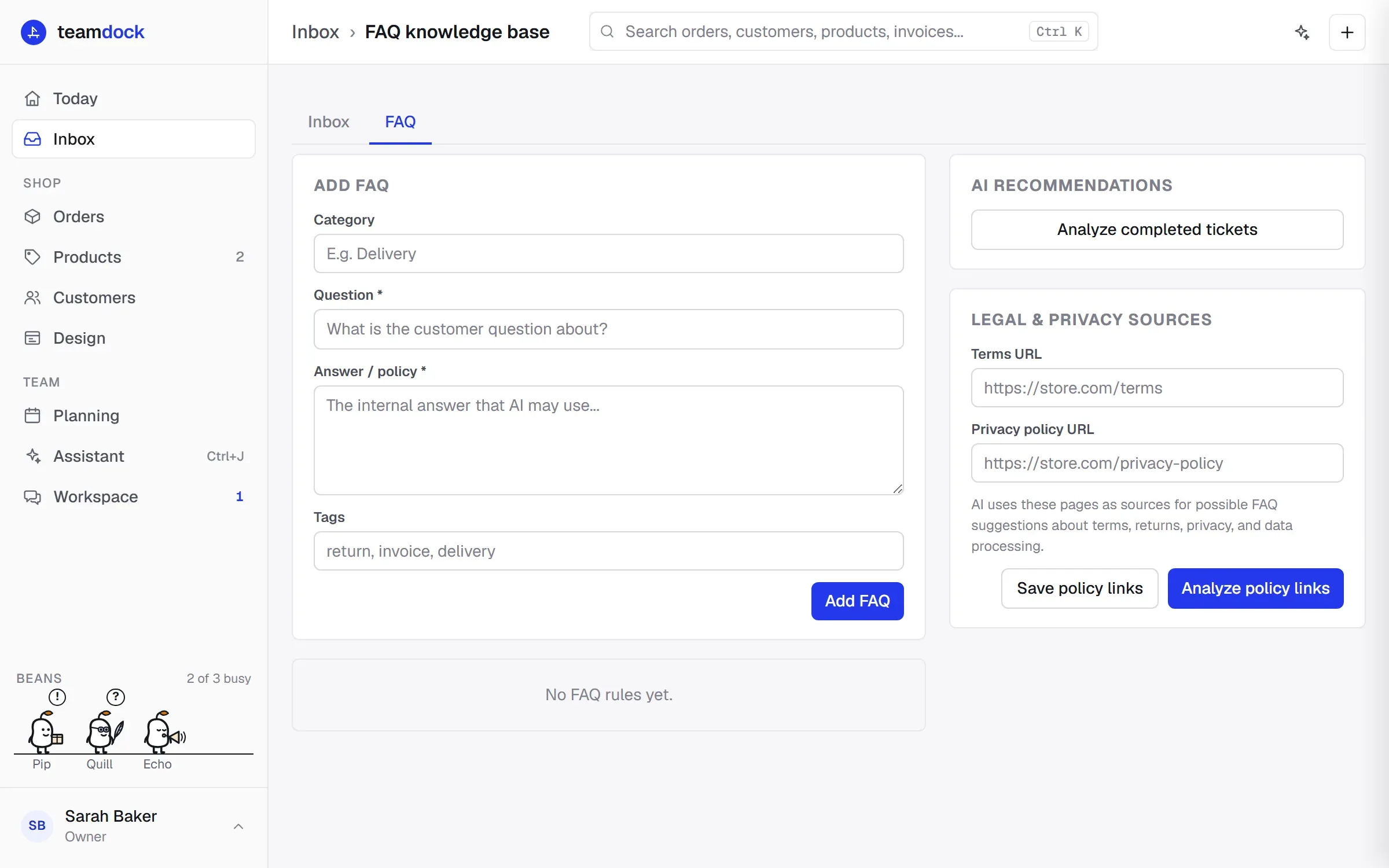
You find the knowledge base in the Inbox, on the FAQ tab.
Adding an FAQ
Section titled “Adding an FAQ”- Go to Inbox → FAQ.
- In the form on the left, fill in the Category (e.g. Delivery; left blank it becomes General).
- Write the Question: what is the customer question about?
- Under Answer / policy, write the answer or rule the AI may use.
- Optionally add Tags, separated by commas (e.g. return, invoice, delivery).
- Click Add FAQ.
Editing, pausing and deleting
Section titled “Editing, pausing and deleting”Each FAQ in the list has three buttons:
- Edit: puts the FAQ in the form. Make your changes and click Save FAQ, or Cancel edit.
- Pause / Activate: a paused FAQ is kept, but the AI doesn’t use it.
- Delete: removes the FAQ for good. You only see this button if your role has full rights on tickets.
Letting the AI suggest FAQs
Section titled “Letting the AI suggest FAQs”You don’t have to think of everything yourself. The right side of the page offers two ways to get suggestions.
From completed tickets
Section titled “From completed tickets”Under AI recommendations, click Analyze completed tickets. The AI reads your most recent closed tickets (up to 50) and suggests questions that keep coming back, or an addition to an FAQ you already have.
From your terms and privacy policy
Section titled “From your terms and privacy policy”- Under Legal & privacy sources, enter the Terms URL and the Privacy policy URL of your web shop.
- Click Save policy links.
- Click Analyze policy links. The AI reads those pages and suggests FAQs about terms, returns, privacy and data processing.
Reviewing suggestions
Section titled “Reviewing suggestions”Each suggestion is a New FAQ or an Addition to existing FAQ. You see why the AI suggests it, which tickets it is based on and how sure the AI is (a percentage).
- Add as FAQ or Apply addition takes the suggestion over directly.
- Use in form puts a new suggestion in the form, so you can adjust it first.
The suggestions show which AI made them. If no AI is available, Teamdock makes simpler suggestions based on fixed rules.