
Security
Under Settings → Security you secure your own account. Everyone in the team has this page, and what you set here only applies to your account.
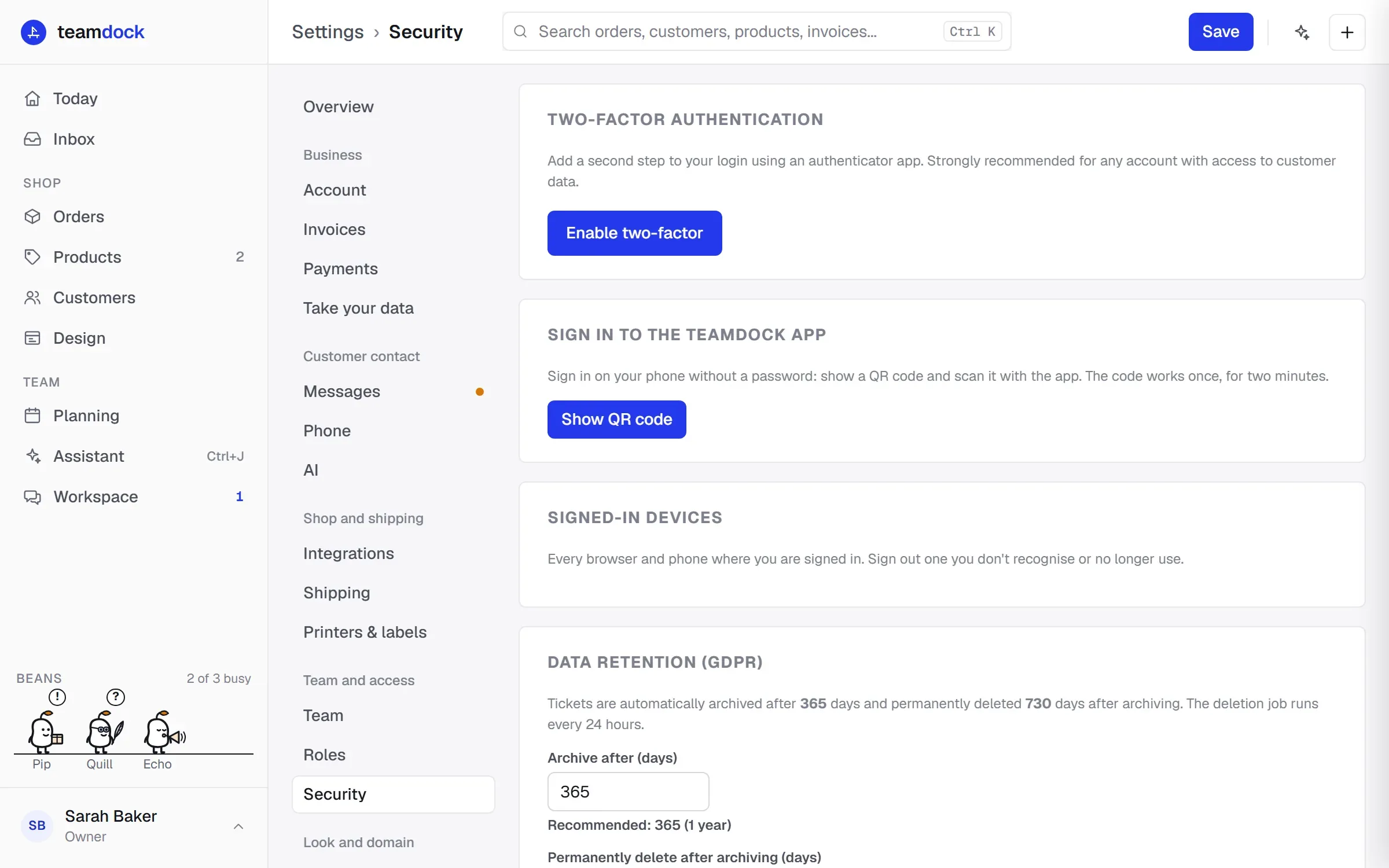
Two-factor authentication
Section titled “Two-factor authentication”With two-factor authentication Teamdock asks, on top of your Application Password, for a code from an authenticator app when you sign in. This is strongly recommended for any account with access to customer data.
Switching it on
Section titled “Switching it on”- Install an authenticator app on your phone, such as Google Authenticator, 1Password or Authy.
- Go to Settings → Security and, under Two-factor authentication, click Enable two-factor.
- Confirm it is you: enter your WordPress application password, the one you sign in to Teamdock with, and click Continue.
- Scan the QR code with your authenticator app. If scanning doesn’t work, enter the key below it manually.
- Enter the 6-digit code from the app under Verification code and click Enable two-factor.
- You get a list of one-time recovery codes. Click Copy codes and keep them somewhere safe. Then click I’ve saved them.
Signing in with two-factor authentication
Section titled “Signing in with two-factor authentication”After your username and Application Password, Teamdock asks for the 6-digit code from your app. Don’t have your phone to hand? Click Use a recovery code instead.
Switching it off
Section titled “Switching it off”Click Disable two-factor, enter a code from your authenticator app or a recovery code, and confirm.
Signing in to the Teamdock app
Section titled “Signing in to the Teamdock app”On your computer you make a QR code that signs you in to the Teamdock app on your phone, without a password.
- On your computer, go to Settings → Security and, under Sign in to the Teamdock app, click Show QR code.
- Confirm it is you: with a code from your authenticator app if two-factor is on, otherwise with your WordPress application password.
- Open the Teamdock app on your phone and tap Sign in with QR code.
- Point the camera at the code.
The code works once, for two minutes. Afterwards your computer shows which device signed in and when. Not you? Click Sign it out. For another phone, click Another phone.
Read more about the app in The Teamdock app.
Signed-in devices
Section titled “Signed-in devices”Under Signed-in devices you see every browser and phone where you are signed in, with when you signed in and when you were last active. The device you are using now is called This device.
- Click Sign out next to a device you don’t recognise or no longer use.
- Click Sign out everywhere else to sign out on every device except this one.
Data retention
Section titled “Data retention”At the bottom of this page is also Data retention (GDPR): after how many days tickets are archived and permanently deleted. This applies to the whole workspace. See Data and privacy.