
Team in Teamdock
Teamdock is built for several people working at the same time. Everyone signs in with their own account, sees only what their role allows, and can pass work to a colleague or to a whole department. This page shows what there is for your team and where to find it.
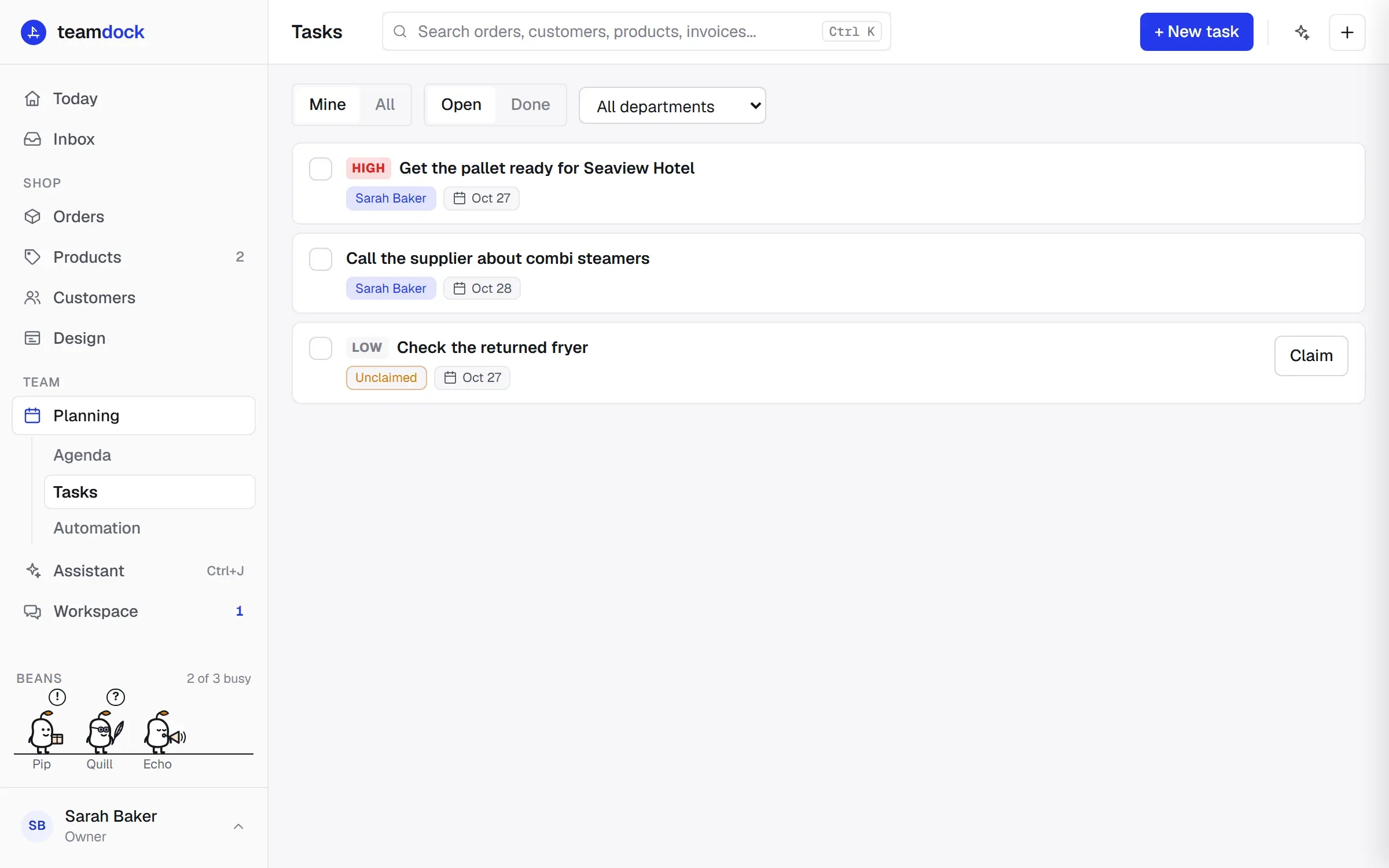
What there is
Section titled “What there is”| Part | Where | What for |
|---|---|---|
| Team | Settings → Team | The list of colleagues who can sign in, with their WordPress role. |
| Roles | Settings → Roles | Decide what someone may do: per area none, view, edit or full. A role is also a department. |
| Tasks | Planning → Tasks | Assign work to a person or to a department, with a priority and a due date. |
| Agenda | Planning → Agenda | Appointments and deadlines for the team, by day and by month. |
| Team chat | Account menu, bottom left → Team chat | Messages to the whole team, chat channels between departments and direct messages. |
| Workspace | Workspace in the sidebar | Discuss with colleagues something you cannot solve alone. The bean takes notes. |
Planning and Workspace sit in the sidebar under the Team heading. If you don’t see a part, your role has no access to it. Ask the owner of the workspace, or a colleague who manages roles.
Who is who
Section titled “Who is who”- Owner: every WordPress Administrator of your shop. An owner may always do everything, including the settings that are for the owner only, such as the domains and the AI settings.
- Team members: everyone with their own WordPress account with a staff role. What they may do in Teamdock depends on their roles in Teamdock.
You add a colleague in WordPress, not in Teamdock. After that you give that colleague a role in Teamdock. How that works is in Members and roles.
Getting started
Section titled “Getting started”- Add your colleagues as WordPress users and have them sign in once. See First login.
- Create roles for the groups in your business, for example Sales and Warehouse, and put your colleagues in them. See Members and roles.
- Create chat channels between departments that often need to talk. See Team chat and workspace.
- Assign work with tasks, and put appointments in the agenda. See Tasks and agenda.
Read more
Section titled “Read more”- Members and roles
- Tasks and agenda
- Team chat and workspace
- Automation and AI: have tasks and messages made automatically.