
Phone (Rinkel)
If you use Rinkel for your business telephony, you can connect it to Teamdock. You then get an alert in Teamdock when someone calls, and you call customers straight from their customer card or order.
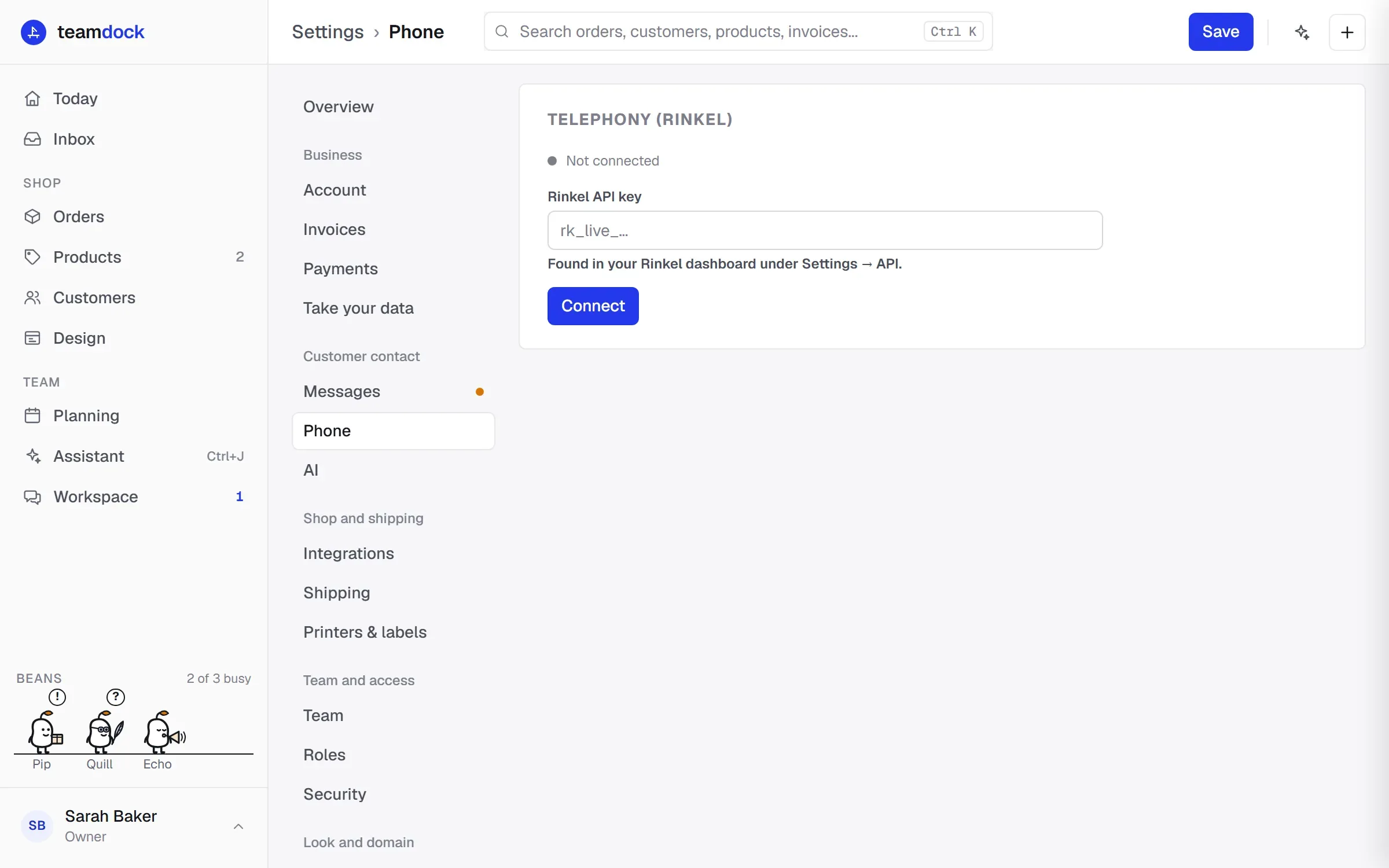
Connecting Rinkel
Section titled “Connecting Rinkel”- Create an API key in your Rinkel dashboard, under Settings → API.
- In Teamdock, go to Settings → Phone.
- Paste the key into Rinkel API key and click Connect.
The status changes to Connected. When connecting, Teamdock registers itself with Rinkel automatically to receive calls. You don’t need to set up a webhook in Rinkel yourself.
Default calling settings
Section titled “Default calling settings”After connecting, choose:
- Default device (for click-to-call): the phone or app that rings when you click call in Teamdock.
- Default caller ID number: the number the customer sees when you call.
Click Save at the top.
Incoming calls
Section titled “Incoming calls”When someone calls your Rinkel number, an Incoming call alert appears at the bottom right of Teamdock with the caller’s number, and you hear a sound. Click Find customer to open the customers matching that number right away. The cross closes the alert.
Want an alert on your phone or computer when Teamdock isn’t open too? Turn on Incoming calls under Settings → Notifications. See Notifications.
Calling a customer
Section titled “Calling a customer”On the Customers and Orders pages, a Call button sits next to a phone number. Click it, optionally choose under Call via which number to call from, and start the call. Rinkel first rings your default device and then connects you to the customer.
Disconnecting
Section titled “Disconnecting”On Settings → Phone, click Disconnect. Teamdock then stops receiving calls and the Call button no longer works.
Troubleshooting
Section titled “Troubleshooting”- Connection failed. Check that you pasted the full API key and that it is still active in Rinkel.
- “Rinkel is not connected” when you click Call: connect Rinkel first under Settings → Phone.
- “No device configured” when you call: choose a Default device (for click-to-call) and click Save.
- I don’t see the Phone page. Your role may not manage connections. Ask an administrator.