
Connecting carriers
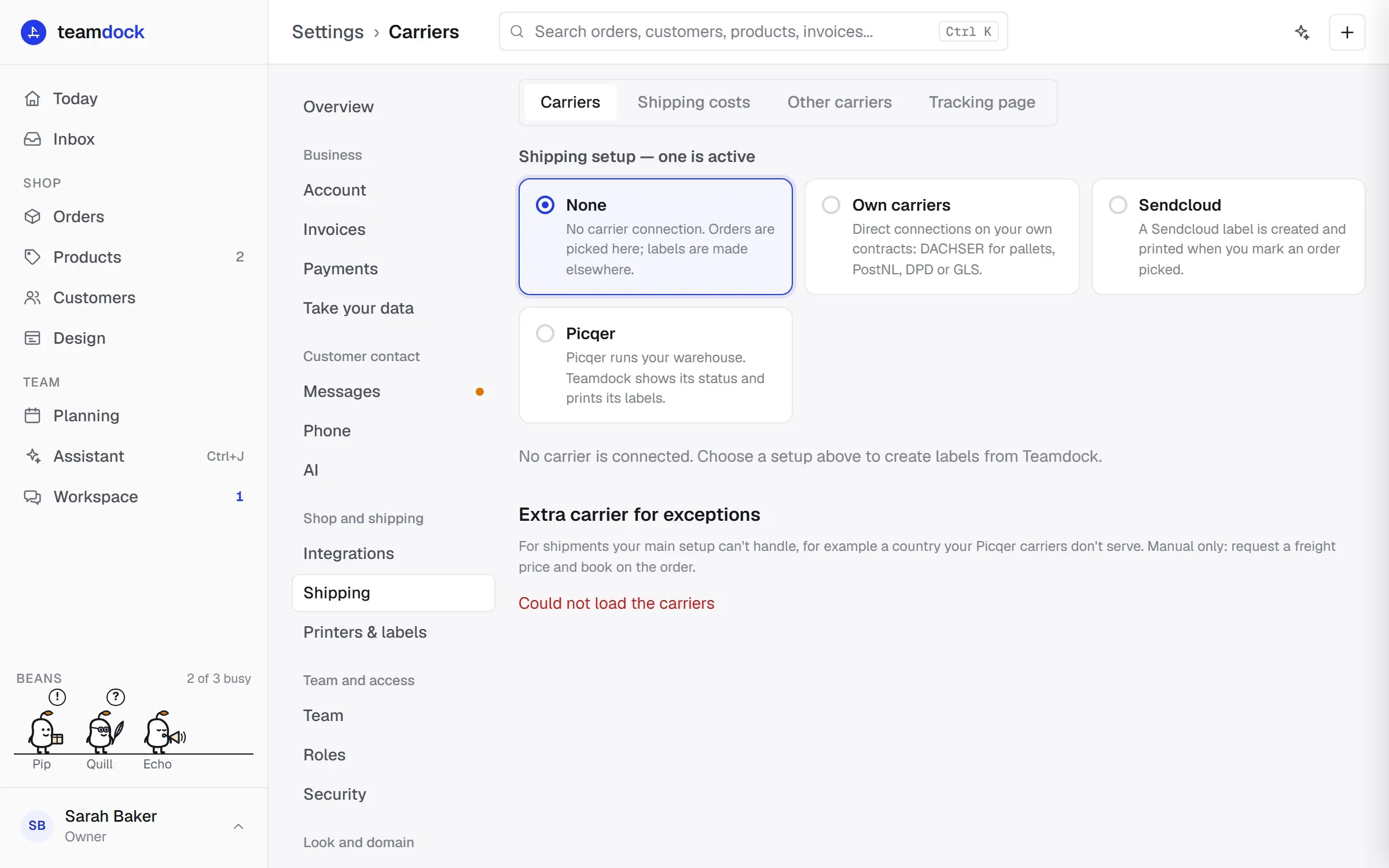
On Settings → Shipping → Carriers you decide how Teamdock ships your orders. You first choose one shipping setup, then connect the carriers that belong to it.
What each connection can do
Section titled “What each connection can do”| Connection | Setup | Get price | Book + label | Tracking | Cancel | Proof of delivery |
|---|---|---|---|---|---|---|
| DACHSER | Own carriers, or extra carrier | Yes | Yes | Yes | Yes, as long as not sent | Yes |
| PostNL | Own carriers | No | No | No | No | No |
| DPD | Own carriers | No | No | No | No | No |
| GLS | Own carriers | No | No | No | No | No |
| Sendcloud | Sendcloud | No | Yes, when picking | Through notes on the order | No | No |
| Picqer | Picqer | No | Yes, through Picqer | Up to “shipped” | No | No |
| Pier | Next to any setup | Through your own rates | Booking by endpoint or e-mail | Yes | Withdraw registration | Yes, through the driver link or the carrier |
PostNL, DPD and GLS are “connection test only” for now: Teamdock stores your credentials and checks that they work, but does not book with these carriers yet. If you want to make PostNL, DPD or GLS labels from Teamdock, use Sendcloud or Picqer.
Choosing your shipping setup
Section titled “Choosing your shipping setup”Under Shipping setup — one is active there are four choices: None, Own carriers, Sendcloud and Picqer.
- Go to Settings → Shipping → Carriers.
- Click the setup you want to use.
- Confirm the question. The choice is saved straight away.
- Below it, only that setup’s configuration appears. Connect your carrier or account there.
What each setup shows on the screen:
- None: only the message that no carrier is connected. You can still connect DACHSER below it as an extra carrier.
- Own carriers: the PostNL, DPD and GLS cards, and the Booking through Teamdock block with DACHSER and the Carrier rules.
- Sendcloud: the Sendcloud card, and below it the Extra carrier for exceptions block.
- Picqer: the Picqer connection, and below it the Extra carrier for exceptions block.
A carrier as an extra carrier
Section titled “A carrier as an extra carrier”Under Picqer, Sendcloud or None you can connect DACHSER as an Extra carrier for exceptions: for shipments your main setup can’t handle, for example pallets to a country your Picqer carriers don’t serve. An extra carrier is manual only:
- On a new order you click Get freight price yourself; Teamdock does not ask automatically.
- On the order you book with Book shipment. A carrier is never pre-selected and automations do not book with it.
How to connect DACHSER is on DACHSER. Under Picqer you also see One-time setup in Picqer, so Picqer makes no second label; see Picqer.
Carrier rules
Section titled “Carrier rules”Under the Own carriers setup, once DACHSER is connected, you see the Carrier rules block. The first rule that matches pre-selects the carrier when booking and puts its price first in the order form.
- Click Add rule.
- Fill in what the rule applies to:
- Countries: country codes separated by commas, for example
DE, AT. Empty = all countries. - Except: countries that are left out, for example
NL, BE, LU. - Shipment: Anything, Pallets or Parcels.
- Countries: country codes separated by commas, for example
- Choose the Carrier and optionally a Product (a DACHSER product code, for example
Y). - Click Save rules.
If you have never saved any rules, one default rule applies: pallets outside the Netherlands, Belgium and Luxembourg go with DACHSER. If you save an empty list, you see No rules — nothing is pre-selected.
A rule only pre-selects; in the booking window you can always choose another carrier or product. Rules do not apply to an extra carrier.
Troubleshooting
Section titled “Troubleshooting”- You see no carriers, only a message. The setup is set to None. Choose another setup.
- Test connection gives an error. Check the details with your carrier. For a key you have just typed: click Save first, then test.
- “Could not load the carriers”. Refresh the page. If it persists, contact support.