
Creating an order or quote
With New order you create an order yourself, for example for a customer in the shop or on the phone. Or you make a quote: an order that has not been paid yet, for which the customer gets a payment link straight away. The order is saved in your WooCommerce shop like any other.
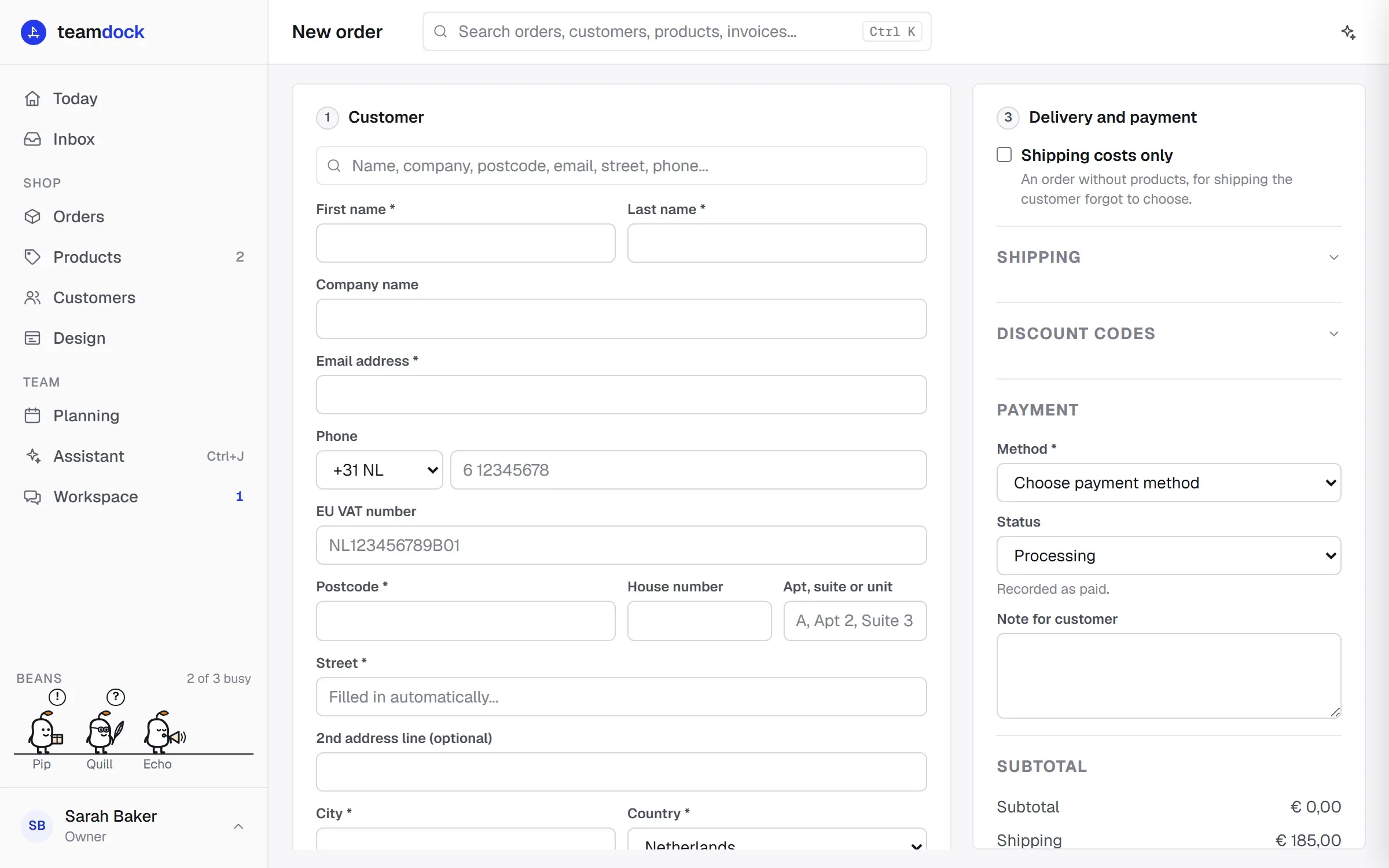
The form has three steps: Customer, Product and Delivery and payment. A tick next to a step means it has been filled in.
Creating an order
Section titled “Creating an order”- Click New order in the menu (or press
n). - Customer: search for the customer by name, company, postcode, email, street or phone number and pick them from the list. If the customer is not there, fill in the details yourself. Fields with an asterisk are required.
- Product: search for a product by name or SKU and click Add. For a variable product, choose the variation first. Change the quantity in the table; underneath it shows how many are available.
- Delivery and payment: choose a shipping method or Manual (enter yourself), choose the payment method under Payment, and choose the status.
- Check the total and click Create order.
For the status you choose between:
- Processing: the order is recorded as paid. Choose this when the customer has already paid, for example by card in the shop.
- On hold: not paid. Set the order to Processing later, once the money is in.
Under Note for customer you can add a remark that is stored with the order.
Making a quote
Section titled “Making a quote”A quote is an order with the status Pending payment and the label Quote. The customer immediately receives your shop’s order email with the link to pay.
- Fill in the customer and products as for an order. You do not need to choose a payment method.
- Under Quote, choose who it is for:
- On customer account: the quote appears in the customer’s orders in your shop. If the customer is new, Teamdock creates an account and the shop emails the customer about it.
- As guest: no account is created and the customer gets no account email.
- Click Create quote.
Either way the customer can pay without logging in. If the email fails, the quote is still created; send the link from the order with Email payment request.
Giving a discount
Section titled “Giving a discount”Open Discount codes under Delivery and payment.
- Choose a prefix: KORTING or INRUIL.
- Click Generate for a code, or type one yourself.
- Enter the Amount, or choose € 25, € 50 or € 100.
- Click Create discount code. The code is created in your shop and applied to this order.
A discount cannot be higher than the products. If part of it does not fit, you see how much.
Shipping costs
Section titled “Shipping costs”Teamdock works out your shop’s shipping methods for the products and the destination country. For pallet shipping it also calculates how many pallets are needed. Choose a method, or choose Manual (enter yourself) and enter a description and an amount. If you change the amount yourself, Teamdock stops calculating it automatically; Recalculate turns that back on.
How carriers and rates work is explained in Carriers.
Shipping costs only
Section titled “Shipping costs only”Did a customer forget to choose a shipping method? Turn on Shipping costs only. You then make an order without products, with just an amount for shipping. Under Belongs to order, search for the original order: Teamdock fills in the customer and addresses and links both orders to each other. Nothing is picked or shipped.
You can also do this quickly from the original order: More actions → Bill shipping costs.
VAT for business customers in the EU
Section titled “VAT for business customers in the EU”If you enter an EU VAT number for a customer from another EU country, Teamdock checks the number with VIES. If it is valid, VAT is reverse-charged (0%). For a delivery outside the EU the rate is 0% (export). The total in the form is an estimate; WooCommerce calculates the final VAT.
If VIES could not confirm the number yet, Teamdock asks whether you want to place the order with reverse charge anyway. If you say yes, Teamdock keeps checking the number in the background and reports on the order if it is not valid.
Clearing the form
Section titled “Clearing the form”Clear form empties everything. If you leave the page without creating the order, the form is cleared as well, so next time you do not accidentally start with another customer’s products.