
Import files
If you already have the photos, for example from a photographer or your supplier, you don’t need a photoshoot. With Import files you upload them from your computer and Teamdock turns them into drafts, just as with a photoshoot. The card with details is the same as in the photoshoot.
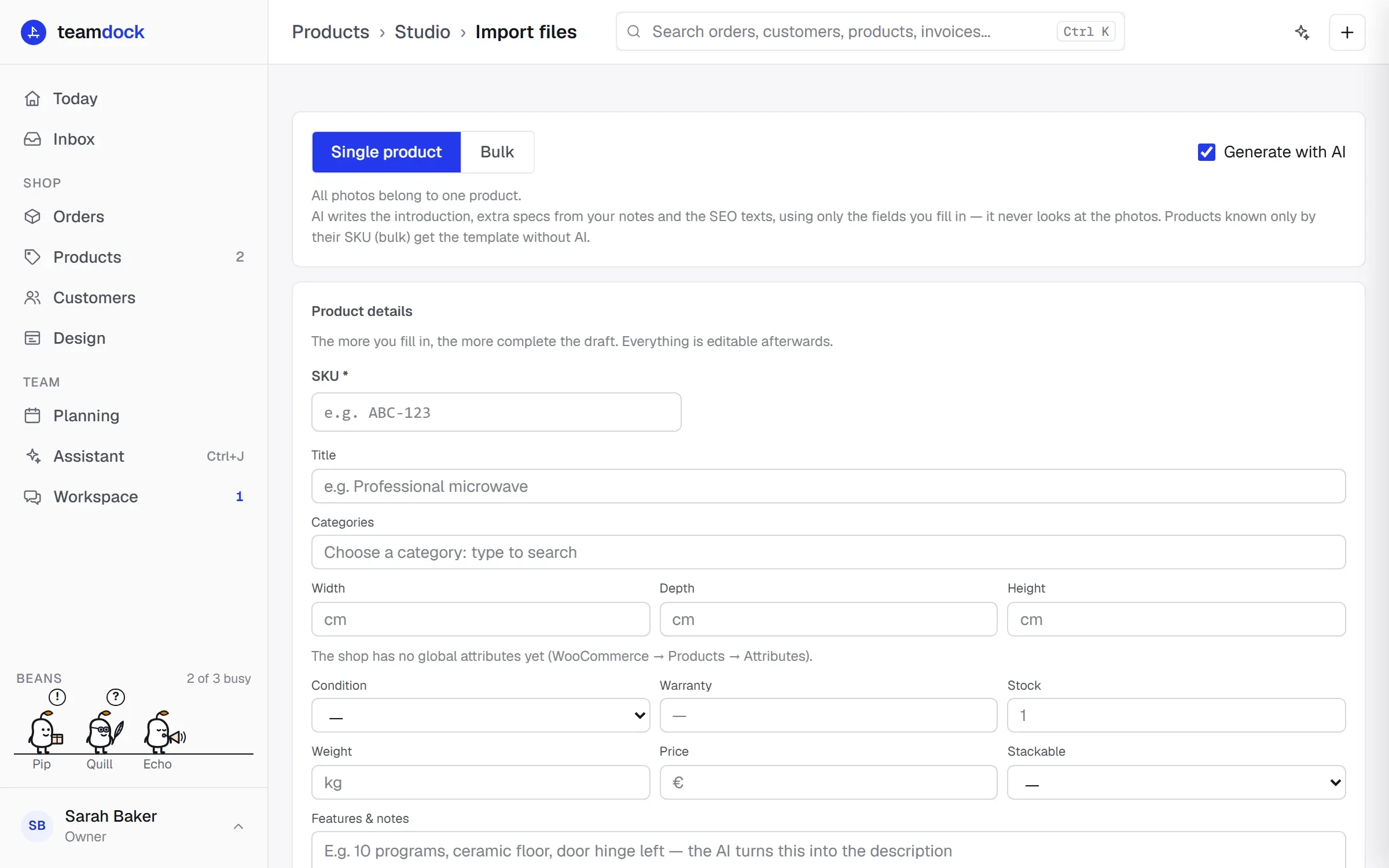
Go to Products → Studio → Import files.
Import one product
Section titled “Import one product”- Choose Single product at the top (default).
- Under Product details, fill in the SKU. It is required.
- Fill in as much of the rest of the card as you can: title, category, dimensions, attributes, notes. The more you fill in, the more complete the draft. Everything is editable afterwards.
- Drag the photos onto the Drag photos here box, or click Browse files. JPEG, PNG and WebP work.
- Leave Generate with AI on or switch it off.
- Click Create draft.
The photos are scaled down and, if set up, given a watermark, according to the Studio settings. The first photo becomes the main photo.
Many products at once (bulk)
Section titled “Many products at once (bulk)”In bulk, Teamdock groups your photos into products by the SKU in the file name.
- Choose Bulk at the top.
- Drag all the photos onto the box in one go, or pick them with Browse files.
- Under Products detected you see how many photos belong to each SKU.
- Click Fill in fields on a product to complete its card. The cross removes a product and its photos.
- Click Create … drafts.
What the file names must look like
Section titled “What the file names must look like”Teamdock removes the sequence number at the end of the file name; what is left is the SKU. The sequence number may follow a hyphen, full stop, underscore or space:
| File name | Detected SKU |
|---|---|
ABC-123-1.jpg, ABC-123-2.jpg |
ABC-123 |
ABC-123_1.jpg |
ABC-123 |
ABC-123.2.png |
ABC-123 |
15433.jpg |
15433 |
What the AI does here
Section titled “What the AI does here”With Generate with AI, the AI writes the introduction, extra specifications from your notes and the SEO texts, using only the fields you fill in. It does not look at the photos. A product for which you only have the SKU in bulk (no title, notes or attributes) gets the template without AI. More on this: Studio.
During and after the import
Section titled “During and after the import”- Keep the page open while Teamdock uploads. For each product you see Uploading …/… and then Done or Failed.
- If required fields are missing, nothing is made until you have filled them in. They are shown in red.
- Afterwards you see how many products were created. Click Review drafts to check and publish them, or Import more for the next set.
- If a product fails, Failed shows why, for example when your monthly number of drafts is used up (see Studio).