
Tasks and agenda
With Tasks you give work to a colleague or to a whole department, so nothing gets left behind. In the Agenda you put appointments and deadlines the whole team needs to see. You find both in the sidebar under Planning.
Creating a task
Section titled “Creating a task”- Go to Planning → Tasks and click New task.
- Under Task, briefly say what needs doing, for example “Pack and ship order #1234”. Put more explanation under Details.
- Choose who does it:
- a colleague under Assign to, and/or
- a role under Department. A task for a department without a person goes into a shared queue that any member of that department can pick up.
- Choose a Priority (Low, Normal or High) and optionally a Due date.
- Click Save.
A task must always belong to a person or a department, otherwise you cannot save it. Whoever gets the task receives a notification on their phone or computer. For a department task without a person, all members of that department get the notification. You don’t get a notification for a task you made yourself.
Your task list
Section titled “Your task list”At the top of the page you choose what you see:
- Mine: tasks assigned to you, plus tasks in your departments’ queues that nobody has picked up yet.
- All: all of the team’s tasks. Use All departments to filter on one department.
- Open or Done: open or finished tasks.
Each task shows who has it, or Unclaimed if it is still in a department’s queue.
Claiming, finishing and reopening
Section titled “Claiming, finishing and reopening”- Click Claim to take a task from your department’s queue for yourself.
- Click the circle in front of a task to mark it done (Mark done). Click again to put it back (Reopen).
- Click the task itself to edit it.
Anyone can change a task’s title, details, priority and due date. Moving a task to another person or department, and deleting a task, is only possible for someone with the level Full on Tasks.
Tasks can also come from other places in Teamdock, for example from a ticket, a discussion in the workspace or an automation. A task that belongs to a ticket shows that ticket.
Agenda
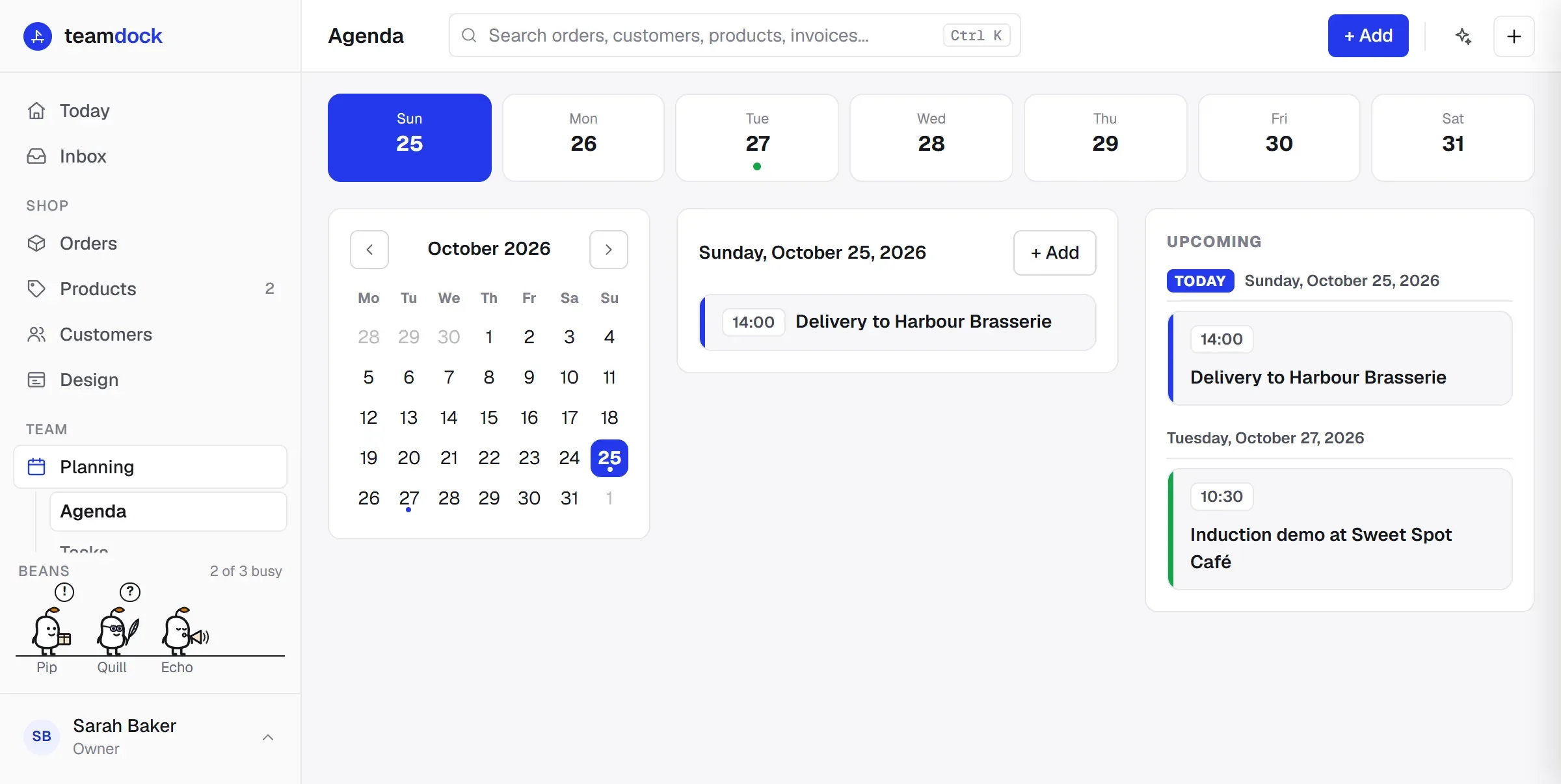
Section titled “Agenda”The agenda shows a month calendar, the items of the chosen day and an Upcoming list.
Adding an item
Section titled “Adding an item”- Go to Planning → Agenda.
- Click a day in the calendar and click Add.
- Enter a Title, for example “Supplier visit”.
- Check the Date and optionally fill in a Time. Without a time it becomes an All day item.
- Optionally choose a colleague under Assign to. Type part of the name to search.
- Choose a Color and optionally add a Description.
- Click Save.
To change or remove an item, open it from the day list and click Save or Delete.
Having tasks and agenda items made automatically
Section titled “Having tasks and agenda items made automatically”You don’t have to do everything by hand:
- The assistant can create an agenda item or a task when you ask. It always asks for your approval first.
- An automation can create an agenda item, for example for a large order, or a task for a department.
On your phone
Section titled “On your phone”In the Teamdock app your tasks are grouped by time (overdue, today, later) and you tick them off with a swipe. A task you tick off without a connection is sent as soon as you are back online. See The Teamdock app.