
Notifications
Teamdock can send you a notification on your phone or computer, even when Teamdock isn’t open. For example when a customer replies on your ticket, when someone gives you a task, or when someone calls. You turn notifications on per device and choose what you want to hear about. The settings apply only to you, not to your colleagues.
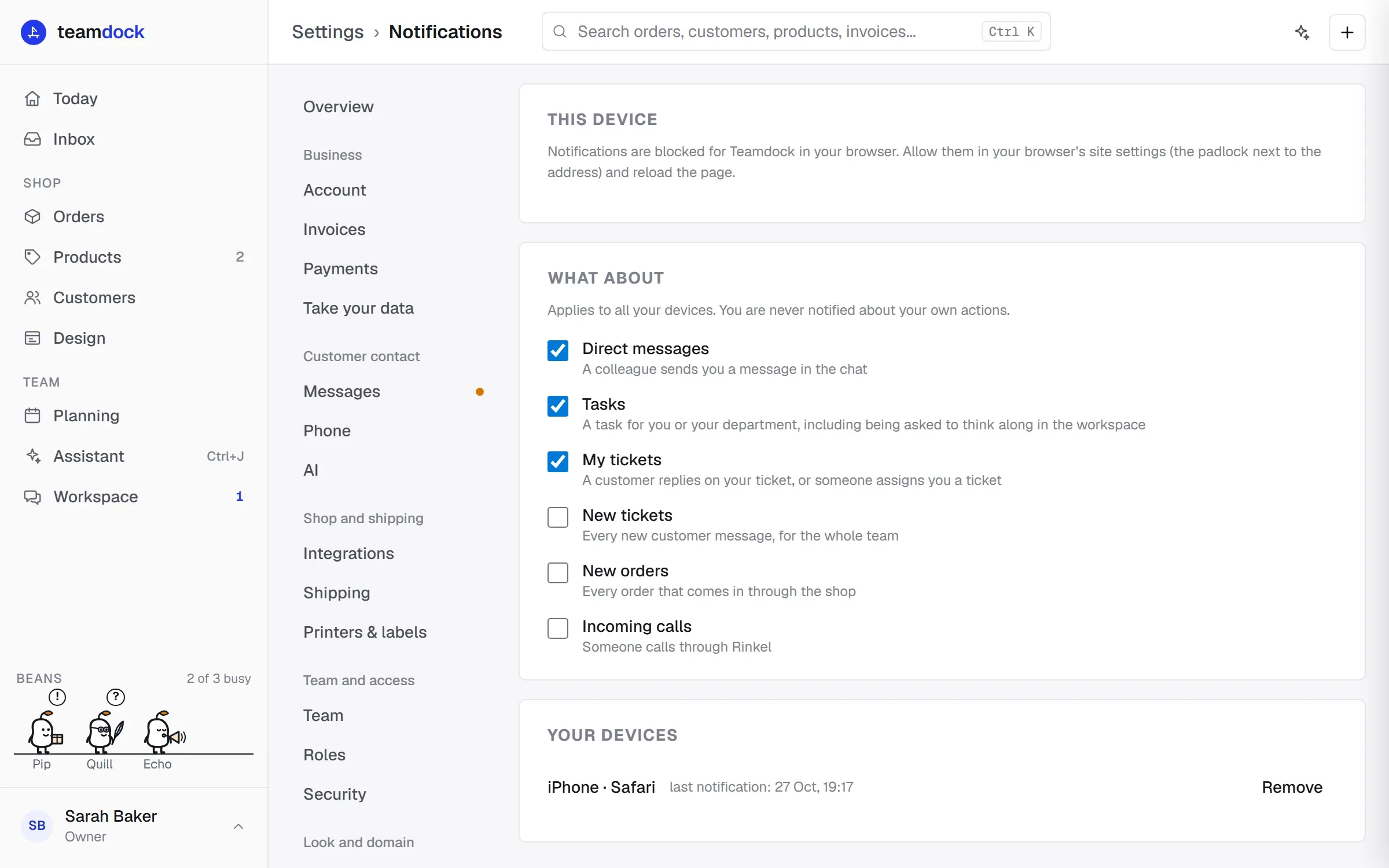
Everything is under Settings → Notifications.
Turning on notifications on this device
Section titled “Turning on notifications on this device”- Open Teamdock on the device where you want notifications.
- Go to Settings → Notifications.
- Under This device, click Turn on notifications.
- Your browser or phone asks whether Teamdock may send notifications. Choose allow.
- Click Send a test to check that it works.
Repeat this on every device where you want notifications, for example your laptop and your phone.
What do you want to be notified about?
Section titled “What do you want to be notified about?”Under What about, tick what you want to receive. This applies to all your devices. You are never notified about your own actions.
| Kind | When | Default |
|---|---|---|
| Direct messages | A colleague sends you a message in the chat | On |
| Tasks | A task for you or your department | On |
| My tickets | A customer replies on your ticket, or someone assigns you a ticket | On |
| Beans | A bean asks you for approval, or gets stuck | On |
| Pick lists | A new pick list in a chat channel you are in | On |
| New tickets | Every new customer message, for the whole team | Off |
| New orders | Every order that comes in through the shop | Off |
| Incoming calls | Someone calls through Rinkel | Off |
You only see the kinds that match your access. For example, if you have no access to the Inbox, you get no notifications about tickets either.
Privacy
Section titled “Privacy”A notification never names a customer or what they wrote. You only see what happened, such as “The customer replied” on ticket #12. You see the rest once you open Teamdock. That way nothing sensitive appears on a locked screen.
Managing your devices
Section titled “Managing your devices”Your devices lists every device where you turned notifications on, with the time of the last notification. Click Remove to stop a device, for example an old phone. On the device itself you can also choose Turn off on this device.
Troubleshooting
Section titled “Troubleshooting”- “Notifications are blocked for Teamdock in your browser.” You clicked block earlier. Allow notifications in your browser’s site settings (the padlock next to the address) and reload the page.
- “This browser cannot receive notifications.” Use a recent version of Chrome, Edge, Firefox or Safari.
- Notifications are off in the app. Turn them on in your phone’s settings (Settings → Notifications → Teamdock) and then come back to this page.
- The test doesn’t arrive. Turn notifications off and on again on this device. Also check that your phone or computer isn’t set to Do Not Disturb.