
Account and subscription
This part explains how to manage your Teamdock account: your subscription and payments, your company details, the security of your login, how Teamdock looks, your own domain, and what happens to your data.
Where to find what
Section titled “Where to find what”Open Settings at the bottom left of the sidebar (click your name), or press Ctrl+, (on a Mac ⌘,). You see all settings in groups, with a dot showing what is already set up and what still needs doing.
| What | Where | Read more |
|---|---|---|
| Your subscription, card, invoices and AI credits | Settings → Payments | Subscription and billing |
| Company name, address, VAT, KvK and bank | Settings → Account → Legal entity | Company details |
| Two-factor authentication, devices, signing in to the app | Settings → Security | Security |
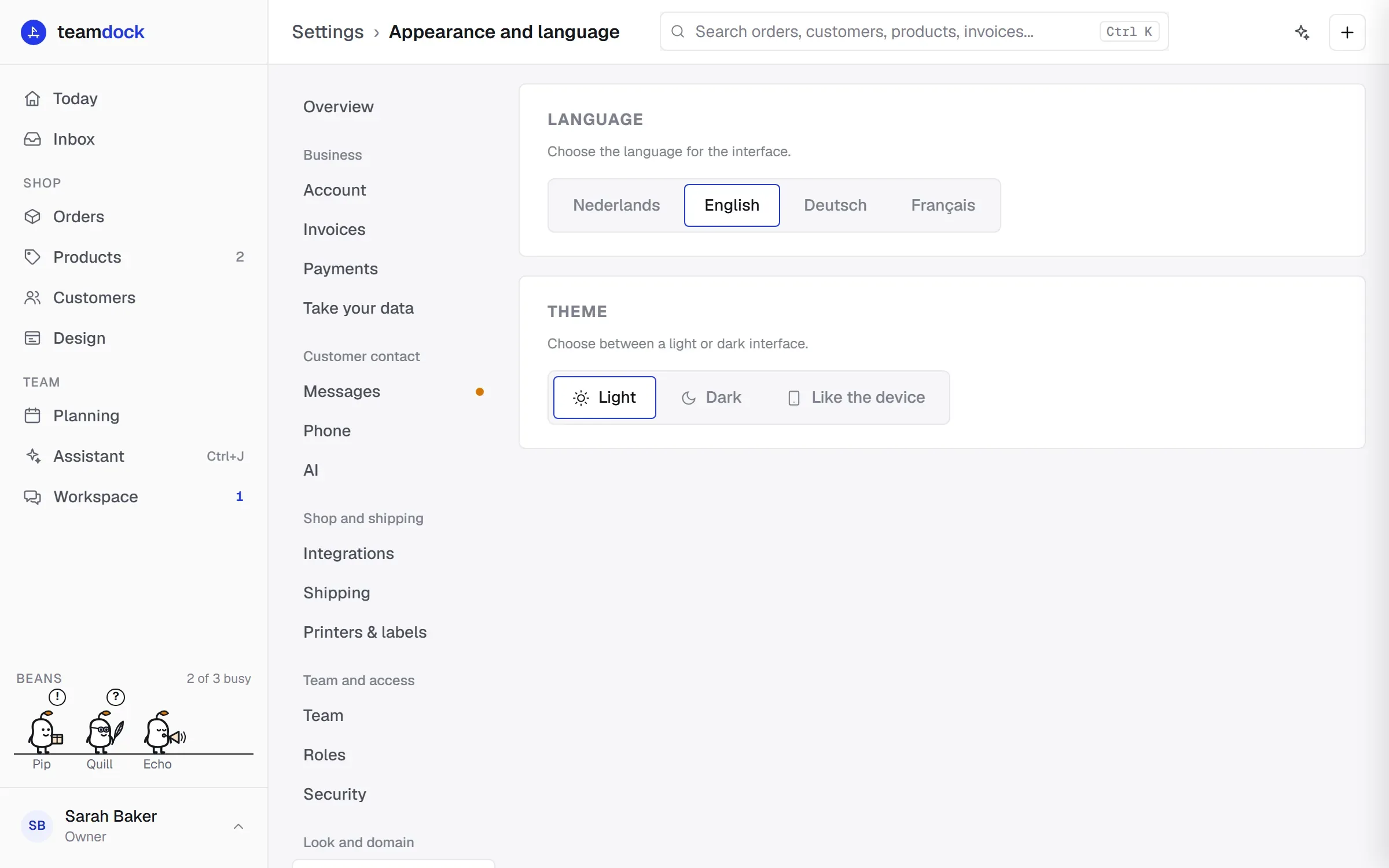
| Language and theme | Settings → Appearance | Below |
| Your back-office on your own subdomain | Settings → Back-office domain | Back-office domain |
| Export and retention periods | Settings → Take your data and Settings → Security | Data and privacy |
You only see the settings your role allows. Appearance, Security and Notifications are personal and everyone has them. For the subscription and the export you need the right Subscription, payments and taking your data. The back-office domain, the custom shop domain and the AI settings are for the owner only. See Members and roles.
Language and theme
Section titled “Language and theme”Under Settings → Appearance you choose how Teamdock looks for you:
- Language: Nederlands, English, Deutsch or Français.
- Theme: Light, Dark, or Like the device.
You can also switch both quickly from the account menu at the bottom left: click your name and then Language or Theme. These choices only apply to you.
After setting up
Section titled “After setting up”If your workspace is new, go through these points:
- Fill in your company details. They appear on your invoices and your privacy page.
- Switch on two-factor authentication for your own account.
- Check under Settings → Payments → Subscription that your subscription is shown correctly. See Subscription and billing.