
AI settings and privacy
Teamdock uses AI for the assistant, product texts, looking up product data and sorting tickets, among other things. You don’t need to set anything up for it: there are no keys to enter and no providers to choose. Under Settings → AI you see how it works, and the owner can switch on extra services if they want.
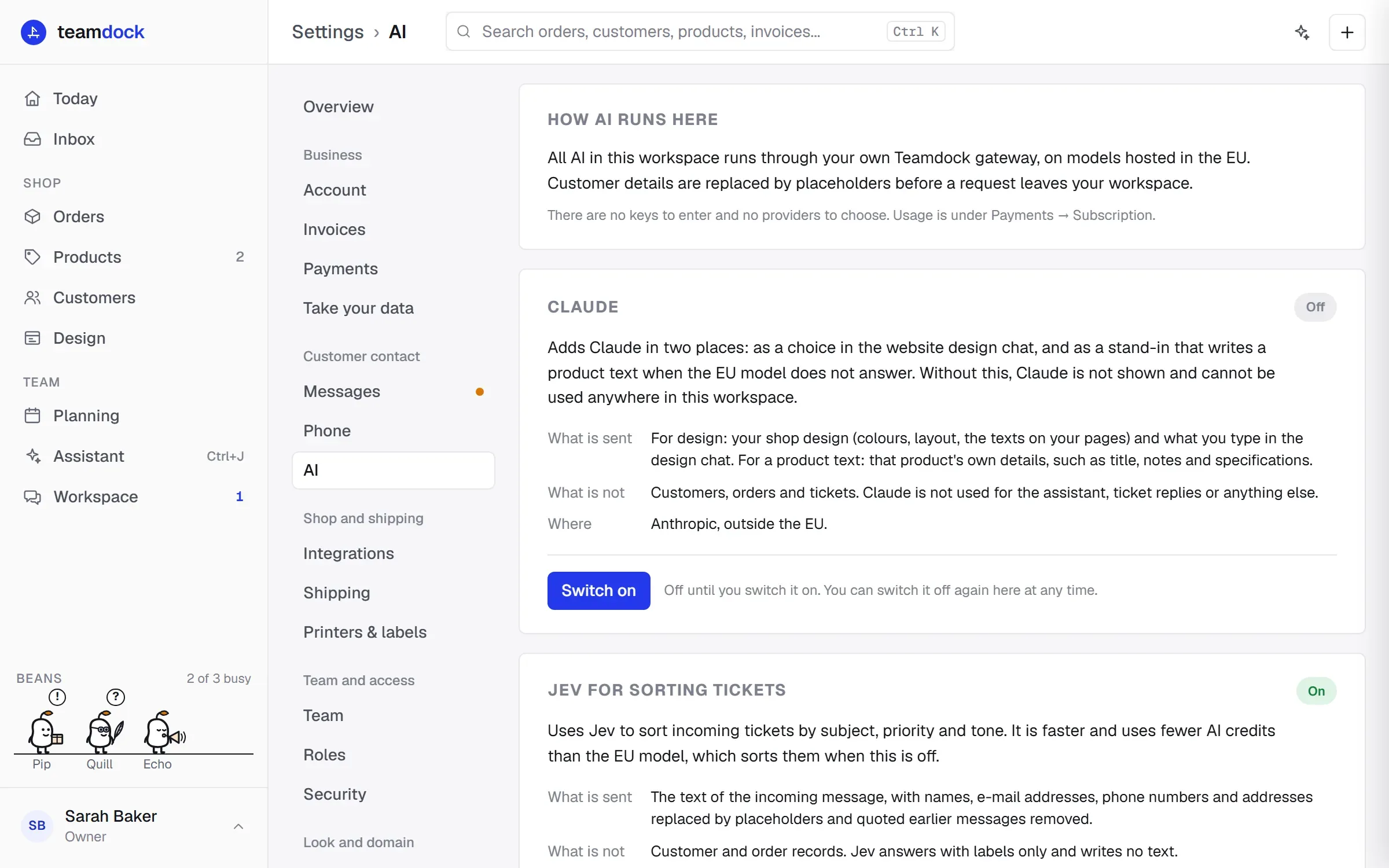
How AI runs here
Section titled “How AI runs here”- All AI in your workspace runs through your own Teamdock gateway, on models hosted in the EU.
- Customer details are replaced by placeholders before a request leaves your workspace.
- Usage is shown under Settings → Payments → Subscription, under AI credits. See Subscription and billing.
Does it say “AI is not switched on for this workspace yet”? Contact Teamdock to have it set up.
Extra services outside the EU
Section titled “Extra services outside the EU”Teamdock can offer your workspace two extra services. They only appear on the page when they are available for your workspace, and they are off until the owner switches them on. Each service says exactly What is sent, What is not and Where.
Claude
Section titled “Claude”Adds Claude (by Anthropic, outside the EU) in two places:
- as a choice in the website design chat;
- as a stand-in that writes a product text when the EU model does not answer.
No customers, orders or tickets go to Claude. Claude is not used for the assistant or for ticket replies.
When Claude is on, you choose under Who writes product texts and answers the bean?:
- The EU model (Mistral): everything stays in the EU. Claude writes a product text only when the EU model does not answer.
- Claude: Claude writes the product texts and answers the bean; the EU model steps in when Claude does not answer. Photos you show the bean always stay with the EU model.
Jev for sorting tickets
Section titled “Jev for sorting tickets”Uses Jev (by TypeSafe, in the United States) to sort incoming tickets by subject, priority and tone. It is faster and uses fewer AI credits than the EU model, which sorts them when this is off. Jev only receives the text of the incoming message, with names, email addresses, phone numbers and addresses replaced by placeholders. Jev answers with labels only and writes no text.
Switching on and off
Section titled “Switching on and off”- Go to Settings → AI.
- Read what the service sends and where.
- Click Switch on. You then see On since with the date.
- To switch it off, click Switch off. You can do that at any time.
Where else you decide about AI and privacy
Section titled “Where else you decide about AI and privacy”- Confidential discussions: in the workspace you set a discussion to Without the bean. Nothing of that discussion then goes to an AI model. See Team chat and workspace.
- What the assistant may do: the assistant can only reach what your role allows, and you must approve every change first. See The assistant.
- Bean work instructions: style only, never facts. See Worker beans.