
Subscription and billing
You pay for Teamdock with a monthly subscription through Stripe. In your workspace you see which plan you have, when it renews, your invoices and your AI credits. Changing your plan, updating your card and cancelling are done in Stripe’s secure billing portal.
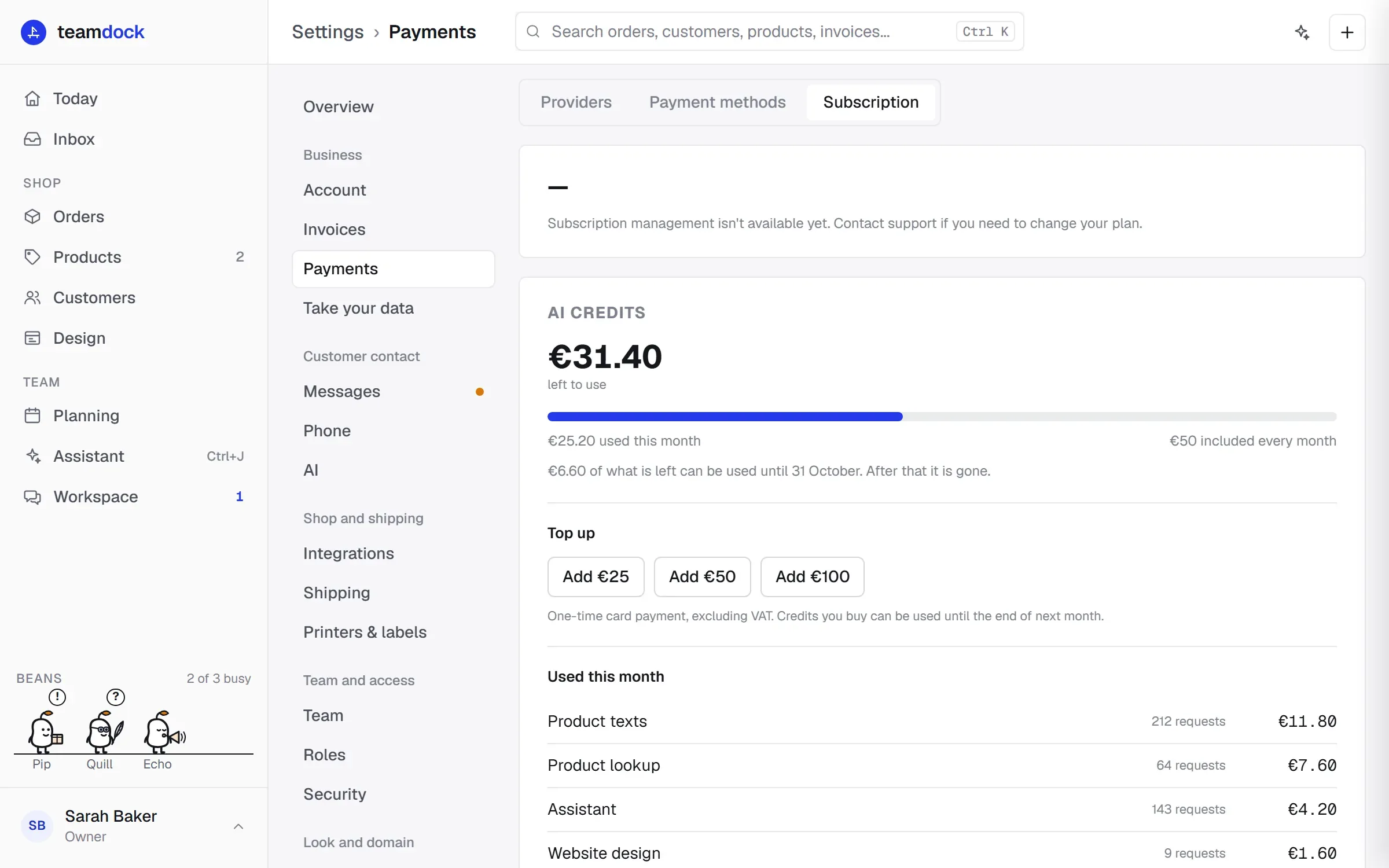
You find everything under Settings → Payments, on the Subscription and Payment methods tabs. The Providers tab is about the payment methods of your own web shop, not about your Teamdock subscription.
The plans
Section titled “The plans”| Essentials | Pro | Max | |
|---|---|---|---|
| Price per month, excl. VAT | €149 | €575 | €875 |
| Team members | up to 3 | up to 10 | up to 25 |
| AI credits per month | €10 | €50 | €100 |
| Worker beans | none | 1 | 3 |
| Getting started | yourself, with 14 days free | after a demo | after a demo |
Every plan is one workspace connected to one WooCommerce shop. An extra shop gets its own workspace. For all the differences and the current prices, see teamdock.ai/pricing.
The trial
Section titled “The trial”The free 14-day trial is for Essentials. You add a card when you sign up, but nothing is charged during the first 14 days. The first payment is taken on day 15. Cancel before then and you pay nothing. During the trial your subscription shows the status Trial and the date under Trial ends.
Viewing your subscription
Section titled “Viewing your subscription”Go to Settings → Payments → Subscription. You see:
- the name of your plan and any add-ons, such as WordPress hosting;
- the status: Active, Trial, Past due, Unpaid, Incomplete or Canceled;
- the Price;
- Renews on, or Cancels on if you have cancelled;
- your Invoices from Teamdock. Click View in Stripe to open or download an invoice.
Managing your subscription
Section titled “Managing your subscription”- Go to Settings → Payments → Subscription.
- Click Manage subscription. Stripe’s billing portal opens in a new tab.
- Change your plan, update your payment details or cancel there.
A change of plan takes effect at the next billing cycle. To move to Pro or Max, book a demo through teamdock.ai.
Cancelling
Section titled “Cancelling”Cancel through Manage subscription. Your subscription keeps running until the end of the period you have already paid for; your subscription then shows Cancels on with the date. What happens to your workspace’s data after that is described in Data and privacy.
Updating your credit card
Section titled “Updating your credit card”- Go to Settings → Payments → Payment methods.
- You see the card you pay your Teamdock subscription with, and its expiry date.
- Click Update card. You go to Stripe’s billing portal and change your card there.
Your card details are stored securely by Stripe. Teamdock never sees your card number.
AI credits
Section titled “AI credits”Every plan gets AI credits each month. They are used by product texts, product lookup, the assistant, ticket analysis and website design, among others.
Under Settings → Payments → Subscription, under AI credits, you see:
- how much has been used this month and how much is left;
- how much is included every month;
- until when part of the remaining credits can be used;
- under Used this month: per feature, how many requests and how many credits.
Topping up
Section titled “Topping up”- Under Top up, choose an amount and click Add ….
- Pay once by card. The amounts exclude VAT.
- After paying you return to Teamdock. Your credits appear within a few minutes.
Credits you buy can be used until the end of next month. If you see no top-up buttons, contact Teamdock to add credits.
Troubleshooting
Section titled “Troubleshooting”“We couldn’t match this workspace to a Stripe billing account.” Teamdock cannot find your subscription. Check under Settings → Account → Legal entity that the Privacy contact email is the same as the email address you signed up with. See Company details.
“Subscription management isn’t available yet.” Contact Teamdock support to change your plan.
My status says Past due or Unpaid. A payment failed. Update your card through Payment methods → Update card.