
Team chat and workspace
Teamdock has two places to talk with colleagues:
- The Team chat is for quick messages: to the whole team, in a channel between departments, or directly to one colleague.
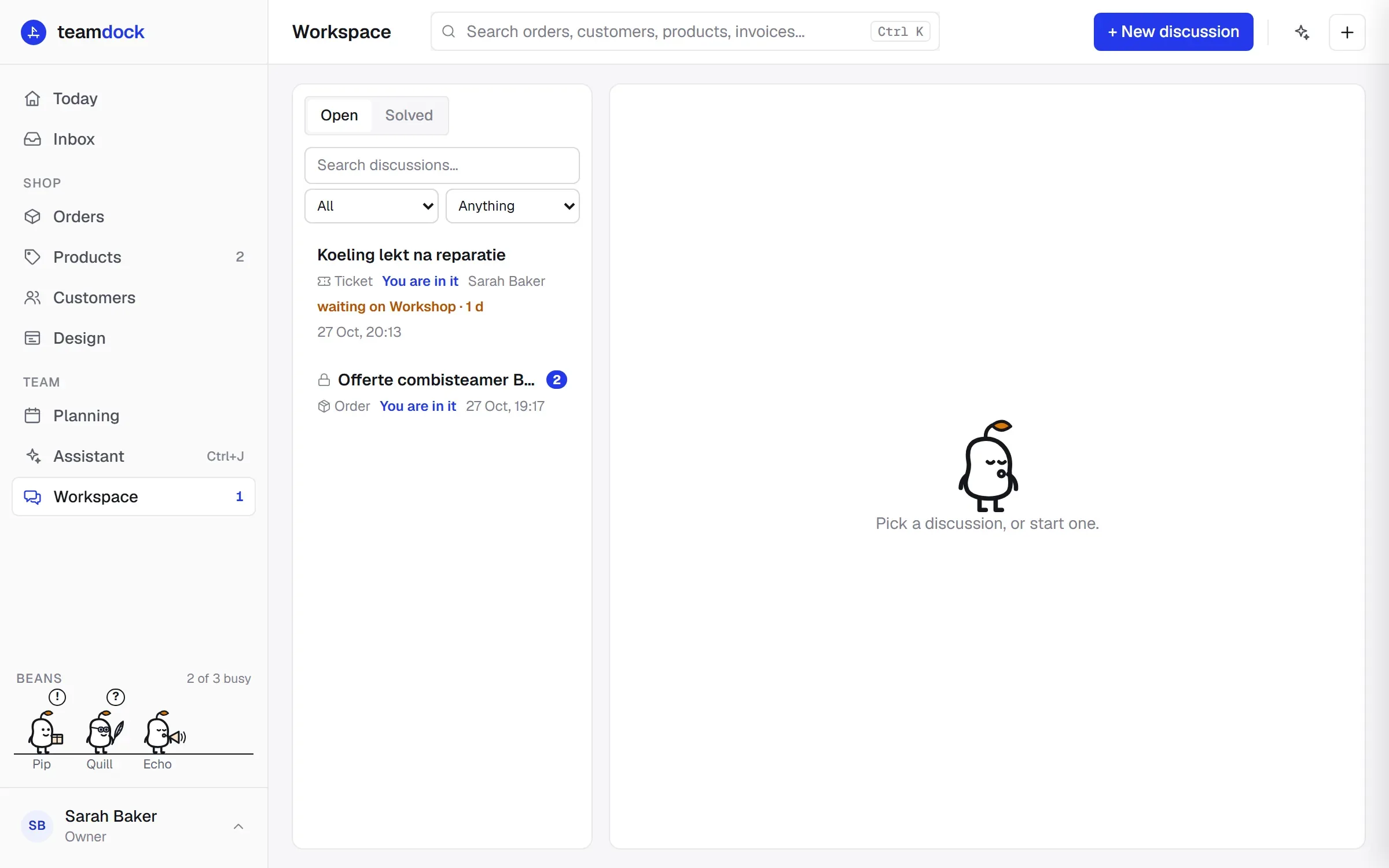
- The Workspace is for discussing something you cannot solve alone, such as a difficult ticket or an order that went wrong. The bean takes notes, and when you are done the agreed points become tasks.
Team chat
Section titled “Team chat”Opening the chat
Section titled “Opening the chat”Click your name at the bottom left of the sidebar to open the account menu, and click Team chat. The chat opens as a panel next to the page you are on, so you don’t have to leave your work. A number next to Team chat shows how many unread messages you have.
In the chat you see:
- Team: the conversation with the whole team.
- Your chat channels: only the channels of the departments you are in.
- Colleagues: pick a colleague to send a direct message. You also see who is online right now.
You can attach a photo or a file.
Chat channels between departments
Section titled “Chat channels between departments”A chat channel belongs to one or more departments, for example Sales / Warehouse. Only the members of those departments (and managers) read and write in it. If your logistics bean makes pick lists, it posts them in the channel and the members get a notification.
- First create the departments under Settings → Roles. A channel always belongs to a department.
- On the same page, scroll to Chat channels and click New channel.
- Give the channel a Name, for example “Sales / Warehouse”.
- Under Departments, choose who may use it.
- Click Save.
Deleting a channel also deletes all its messages. You need the right Manage roles, chat channels and shared logins for this.
Workspace
Section titled “Workspace”The Workspace in the sidebar is the place to work something out together. A discussion is seen only by the people in it: whoever started it, its owner, and whoever was brought in, by name or through a department. Other colleagues don’t see it in the list. On the ticket or order they only read that a discussion is running and whom to ask.
Starting a discussion
Section titled “Starting a discussion”About a ticket, order, product or customer:
- Open the ticket, order, product or customer.
- Click Discuss in workspace.
About something without a ticket or order:
- Go to Workspace and click New discussion.
- Enter a Subject.
- Optionally write your question under What are you stuck on?.
- Click Start.
Working it out together
Section titled “Working it out together”- Bring a colleague in: type
@and a colleague’s name in your message, or use Bring someone in and choose a colleague or a department. Whoever you bring in gets a task to think along. - Ask the bean: type
@beanin your message. The bean answers in the discussion. It never carries anything out itself. - The bean’s notes: next to the conversation the bean keeps track of the problem, what was tried, what was decided, what is still open and who does what. The notes are updated when the conversation pauses, or straight away with Update now. Click the source of a point to see the message it comes from.
- Solved before: if a discussion looks like something that was solved before, the workspace shows that solution.
- For the assistant: if the notes contain an action, you can give it to the assistant with Let the assistant do it. The assistant asks for your approval first. See The assistant.
Confidential discussions
Section titled “Confidential discussions”If it is about something sensitive, click Without the bean. The discussion is then Confidential: the bean does not read along, take notes or answer questions, and nothing of this discussion goes to an AI model. Notes from before that moment stay. Let the bean back in turns it back.
Closing a discussion
Section titled “Closing a discussion”- Click Close as solved.
- Choose what happens with the summary:
- Add to the ticket as an internal note, or
- Add to the order as a private note.
- Check the points under Agreed points as tasks. Pick a colleague for a point to turn it into a task, or add one with Add a point.
- Under For next time, optionally tick Keep as a solution. When the same thing comes up again, the workspace shows this solution.
- Click Close.
Only points with someone chosen become a task. This discussion’s “think along” tasks are ticked off. Closed discussions are under Solved.
Finding discussions again
Section titled “Finding discussions again”With the filters at the top you search by words, choose under For whom between All, Mine and My department, and choose under About what the discussion belongs to: a ticket, order, product, customer, or Standalone.