
Custom domain for your shop
A shop hosted by Teamdock first lives at yourname.teamdock.ai/wp. With Custom domain you put it on your own domain, for example yourbrand.com or shop.yourbrand.com. You get clean addresses, your brand in the address bar, and search engines see your own domain as your shop’s real address.
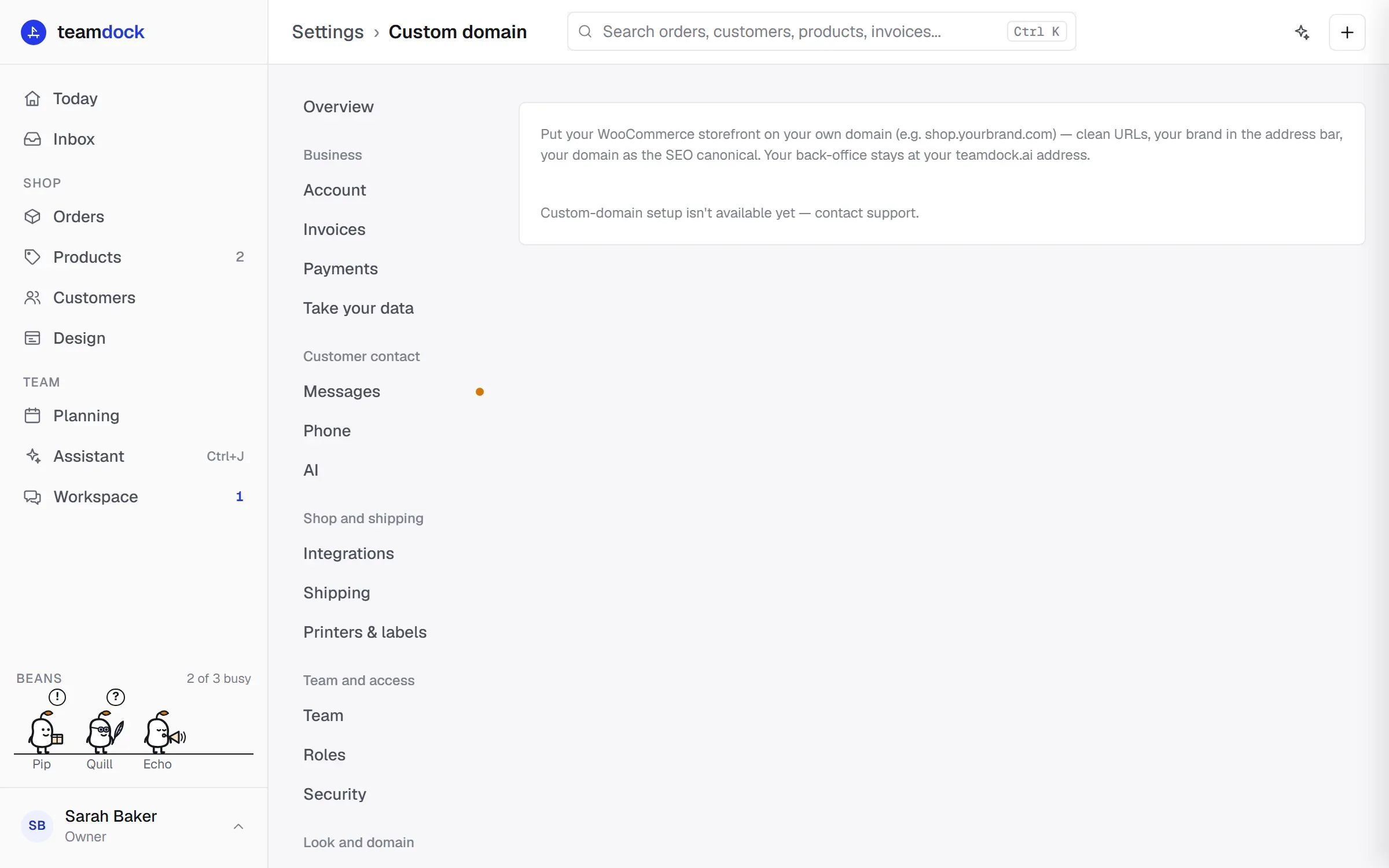
Your back-office (your workspace) stays at your teamdock.ai address. Want that on your own address too? See Back-office domain.
Only administrators see Settings → Custom domain.
Step 1: add the domain
Section titled “Step 1: add the domain”-
Go to Settings → Custom domain.
-
Enter the domain your shop should run on, for example
yourbrand.comorshop.yourbrand.com. If you typewww.in front, Teamdock removes it;wwwis included automatically. -
Click Add domain. Teamdock shows the DNS records you need to create.
You cannot use a teamdock.ai address here; choose a domain you own.
Step 2: create the DNS records
Section titled “Step 2: create the DNS records”Log in at the company where your domain is registered (your registrar or DNS provider) and create these two records:
| Type | Name | Value |
|---|---|---|
| A | @ |
91.99.103.153 |
| A | www |
91.99.103.153 |
@means the domain itself. If you entered a subdomain, such asshop.yourbrand.com, create an A record namedshopin the DNS ofyourbrand.com, and for www an A record namedwww.shop.- DNS only, no proxy. Use a direct A record. If your DNS provider has a proxy or CDN toggle (such as Cloudflare’s orange cloud), turn it off for these records.
- Remove other A records for the same domain, for example a record that still points to your previous hosting. The domain must point only to
91.99.103.153. A second A record makes the certificate request keep failing. - The www record is recommended. If
wwwdoes not (yet) point to us correctly, your shop still goes live, but only on the address without www.
Step 3: verify and go live
Section titled “Step 3: verify and go live”-
Wait until the DNS change has taken effect. Often that is within a few minutes; sometimes it takes longer.
-
In Settings → Custom domain, click Verify & go live.
-
Teamdock checks that your domain is set up correctly, requests a security certificate and switches your shop over. This usually takes about a minute. You can leave the page; it keeps going.
-
When it is done, you see Live and your domain with the Visit store button.
The statuses
Section titled “The statuses”| Status | What it means | What you do |
|---|---|---|
| Waiting for DNS | Your domain does not point (only) to us yet. The message says where it points now. | Check your DNS records and click Verify & go live again later. |
| Issuing certificate | Teamdock is requesting the certificate and switching your shop over. | Wait a moment. The page updates itself. |
| Live | Your shop runs on your own domain. | Nothing. |
| Error — try verifying again | Something went wrong. The reason is shown under the domain. | Fix the cause and click Verify & go live again. |
What changes when your domain is live
Section titled “What changes when your domain is live”- Your shop is at the root of your own domain, without
/wp. - The links in your shop (pages, products, images, wp-admin) go to your new domain. Your shop’s wp-admin is then at
yourbrand.com/wp-admin. - Teamdock automatically uses the new address to talk to your shop, and puts the shop notifications right again. You don’t need to create new keys.
- Anyone who opens your old address
yourname.teamdock.ai/wp/is sent on to your new domain. Search engines learn the new address this way too.
Removing your custom domain
Section titled “Removing your custom domain”-
Go to Settings → Custom domain.
-
Click Remove custom domain and confirm.
Your shop is then back at yourname.teamdock.ai/wp, the redirect from the old address disappears and Teamdock uses the teamdock.ai address again. The certificate is kept, so if you add the domain again later it goes faster. Afterwards, remove the DNS records at your registrar yourself if you no longer use them.
Frequently asked questions
Section titled “Frequently asked questions”I see the message that custom-domain setup isn’t available yet. Contact support.
Can I keep my email on the same domain? Yes. You only change the A records for the shop. Leave MX records and other records for your email as they are.